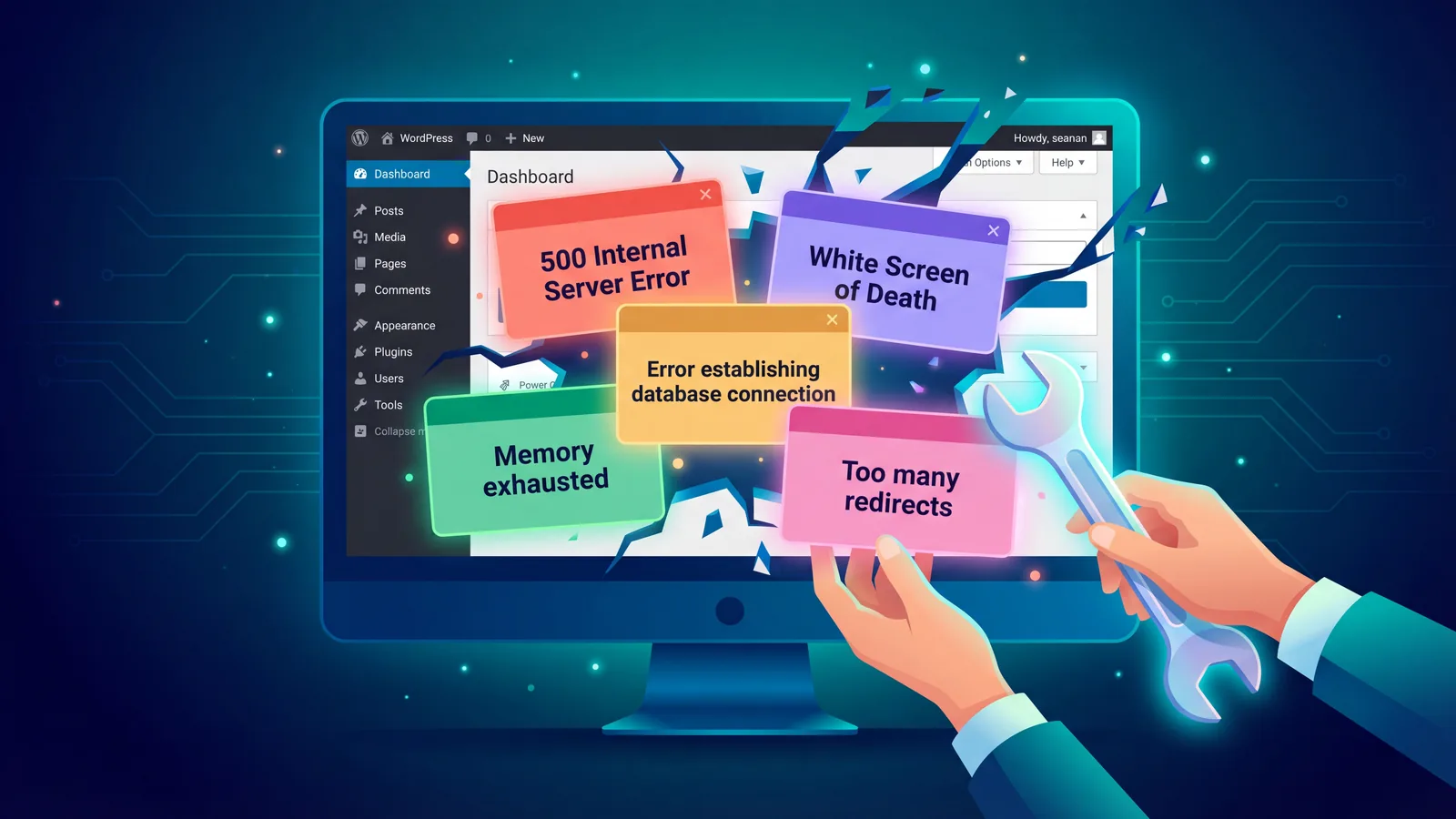
Your WordPress site is broken. You're staring at a white page, a 500 error, a database connection message, or that dreaded line: "There has been a critical error on this website." You need it fixed before your visitors notice, ideally before your coffee goes cold.
This is the complete reference guide to every common WordPress error you're likely to meet. The diagnostic workflow comes first, because most errors get solved in that workflow before you even need to look up the specific message. Then the error catalogue, 25 messages across 7 categories, each with the exact symptoms, causes, and fix steps. Every section has a direct anchor so you can share the link with the person fixing it.
A quick note on scope. We've been running WordPress hosting at 365i since 2002. Roughly 80 to 90 per cent of the errors that land in our support inbox trace back to one of three things: a plugin conflict, a PHP memory limit, or a corrupted configuration file. If you fix those, the rest of this guide becomes optional reading.
Tools you'll need
- A web browser
- An FTP or SFTP client (FileZilla, Cyberduck, WinSCP) or access to your hosting File Manager
- A plain text editor (VS Code, Notepad++, Sublime Text) for editing
wp-config.php - Access to your hosting control panel for phpMyAdmin and PHP error logs
- Your WordPress admin login (when you can still reach it)
No consumable supplies required. Every fix in this guide uses WordPress core files or free tools.
The guide has three parts. Part 1 is the diagnostic workflow, use this on every error. Part 2 is the creative table of contents, use it to jump to the exact error category you're hitting. Part 3 is the complete error catalogue with specific fixes.
Part 1: The Universal WordPress Diagnostic Workflow
Before you touch a specific error, work through this. It's the same triage order our support team uses on every ticket. Nine times out of ten you won't need the error catalogue at all. You'll find the problem during the diagnostic.
Before You Touch Anything

Step 1: Take a backup before anything else
Your site is already broken. What you want to avoid is breaking it more while trying to fix it. Before you edit a single file, take a backup.
If you can still reach wp-admin, use your hosting control panel's one-click backup or a plugin like UpdraftPlus. If you can't reach the admin, use your hosting control panel to snapshot the files and the database directly. Most decent hosts (including 365i) have a "Restore Point" button that takes a full snapshot in seconds. One thing to get right: you want a restore point from before the problem started, which is exactly why your backup isn't a backup until you've restored it.
Tip: If you're about to edit wp-config.php, copy it to wp-config.php.bak via FTP first. One keystroke, saves you an hour later.
Step 2: Write down exactly what changed before it broke
Before you start troubleshooting, answer these four questions on paper (or a sticky note):
- What did you do last? Updated a plugin? Switched theme? Changed hosting? Edited
functions.php? - When did the error first appear? Before an auto-update overnight, or right after you clicked something?
- Is the error site-wide, or only on one page, or only in the admin?
- What's the exact error message? Copy it verbatim. "Something broke" won't help you Google.
This answers the single most useful diagnostic question: what's the last thing that changed? WordPress rarely breaks itself. Something changed, and that something is almost always the culprit.
Find Out What's Actually Broken
"Even in the case where a fatal error would commonly have made the backend completely inaccessible (for example through a so-called 'white screen of death'), administrators will now still have the chance to log in and do something about the issue."
-- Felix Arntz, Core Committer at WordPress.org, introducing Fatal Error Recovery Mode in WordPress 5.2, 16 April 2019
Felix Arntz was describing the Recovery Mode feature that's been in WordPress core since 5.2. When a fatal PHP error brings your site down today, WordPress catches it and emails the site admin a magic recovery link. That link lets you log in to a special admin mode where the offending plugin or theme is disabled, just for your session, so you can actually deactivate it. Before checking anything else, check the email address set in Settings > General. The recovery link may already be waiting in the inbox.
Step 3: Enable WP_DEBUG (safely, without showing errors to visitors)
WordPress ships with a built-in debug mode. By default it's off, so fatal errors produce the infamous white screen instead of a message you can actually read. You turn it on by editing wp-config.php, but you must do it carefully. Never display errors on a live site, they leak file paths and database details to attackers.
Open wp-config.php via FTP or File Manager and find the line define( 'WP_DEBUG', false );. Replace it with this block, above the /* That's all, stop editing! */ line:
define( 'WP_DEBUG', true );
define( 'WP_DEBUG_LOG', true );
define( 'WP_DEBUG_DISPLAY', false );
@ini_set( 'display_errors', 0 );
That configuration writes every PHP warning, notice, and fatal error to wp-content/debug.log, but shows nothing to the visitor. This matches the official WordPress debugging documentation. Reload the page that was throwing the error once you've saved the file.
Tip: Turn WP_DEBUG off again once you're done. Kinsta explains it plainly in their WSOD guide: "Having the debugging mode turned on can expose some of your website's information to unapproved users. Therefore, make sure to always turn the mode off when you're done using it."
Step 4: Read wp-content/debug.log and your host's PHP error log
Navigate to wp-content/debug.log via FTP and open it. The most recent entries are at the bottom. The line you want looks something like this:
PHP Fatal error:  Uncaught Error: Call to undefined function
wp_get_current_user() in /home/user/public_html/wp-content/plugins/
example-plugin/example.php:42
Three things matter: the error type (Fatal error, Warning, Notice), the function or file that failed, and the exact line number. That filepath tells you which plugin or theme is broken. Nine times out of ten, the broken file lives inside wp-content/plugins/[plugin-name]/ or wp-content/themes/[theme-name]/. You now know what to disable.
Also check your hosting control panel for a "PHP Error Log" or "Server Error Log". Your host's log sometimes catches things WordPress can't log itself, like .htaccess syntax errors or Apache-level crashes.
Step 5: Scope the failure
Now that you have an error to work with, scope it:
- Does it happen on one post, or every post?
- Does it happen on the front end, the admin, or both?
- Does it happen for logged-out visitors as well as you?
- Does it happen on mobile, desktop, or both?
- Does it happen for every browser, or just yours?
If it happens on one post only, you're looking at a content or cache issue, not a core failure. If it happens only for logged-in users, it's probably a theme or admin plugin conflict. If it's cache-related, your browser or CDN is almost certainly involved. Scoping tells you where to look.
Isolate the Cause
Step 6: Rule out plugins (the fastest way)
Plugins are the cause of most WordPress errors. According to the Patchstack State of WordPress Security 2025 report, 96 per cent of the 7,966 WordPress vulnerabilities reported in 2024 came from plugins, with just 7 in WordPress core all year. That's 22 new plugin vulnerabilities a day. Compatibility breakage, while not technically a vulnerability, follows the same pattern. If something's wrong, start with the plugins.
If you can still reach wp-admin, go to Plugins and deactivate all of them with the Bulk Actions dropdown. If you can't reach wp-admin, FTP into the site and rename /wp-content/plugins to /wp-content/plugins_old. That deactivates every plugin at once, no database access needed. WordPress treats "plugin folder doesn't exist" as "plugin isn't installed".
Reload the site. If the error is gone, it was a plugin. Rename the folder back to plugins, then go to Plugins in the admin, where you'll now see them all deactivated. Reactivate one at a time, reloading the front page after each, until the error returns. The last plugin you activated is the culprit.
Tip: If you have a lot of plugins, bisect instead of going one-by-one. Reactivate the first half; if the error returns, the culprit is in that half. If not, reactivate the other half. You'll find it in log(n) steps instead of n. On 40 plugins, that's 6 reloads instead of 20.
Step 7: Switch to a default theme
If deactivating plugins didn't fix it, your theme is next. Themes ship with their own functions.php, which is effectively a giant plugin. A bad theme update, a premium theme that stopped being maintained, or a child theme with a PHP error can take down the whole site.
Go to Appearance > Themes and activate Twenty Twenty-Four (or any core Twenty* theme). If you can't reach the admin, FTP into /wp-content/themes and rename your active theme folder to anything else. WordPress will fall back to the most recent default theme automatically.
If the site recovers after a theme switch, the fault was in your theme. Check whether the theme has an update available. If it doesn't, or if the update doesn't fix it, you need to contact the theme developer or look for a replacement. Don't go back to a broken theme hoping it'll fix itself.
Step 8: Reactivate one at a time to find the exact culprit
By this point, you know whether it's plugins or the theme. Now find the specific one. Reactivate plugins one at a time (or use the bisection trick above), reloading the front page each time. The plugin that reintroduces the error is your suspect.
When you find it, don't just delete and reinstall. First check if there's an update available. A plugin developer may have pushed a fix hours ago. Also check whether your WordPress core is up to date, because some plugins break when WordPress gets a major release, see our write-up of three popular plugins that broke on WordPress 6.9 for a worked example.
If the plugin is abandoned or the developer can't help, you may need a replacement. The WordPress plugin directory has good alternatives for most use cases.
Part 2: Jump to the Error Category You're Hitting
Seven categories. Twenty-five error messages. Tap a card to jump straight to the fix.
WSOD · 500 · DB connection · critical error · connection timed out
02 · 3 errorsMemory exhausted · max execution time · cURL 28
03 · 4 errors403 · redirect loop · cookies blocked · nonce errors
04 · 4 errorsMaintenance mode · update in progress · destination exists · failed upgrade
05 · 3 errors404 on posts · too many redirects · mixed content
06 · 3 errorsHTTP error · missing temp folder · failed to write to disk
07 · 3 errorsParse/syntax · undefined function · headers already sent
Part 3: The Complete Error Catalogue
Every error below has its own anchor link. If you find one that matches your problem, copy the URL and send it to whoever's helping you fix it.
Category 1: Site Is Totally Down
1. White Screen of Death (WSOD)
(no text; blank white page)What it looks like: A completely blank white page where your site should be. Nothing. No error message. Sometimes it's only the admin that goes blank, sometimes only the front end, sometimes both.
Why it happens: A PHP fatal error. Either a plugin or theme crashed, or your site ran out of memory mid-render. Kinsta's engineering team puts it bluntly in their WSOD guide: "The WordPress White Screen of Death is almost always caused by PHP code errors or memory limit exhaustion."
How to fix it:
- Check the admin email inbox. If you're on WordPress 5.2 or newer, the recovery mode link is probably already waiting.
- If there's no email, enable WP_DEBUG (step 3) and reload the page. The log entry tells you which file crashed.
- Rename
/wp-content/pluginsto/wp-content/plugins_oldvia FTP. Reload the site. If it's back, reactivate plugins one at a time to find the culprit. - If plugins aren't the cause, switch to a default theme as described in step 7.
Hosting angle: Managed hosts give you one-click "restore point" rollback, which turns a WSOD from a 30-minute debug session into a 30-second revert.
2. HTTP 500 Internal Server Error
500 Internal Server Error The server encountered an internal error or misconfiguration and was unable to complete your request.What it looks like: Your browser shows a generic "500 Internal Server Error" page. The WordPress admin is usually also inaccessible.
Why it happens: Almost always a corrupted .htaccess file, a plugin that wrote broken rewrite rules, or a PHP memory issue. We covered one specific real-world case in our piece on the WordPress 6.9 caching bug that crashed servers.
How to fix it:
- FTP to your site root. Rename
.htaccessto.htaccess_old. Reload the site. - If the site comes back, log in to
wp-admin, go to Settings > Permalinks and click Save Changes. WordPress will regenerate a clean.htaccess. - If it's still down, rename
/wp-content/pluginstoplugins_old. - If that doesn't fix it, check your host's PHP error log. A 500 at this point usually means a PHP fatal error that WordPress couldn't catch.
Hosting angle: Decent managed hosting shows you the real error behind the 500 in the control panel's error log tab. Budget shared hosts often just say "500" and leave you guessing.
3. Error establishing a database connection
Error establishing a database connectionWhat it looks like: That exact text on a near-blank page, usually nothing else. WordPress can't talk to MySQL.
Why it happens: Three possibilities. Your database credentials in wp-config.php are wrong (did you just change the database password in the hosting panel?). Your database server is down or overloaded. Or a database table is corrupt. The official WordPress docs on common errors cover all three.
How to fix it:
- Open
wp-config.phpvia FTP. Check these four constants match your hosting control panel exactly:DB_NAME,DB_USER,DB_PASSWORD,DB_HOST. The password is case-sensitive.DB_HOSTis usuallylocalhostbut some hosts use a hostname. - If credentials look correct, try repairing the database. Add
define( 'WP_ALLOW_REPAIR', true );towp-config.php, then visityourdomain.com/wp-admin/maint/repair.php. Click "Repair Database". Remove that define line afterwards, leaving it in is a security risk. - If repair didn't help, log into your hosting control panel and check whether the database server is running. If it's not, open a ticket with your host.
Hosting angle: On managed WordPress hosting, the database is monitored and restarted automatically if it fails. On a budget shared plan, a noisy neighbour exhausting the database server affects you just as much as them.
4. "There has been a critical error on this website"
There has been a critical error on this website. Please check your site admin email inbox for instructions.What it looks like: A short message on a white background with that exact wording, plus a link to the WordPress.org documentation page. It replaced the white screen of death for most users from WordPress 5.2 onwards.
Why it happens: WordPress hit a PHP fatal error but caught it before the whole site crashed. Fatal Error Recovery Mode kicks in and emails the admin a temporary login link.
How to fix it:
- Check the inbox for the admin email address set in Settings > General. You're looking for an email with the subject line "Your Site is Experiencing a Technical Issue". It contains a recovery mode link.
- Click the link. It logs you into wp-admin in recovery mode with the crashing plugin or theme automatically deactivated for your session.
- Deactivate the offending plugin or switch the theme. Log out. The site should recover.
- If no email arrived, fall back to step 6 and disable plugins via FTP.
Hosting angle: Recovery mode emails only work if your site's outgoing mail works. If you use PHP mail(), there's a good chance the recovery email never actually got sent. See our guide on why WordPress emails end up in spam.
5. Connection timed out / ERR_CONNECTION_TIMED_OUT
This site can't be reached www.example.com took too long to respond. ERR_CONNECTION_TIMED_OUTWhat it looks like: The browser sits loading for 30+ seconds then gives up. You see an "ERR_CONNECTION_TIMED_OUT" screen.
Why it happens: Your server is overloaded, your host's firewall is blocking your IP, or a local network issue. It's not always a WordPress problem at all. Rule out the boring stuff first.
How to fix it:
- Try loading the site from your phone on mobile data. If it works, your local network or a router-level DNS cache is the issue.
- Check your host's status page and your hosting control panel. If the server is up and the site still times out, ask your host to check for an IP block or firewall rule affecting your IP.
- If the server is actually overloaded, that's a resource problem. Start with the hosting-first diagnostic guide, it walks through TTFB, PHP workers, and memory.
Hosting angle: A noisy neighbour on cheap shared hosting is the most common cause of intermittent connection timeouts. Autoscaling hosting with proper resource isolation makes this very rare.
Category 2: PHP Resource Errors

6. Allowed memory size exhausted
Fatal error: Allowed memory size of 134217728 bytes exhausted (tried to allocate 20480 bytes) in /wp-includes/plugin.php on line 461What it looks like: A PHP fatal error on the front page or in the admin. The big number in bytes is your memory limit in bytes (134217728 = 128MB).
Why it happens: A plugin, theme, or page is trying to use more RAM than the PHP process is allowed. Page builders (Elementor, Divi, WPBakery) are the usual culprits, especially when loading large media libraries. WooCommerce with a big product catalogue is another.
How to fix it:
- Edit
wp-config.php. Above the "That's all, stop editing" line, add:define( 'WP_MEMORY_LIMIT', '256M' );. For admin-side crashes, also adddefine( 'WP_MAX_MEMORY_LIMIT', '512M' );. - If that doesn't work, your host has a hard cap below what you asked for. Ask your host to raise PHP's
memory_limit. Any competent host will do this on request. - If the host refuses or caps memory at 128MB, you've outgrown the plan. Upgrade to managed hosting or a bigger plan.
Hosting angle: WordPress's baseline memory requirement is tiny (under 40MB) but modern sites with page builders need 256MB minimum. 365i defaults PHP memory_limit to 128MB (same baseline as most hosts) and raises it on request when your site genuinely needs more, no tickets chasing or "upgrade to a higher plan" upsell. Budget hosts that refuse to raise the cap are the single most common cause of memory errors we see.
7. Maximum execution time exceeded / 504 Gateway Timeout
Fatal error: Maximum execution time of 30 seconds exceeded in /wp-content/plugins/example/long-script.php on line 128What it looks like: A PHP fatal error during a long-running task (importing demo content, running a backup, processing an update). Or a 504 Gateway Timeout if it's happening at the proxy layer.
Why it happens: A PHP script is allowed to run for max_execution_time seconds by default, usually 30. If a plugin tries to import 10,000 posts, it hits the wall.
How to fix it:
- Add
php_value max_execution_time 300to.htaccesson Apache. On nginx, ask your host. - Or add
set_time_limit(300);at the top of the script that's timing out (not always possible for third-party code). - Better: batch the operation. Most decent importers (WP All Import, WP Import Export) process in chunks and avoid the timeout entirely.
Hosting angle: A properly-tuned WordPress host sets max_execution_time to 300 for the admin and 60 for the front end. If your host uses 30 for both, every major import or update risks timing out.
8. cURL error 28: Operation timed out
cURL error 28: Operation timed out after 10000 milliseconds with 0 bytes receivedWhat it looks like: This shows up in Site Health ("The loopback request to your site failed"), in plugins that call external APIs (Jetpack, WooCommerce Payments, Mailchimp), and in Tools > Site Health warnings about WordPress updates failing.
Why it happens: Your server's PHP process tried to make an outbound HTTP call and the remote server didn't respond in time, or your host's firewall blocked it.
How to fix it:
- Ask your host to whitelist the specific IPs or hostnames the plugin needs. Most managed WordPress hosts have an allowlist for WordPress.org, Stripe, PayPal, and major services out of the box.
- Increase PHP memory limit (error 6). cURL failures often follow memory pressure.
- Check if the remote service is down. Sometimes it really is them, not you.
Hosting angle: Managed WordPress hosts pre-allowlist the common WordPress-ecosystem services. On a generic shared plan, you'll often need to open a ticket for each new integration.
Category 3: Login & Admin Access

9. 403 Forbidden / Locked out of wp-admin
Forbidden You don't have permission to access this resource.What it looks like: You try to reach /wp-admin/ (or sometimes the whole site) and get a 403 Forbidden page. Usually sudden, often after a failed login attempt.
Why it happens: A security plugin (Wordfence, iThemes Security, Solid Security) blocked your IP after a wrong password. Or a file permission is broken. Or your .htaccess has a bad deny from rule.
How to fix it:
- FTP in. Go to
/wp-content/pluginsand rename your security plugin's folder toplugin-name_off. That disables it. Try logging in again. - If still blocked, check
.htaccessfor anyDeny fromlines. Comment them out by adding#at the start. - Check file permissions. Folders should be
755, files should be644. Reset via your host's file manager. - Scan with the free 365i WordPress Scanner to see if the 403 is hiding a bigger issue (like a rogue
.htaccessadded by malware).
Hosting angle: Hosts with a built-in WAF (like 365i's) distinguish between malicious bots and legitimate site owners using session context, not just IP. You don't get locked out of your own site when your security plugin has a bad day.
10. wp-admin redirect loop
(no text; URL keeps switching between wp-login.php and wp-admin)What it looks like: You enter your password, the page refreshes, and you're back at the login screen. Or the URL keeps bouncing between /wp-login.php and /wp-admin/.
Why it happens: A mismatch between your WordPress Address and Site Address in the database, a broken redirection plugin, or a rewrite loop in .htaccess.
How to fix it:
- Force your URLs in
wp-config.php. Add these two lines above "stop editing":define( 'WP_HOME', 'https://yourdomain.com' ); define( 'WP_SITEURL', 'https://yourdomain.com' ); - Clear all cookies for your domain in your browser and try again.
- If still looping, disable any redirection plugin via FTP (rename its folder in
/wp-content/plugins).
Hosting angle: Managed WordPress hosting forces URLs at the database level, so changing site URL in Settings > General can't create a loop. On a vanilla install, a typo in the URL field will lock you out instantly.
11. "Cookies are blocked or not supported"
ERROR: Cookies are blocked or not supported by your browser. You must enable cookies to use WordPress.What it looks like: You enter the right password, the page reloads, and you see this error above the login form. Browser cookies are clearly working (you're reading this) but WordPress thinks they're not.
Why it happens: A cookie domain mismatch, a caching plugin serving cached pages to logged-in users, or a security plugin that's blocking the cookie.
How to fix it:
- Clear all cookies and site data for your domain in the browser. Try logging in again.
- Add
define( 'COOKIE_DOMAIN', false );towp-config.php. - Disable your caching plugin (WP Rocket, W3 Total Cache, WP Super Cache) via FTP. If the login works, configure the plugin to exclude
/wp-admin/and/wp-login.phpfrom caching. - If you're behind Cloudflare or another CDN, add a Page Rule to bypass cache for
*wp-login.php*and*wp-admin*.
Hosting angle: Proper managed WordPress hosts never cache logged-in pages. If yours does, that's a misconfiguration.
12. "Are you sure you want to do this?" (nonce errors)
Are you sure you want to do this? Please try again.What it looks like: You click a link or submit a form inside wp-admin, and WordPress bounces you to this error page. Usually happens mid-session, especially on actions like saving Gutenberg edits or publishing a post.
Why it happens: A WordPress security token (nonce) has expired or can't be verified. The two most common causes: your session expired (nonces are valid for 24 hours), or a plugin is messing with session handling.
How to fix it:
- Log out and log back in. Usually that's all it takes.
- Clear browser cookies for your domain.
- If it persists, disable plugins one at a time. Recently-updated security, caching, and session plugins are the usual suspects.
- If you have an object cache (Redis, Memcached), flush it from your hosting control panel. A stale cache can return stale nonces.
Hosting angle: Redis object caching (available as an option on 365i Managed Cloud Servers) makes session handling more reliable by persisting nonces across requests without hitting the database on every page load.
Category 4: Stuck After an Update
13. "Briefly unavailable for scheduled maintenance"
Briefly unavailable for scheduled maintenance. Check back in a minute.What it looks like: That exact text on a blank page, lasting far longer than "a minute". The site is stuck in maintenance mode.
Why it happens: When WordPress starts an update, it creates an empty file called .maintenance in your site root. When the update finishes, it deletes that file. If the update crashed or was interrupted halfway, the file stays, and every visitor sees the maintenance message.
How to fix it:
- FTP into your site root (where
wp-config.phplives). - Find the file called
.maintenance. It may be hidden, make sure your FTP client shows dotfiles. - Delete it. Reload the site.
- Check that whatever was updating actually finished. If it didn't, run the update again manually.
Hosting angle: Managed WordPress hosts monitor for stuck .maintenance files and remove them automatically.
14. "Another update is currently in progress"
Another update is currently in progress.What it looks like: You try to update plugins, themes, or core, and WordPress refuses, saying an update is already running. It's been "running" for hours.
Why it happens: WordPress sets a database lock (core_updater.lock) when an update begins and removes it when the update finishes. A crashed update leaves the lock behind.
How to fix it:
- Log in to phpMyAdmin from your hosting control panel.
- Open the
wp_optionstable (the prefix might be different). - Find the row where
option_nameiscore_updater.lock. Delete it. - Go back to wp-admin and retry the update.
Hosting angle: Your host's one-click database access (phpMyAdmin) is the tool you need here. If you don't know how to find it, ask support, it's a 30-second fix once you're in.
15. "Destination folder already exists"
Installation failed: Destination folder already exists. /wp-content/plugins/example-plugin/What it looks like: You try to install or reinstall a plugin (or theme) and WordPress refuses because the folder is already there, even though you deleted the plugin.
Why it happens: WordPress's plugin uninstaller failed to remove the folder cleanly. The plugin is "deleted" from WordPress's perspective, but the folder is still on disk.
How to fix it:
- FTP to
/wp-content/plugins/(or/wp-content/themes/for themes). - Delete the stray folder manually. The folder name matches what the error message said.
- Retry the installation.
Hosting angle: File manager tools in the hosting control panel do this in two clicks, no FTP client needed.
16. Failed auto-upgrade / partial update
The update cannot be installed because WordPress <version> requires PHP version <x>.What it looks like: A WordPress core or plugin update failed partway through. You might see a blank white screen, a "the update failed" message, or a site that half-works.
Why it happens: An interrupted network connection during the download, insufficient disk space, wrong file permissions, or a PHP version mismatch. PHP version mismatches got more common as sites still running PHP 7.4 hit WordPress core's PHP 8.1 minimum requirement at the end of 2025.
How to fix it:
- Check your host's control panel. Most modern hosts let you switch PHP version in one click, get to a supported version (PHP 8.2 or newer).
- Perform the update manually. Download the latest WordPress zip from wordpress.org, FTP it up, and replace the
wp-adminandwp-includesfolders. - Check error 13 to clear maintenance mode if you're still seeing it.
Hosting angle: Managed WordPress hosts run update rehearsals on staging environments before promoting to live. No more "hope the update works".
Category 5: Permalinks, Redirects & SSL

17. 404 Not Found on individual posts (but the homepage works)
404 Not Found The requested URL was not found on this server.What it looks like: Your homepage loads fine, but every single post and page returns a 404. Or only your custom post types 404. Admin works normally.
Why it happens: Your .htaccess is missing the WordPress rewrite rules, or mod_rewrite is disabled on the server, or your permalinks need flushing. This is one of the easier errors to fix.
How to fix it:
- Go to Settings > Permalinks in
wp-admin. Don't change any settings, just click "Save Changes". That flushes and regenerates the rewrite rules in.htaccess. - If the 404s persist, FTP in and check that
.htaccessexists and is writable. If it doesn't exist, create an empty file called.htaccessin the site root with permissions 644. - If you're still seeing 404s, ask your host whether
mod_rewriteis enabled. Every real WordPress host has it on by default.
Hosting angle: Managed WordPress hosts configure the rewrite rules at the server level, not in .htaccess, so they can't be broken by a bad plugin save.
18. ERR_TOO_MANY_REDIRECTS
This page isn't working www.example.com redirected you too many times. ERR_TOO_MANY_REDIRECTSWhat it looks like: The browser refuses to load the site because it's caught in a redirect loop. Can happen on the front end, the admin, or both.
Why it happens: Usually a mismatch between your WordPress URL settings (Settings > General) and how the server sees incoming requests. Cloudflare's "Flexible SSL" is an extremely common cause: the browser thinks it's on HTTPS but WordPress thinks it's on HTTP and tries to redirect to HTTPS, repeatedly.
How to fix it:
- Clear your browser cookies and cache for the domain.
- If you're using Cloudflare, change the SSL/TLS setting from "Flexible" to "Full" or "Full (strict)". Flexible SSL is the single biggest cause of this error.
- Force your URLs in
wp-config.phpusing the sameWP_HOME/WP_SITEURLblock from error 10. Usehttps://if your site has SSL. - Disable any "Really Simple SSL" or similar HTTPS-redirect plugin via FTP.
Hosting angle: Proper WordPress hosting provides a free Let's Encrypt certificate and handles HTTPS at the server level. No "Flexible SSL" required.
19. Mixed content / "Not Secure" padlock warning
Your connection to this site is not fully secure. (yellow warning padlock in the browser address bar)What it looks like: The padlock in the browser address bar shows a yellow warning instead of green, or says "Not fully secure". Your site has an SSL certificate but the page is loading some assets over http://.
Why it happens: Hardcoded HTTP URLs in your database, usually from old posts, theme customiser settings, or imported content.
How to fix it:
- Install the free "Better Search Replace" plugin. Run a search-replace from
http://yourdomain.comtohttps://yourdomain.comacross all tables. - Check your theme customiser and widget areas for any hardcoded HTTP URLs in logo, header, or footer image fields.
- For a full diagnosis, use our free Mixed Content Scanner. It lists every HTTP resource on your site and tells you where to find it.
Hosting angle: Managed hosts auto-rewrite HTTP references in outgoing HTML at the CDN level as a safety net. It doesn't fix the database, but it stops the padlock from breaking.
Category 6: Media & Uploads

20. HTTP error when uploading images
HTTP error.What it looks like: You drag an image into the media library. The upload progress bar reaches 100 per cent, then a red "HTTP error" appears. No useful detail.
Why it happens: ImageMagick (the image processing library) ran out of memory trying to resize your image. Or your PHP memory is too low. Or your session expired mid-upload.
How to fix it:
- Try a smaller image first (under 1MB). If that uploads, it's a resource issue.
- Log out and back in to get a fresh nonce, then retry.
- Increase PHP memory limit (see error 6).
- Add this to your
.htaccessto limit ImageMagick threading, which can trigger the error on shared hosting:SetEnv MAGICK_THREAD_LIMIT 1 - Resize big photos (over 4MB) before upload. Most phones produce 5-10MB JPEGs that WordPress struggles to process.
Hosting angle: Decent managed hosting offloads image processing to a dedicated worker with its own memory pool. Uploads never touch your PHP process, so ImageMagick out-of-memory errors are impossible.
21. "Missing a temporary folder"
Missing a temporary folder.What it looks like: Image uploads and plugin updates fail with this exact message. WordPress doesn't know where to put temporary files during processing.
Why it happens: PHP's upload_tmp_dir setting is blank, points to a folder that doesn't exist, or points to a folder PHP can't write to.
How to fix it:
- Create a
tempfolder inside/wp-content/via FTP. Set its permissions to 755. - Add this to
wp-config.phpabove "stop editing":define( 'WP_TEMP_DIR', dirname( __FILE__ ) . '/wp-content/temp/' ); - Try the upload or update again.
Hosting angle: Managed WordPress stacks set upload_tmp_dir correctly at the server level, so this error never appears.
22. "Upload: Failed to write file to disk"
Unable to create directory wp-content/uploads/YYYY/MM. Is its parent directory writable by the server?What it looks like: Image or plugin uploads fail immediately with this error or a similar "failed to write" message.
Why it happens: Either your hosting disk is full (check your quota), or the /wp-content/uploads/ folder permissions are wrong and PHP can't write to it.
How to fix it:
- Check disk usage in your hosting control panel. If you're at 100 per cent, that's your problem. Delete old backups or upgrade your plan.
- Check
/wp-content/uploads/permissions via FTP. Should be755on folders,644on files. - If permissions look right but it still fails, ask your host to check ownership. On some servers the folder is owned by the wrong user.
Hosting angle: NVMe storage with elastic scaling (which 365i uses) means running out of disk doesn't happen silently. You get an alert before uploads start failing.
Category 7: PHP Code Errors
23. Parse / Syntax error in PHP
Parse error: syntax error, unexpected ';' in /wp-content/themes/example/functions.php on line 42What it looks like: A raw PHP error displayed at the top of your site, or replacing the whole page. Always includes a file path and line number. Usually happens right after you edit functions.php or a template file.
Why it happens: A typo. A missing semicolon, an extra bracket, mismatched quotes, or a stray character. PHP can't parse the file so WordPress can't run.
How to fix it:
- Read the error message. The file path and line number point you directly at the problem.
- FTP into that file and look at the line. 95 per cent of the time it's a missing
;or}. - If you can't see the problem, revert the file to its last working version. You did back up first (step 1), didn't you?
- Never edit
functions.phpthrough the WordPress Theme Editor in wp-admin. If you make a typo, it locks you out of the admin and you lose access to the editor you need to fix it. Use FTP.
Hosting angle: Our sister site at 365iwebdesign covers a free workflow tool for this specific risk: the 365i Environment Indicator plugin makes it obvious whether you're editing live or staging.
24. Fatal error: Call to undefined function
Fatal error: Uncaught Error: Call to undefined function wp_get_current_user() in /wp-content/plugins/example/example.php:42What it looks like: A PHP fatal error naming a specific function. Site down, usually immediately after a plugin or theme update.
Why it happens: The plugin is calling a WordPress function that doesn't exist on your version, or a PHP function that isn't installed on your server, or a function from a companion plugin that you've deactivated. Your PHP version is too old for the plugin's code is also common.
How to fix it:
- Upgrade to the latest supported PHP version in your host's control panel. See our write-up of PHP 8.5 on WordPress for why this is worth doing anyway.
- Upgrade WordPress core to the latest version. Some functions don't exist on older versions.
- Roll back the plugin that's calling the missing function. Most plugin directories let you download previous versions.
- Check if the plugin has a companion plugin you accidentally deactivated. Reactivate it.
Hosting angle: Staging environments catch this before it hits production. Test updates on staging, push to live only when everything works.
25. "Cannot modify header information - headers already sent"
Warning: Cannot modify header information - headers already sent by (output started at /wp-config.php:1) in /wp-includes/pluggable.php on line 1421What it looks like: A PHP warning at the top of the page, often followed by your site still loading but broken in subtle ways. Redirects fail, login fails, cookies don't set.
Why it happens: PHP sent headers to the browser (usually because something already output text) before WordPress tried to set its own headers. Almost always caused by a stray space or blank line before <?php or after the closing ?> in wp-config.php or a theme file.
How to fix it:
- Read the error: "output started at /wp-config.php:1" means the problem is in
wp-config.phpat the very start. Open that file in a plain text editor. - Check the very first character. It must be
<?phpwith no whitespace, no BOM, nothing before it. - Check the very last lines. If the file has a closing
?>, remove it entirely. PHP files that are pure PHP don't need a closing tag, and removing it eliminates "trailing whitespace" errors forever. - Save the file as UTF-8 without BOM. Some editors (looking at you, old Notepad) add a byte order mark that counts as output.
Hosting angle: Managed WordPress hosts run output-trimming at the server level that catches this silently. On vanilla hosting, one stray newline can cost an hour.
What Managed Hosting Actually Eliminates
We've mentioned "hosting angle" on every error. Let's be honest about which of these are hosting-solvable and which aren't.
Errors that properly configured managed WordPress hosting actually eliminates:
- Missing temporary folder (WP_TEMP_DIR configured at the server level)
- Failed to write to disk on NVMe storage with elastic scaling
- Most database connection errors (managed, monitored database instances)
- Stuck maintenance mode (auto-detection and cleanup)
- Pretty permalink 404s (rewrite rules at the server level)
- "Missing MySQL extension" (a modern stack is always compatible)
Errors that hosting helps with but doesn't eliminate:
- Memory exhausted (365i defaults to 128MB like most hosts, but a real human raises it on request without upselling you to a bigger plan)
- White screen of death and critical errors (caused by your plugins, not your host, but recovery is faster with one-click restore points)
- Plugin conflicts (staging environments catch them before live)
- Syntax errors (still a typing problem, but rollback is a click)
- Max execution time (we tune it higher than budget hosts but runaway scripts still hit limits)
Errors that hosting can't fix for you:
- Parse errors from your own theme edits
- Mixed content from hardcoded HTTP in your database
- "Are you sure you want to do this" nonce failures from badly-built plugins
- Custom post type 404s from slug conflicts
Be suspicious of any host that claims to "prevent WordPress errors". They can't. They can make them rarer, faster to diagnose, and faster to recover from. That's what good hosting actually does. If you want to see whether your current host is pulling its weight, start with our hosting-first speed diagnostic, it's a five-minute check.
Frequently Asked Questions
What causes the WordPress white screen of death?
A PHP fatal error or memory exhaustion. WordPress tried to run a piece of code (usually from a plugin or theme) that crashed with no error handler, or it ran out of PHP memory mid-page-render. The fastest fix is to deactivate all plugins via FTP by renaming /wp-content/plugins, then reactivate them one at a time to find the culprit.
How do I enable WP_DEBUG in WordPress?
Edit wp-config.php and add these four lines above the "That's all, stop editing" comment: define( 'WP_DEBUG', true );, define( 'WP_DEBUG_LOG', true );, define( 'WP_DEBUG_DISPLAY', false );, and @ini_set( 'display_errors', 0 );. That writes errors to wp-content/debug.log without showing them to visitors. Turn it off when you're done.
Why does WordPress say "error establishing a database connection"?
WordPress can't reach your MySQL database. The three most common causes are wrong credentials in wp-config.php (check DB_NAME, DB_USER, DB_PASSWORD, DB_HOST), a down or overloaded database server, or a corrupt database table. If credentials are correct, try the built-in repair tool by adding define( 'WP_ALLOW_REPAIR', true ); to wp-config.php and visiting /wp-admin/maint/repair.php.
What is the default WordPress memory limit?
WordPress core's baseline is 40MB, but almost no modern site runs on that. Most hosts set the PHP memory_limit to 128MB, which is tight for page builders and WooCommerce. For a site with any real plugin load, aim for 256MB minimum. Increase it in wp-config.php with define( 'WP_MEMORY_LIMIT', '256M' );, and if your host caps you below that, it's time to upgrade.
How do I get out of WordPress maintenance mode?
FTP into your site root and delete the file called .maintenance. It's a hidden file (starts with a dot) so make sure your FTP client shows dotfiles. Reload the site. The message disappears immediately. Then check whichever update got interrupted and run it again manually.
Does managed WordPress hosting stop these errors happening?
It eliminates some and makes others rarer, but nothing can stop a plugin developer shipping broken code. Managed hosting reliably removes memory exhausted, failed to write to disk, missing temp folder, stuck maintenance mode, and most database connection errors. It makes fatal errors recoverable in seconds instead of hours. It cannot stop parse errors, mixed content, or nonce failures from poorly-built plugins.
Can I recover from a WordPress critical error without FTP access?
Yes, if you're on WordPress 5.2 or newer. The WordPress Fatal Error Recovery Mode automatically emails the admin email address a temporary login link when a fatal error happens. Clicking it logs you into wp-admin with the broken plugin or theme deactivated for your session, so you can disable it properly. Check the inbox of the email in Settings > General first, it's probably already waiting.
Where is the WordPress debug log stored?
By default, WordPress writes the debug log to wp-content/debug.log when WP_DEBUG_LOG is set to true. You can access it via FTP or your hosting file manager. You can also set a custom path by passing a file path instead of true, for example define( 'WP_DEBUG_LOG', '/tmp/wp-errors.log' );.
Stuck on an error that isn't in this guide?
We've been fixing WordPress since 2002. If this guide didn't solve it, our 7-day expert support team probably can. Free migration included when you move to 365i.
Get free WordPress helpSources
Published: · Last reviewed: · Written by: Mark McNeece, Founder & Managing Director, 365i
Editorially reviewed by: Mark McNeece on · Our editorial standards