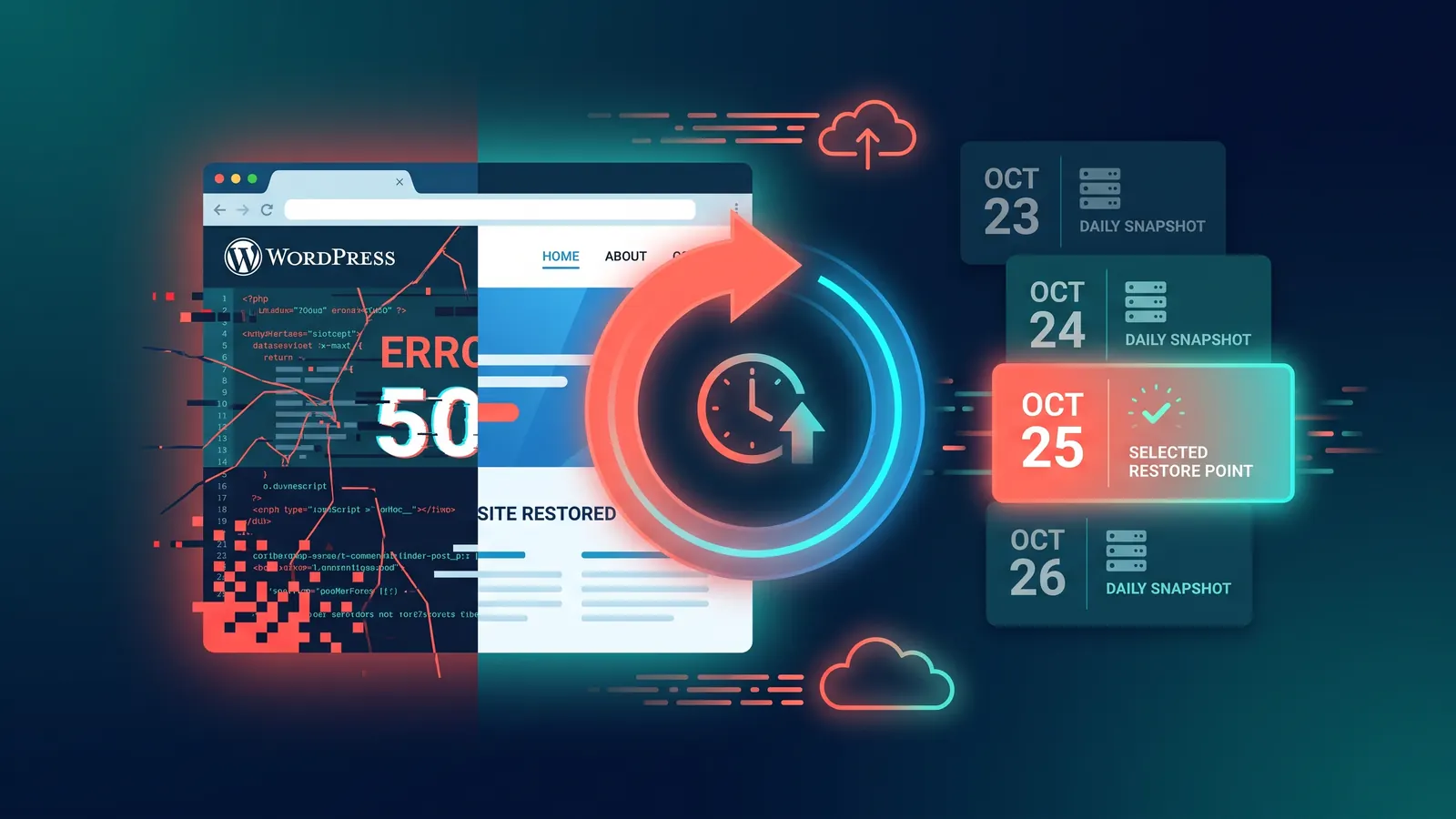
Almost every hosting plan you'll ever compare makes the same promise near the top of its features list: daily backups included. It's meant to be reassuring, and it works, because most people read it, nod, and move on. Here's the uncomfortable part. That phrase, on its own, tells you almost nothing about whether you could actually get your website back on the day something goes wrong.
A backup isn't a safety net because it exists. It's a safety net because you can restore from it. Those are two different things, and the gap between them is where businesses lose a fortnight of work. So here's what actually gets backed up, how long it's kept, where it lives, and whether it can really be put back on the worst day of your business year.
The short version: a backup system worth the name covers your files and your database, keeps enough daily restore points that you can reach back past a problem you didn't spot straight away, stores the copies somewhere your site can't drag down with it, and lets you restore in a few clicks, granularly, whether that's a single file, the database, or the whole site. If a host only ticks the first of those, "daily backups included" is doing a lot of quiet lifting.
What "Daily Backups Included" Really Means
Back in January a customer forwarded me one of those alarming automated emails WordPress sends when a site hits a fatal error. His Elementor admin screen had fallen over, and he was honest about it: "Happy to pay your time if it's not hosting related." The forwarded email gave the game away. He was running WordPress 6.9 on PHP 7.4, which had been end-of-life since 2022, with a stack of outdated plugins behind it. Something in that mix finally snapped. Outdated plugins are one of the most common ways a site goes down, and it doesn't take much: a single plugin vulnerability can be enough.
It took about 35 minutes to find the culprit and put it right, and I didn't charge him for it. But the detail that stuck with me came earlier in the thread. He'd taken a backup, using a popular plugin, in a panic after the site broke. After. The copy he'd just made was a photograph of a broken site, and restoring it would have handed him straight back the problem he was trying to escape. (If you've ever stared at one of those emails, here's every WordPress error message and how to fix it.)
That's the thing "daily backups" doesn't save you from on its own. A backup is a photograph of your site at a moment in time. If the only photograph you've got was taken after the damage, it's a photograph of the damage.

It helps to think of website backups as four rungs on a ladder, because "we do backups" can honestly mean any of them:
- A backup plugin installed and never configured. It's there, it looks reassuring in the plugin list, and it has never actually run. Far more common than anyone admits.
- One daily backup that overwrites yesterday's. You always have last night's copy, and nothing else. Fine, right up until the problem started three days ago.
- Thirty separate daily restore points. Now you can step back past a slow-burning problem to the last good day before it.
- Managed restore points with a real person who'll do the restore for you. The safety net most non-technical owners actually need, rather than the one a features list assumes they'll operate themselves.
Most hosts selling "daily backups" sit somewhere around rung two. The customer above was one turn of bad luck from rung one. The jump from rung two to rung three is the difference between a bad afternoon and a lost fortnight, and almost nobody explains it at the point of sale.

Files, Database and Email: Three Different Things
When someone says they've backed up their WordPress site, the natural assumption is that everything's covered. It usually isn't, because a WordPress site isn't a single object. It's at least two things, and arguably three. The official WordPress documentation doesn't dance around it:
"There are two parts to backing up your WordPress site: Database and Files. You need both to be able to fully restore a typical WordPress site."
I like that the handbook is that blunt, because it kills an expensive misunderstanding. Your files are the theme, the plugins and the uploads, everything sitting in wp-content. Your database is where the actual content lives: every post, page, product, setting and comment. Restore the files without the database and you've got a working shell with nothing in it. Restore the database without the files and you've got all your words with nothing to display them. You need both halves, taken at close to the same moment, or the two don't line up when you put them back.
Then there's email, the part nearly every "website backup" quietly skips. Your mailboxes usually live on the same hosting account, but they're a separate system, and a files-and-database backup doesn't touch them. If you've ever assumed your inbox was safe because your host "does backups", that's worth checking today rather than on the morning you need it.
If you ever do a backup by hand, the two-part nature is impossible to miss. On the command line it's two separate jobs:
# 1. The database: every post, page, product and setting
wp db export backup.sql

# 2. The files: themes, plugins, uploads
tar -czf files.tar.gz wp-content/
Miss either half and the restore won't work. A good hosting backup runs both for you, on a schedule, without you ever opening a terminal.
Retention, Frequency and Restore Points
Here's where most of the real-world pain lives, and it's the bit the marketing never explains. How often a backup runs and how long you keep it are two separate settings, and the second one matters more than people expect.
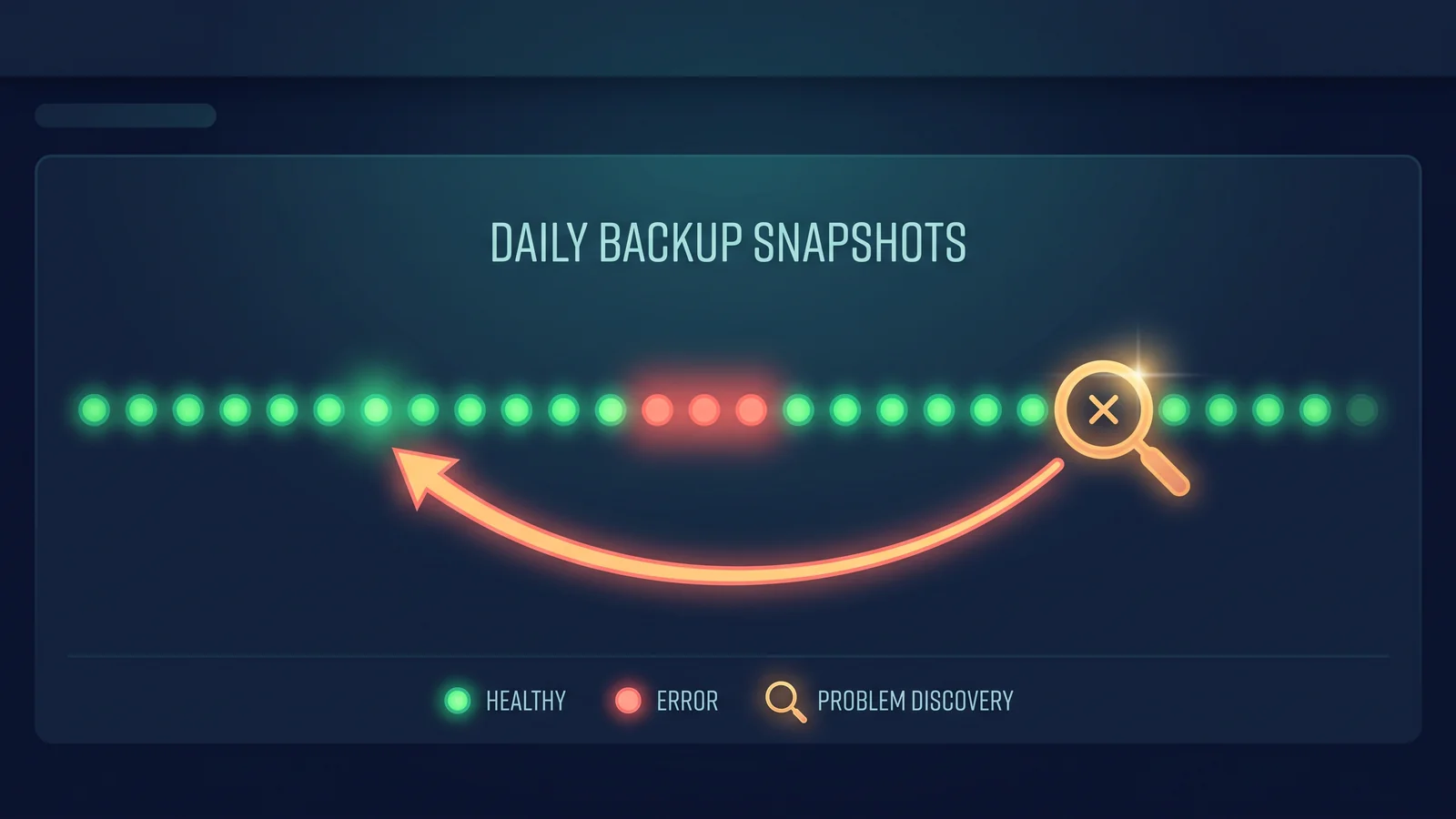
Picture a plugin update on a Tuesday that quietly corrupts something. No white screen, nothing dramatic. Maybe your contact form stops emailing, or part of a page renders wrong on mobile. Nobody notices, because nobody's staring at that exact thing. On Friday a customer mentions they tried to get in touch and couldn't. Now you go looking for a backup.
If your host keeps one daily copy, Thursday's backup already contains the broken form. So does Wednesday's. So does Tuesday night's, taken hours after the update landed. The only clean copy is Monday's, and if it's already been overwritten, it's gone. This is the single most common way a backup fails people. Not because it didn't run, but because it didn't reach far enough back.
Retention is your margin for error. Thirty days of separate daily restore points means you can go back to before almost any slow-burning problem began. One overwritten copy gives you until roughly lunchtime tomorrow. Frequency tells you how fresh your most recent backup is; retention tells you how far back you can reach. For most of the problems that actually bite a small business, reach is what saves you, and reach is the number hosts are quietest about.
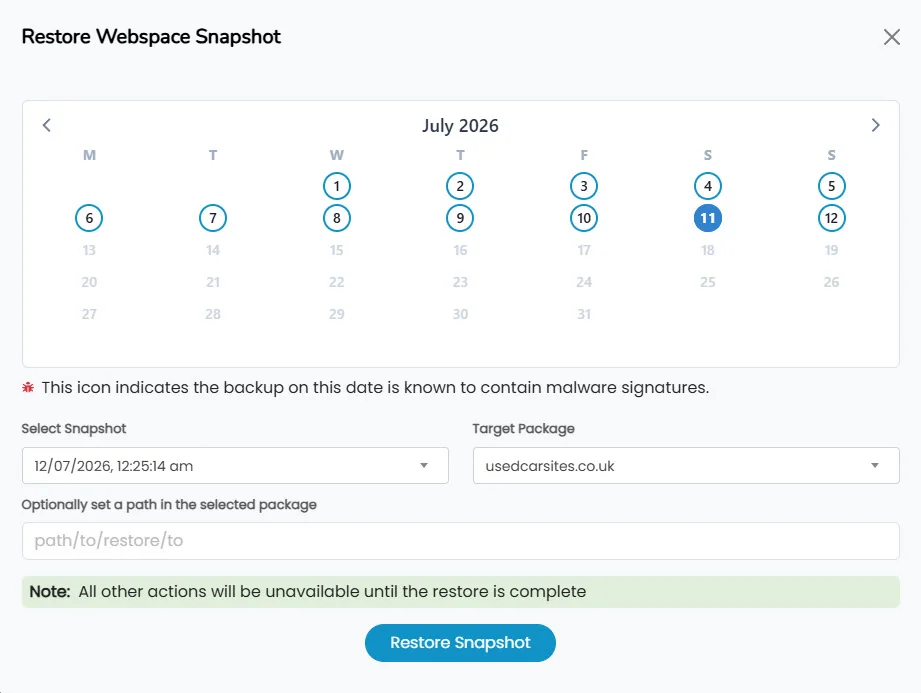
This is what that reach looks like in practice on a 365i site, and it's the part we've written up properly on our 30 daily restore points page. Picking a restore is a calendar: every day with a snapshot is a point you can go back to, not one copy you're stuck with. There's a detail on that screen worth pointing out, too. Any snapshot known to contain malware signatures gets flagged, so you don't accidentally roll back to an already-infected copy. It's a small thing that saves you from restoring one problem while escaping another.
Where Your Backups Live (and the Limits)
A backup that sits in the same place as the thing it's protecting isn't much of a backup. If your only copy is a zip file inside your own hosting account, then whatever takes the site down, a server failure, a compromised login, a lapsed bill, can take the backup with it.
The rule that's held up for twenty years here is the 3-2-1 approach, coined by the photographer Peter Krogh after he watched too many people lose irreplaceable image libraries. Keep three copies of anything you can't afford to lose, on two different types of storage, with at least one of them off-site. It started in photography and it's now the backbone of serious backup practice everywhere, from a one-person business to a data centre.
This is where I'll be straight about the limits of any host's backups, ours included. Managed hosting snapshots live on the hosting platform. That covers you brilliantly for the everyday disasters: the botched update, the bad plugin, the fat-fingered edit, the hack that defaced a page. It's the recovery almost every site ever needs. What it isn't, on its own, is the off-site leg of 3-2-1. If your whole account were ever compromised or closed, a copy that only lives inside that account is exposed too. For a site where the content is the business, one more copy somewhere completely separate, a plugin pushing to your own cloud storage, or a periodic manual download, is sensible on top of the host's snapshots. On top of them, not instead. Good secure hosting lowers the odds of ever needing that spare copy; it doesn't make the principle wrong.
Can It Actually Be Restored?
Everything up to this point is academic if the restore doesn't work when you reach for it. And this is the part people tend to discover at the worst possible moment.
W. Curtis Preston has spent a career as "Mr. Backup", and he draws the distinction better than anyone:
"DR testing isn't about proving your backup system works. It's about building confidence in your ability to recover when things go wrong."
When I first read that it reframed the whole thing for me. A backup you've never restored from is a hope, not a plan. You only really trust a backup once you've put it back and watched the site come up clean.
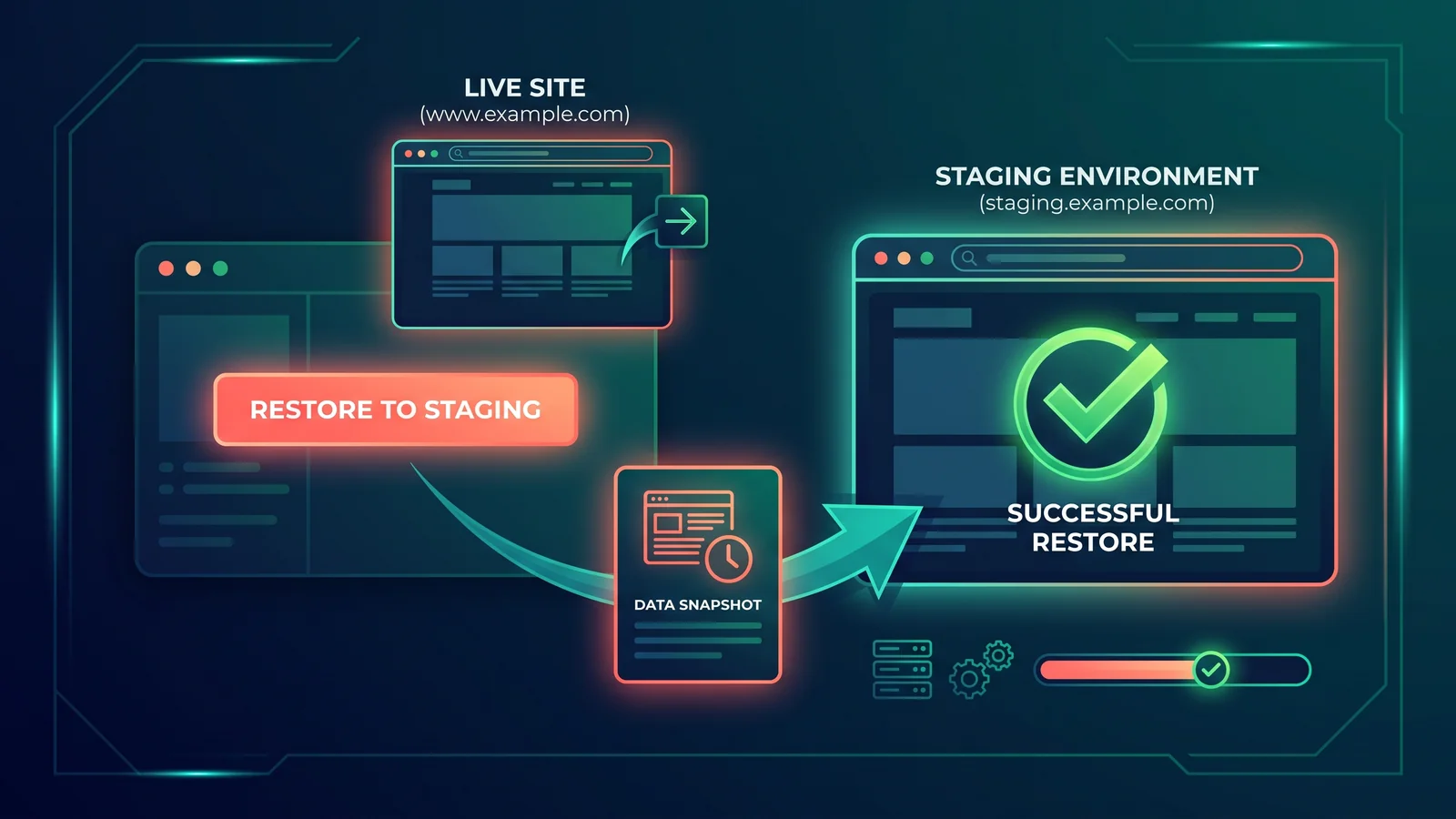
A proper restore gives you options rather than one big red button. Sometimes you need to pull back a single file you deleted. Sometimes just the database, after a bad import. Sometimes the whole site, after a hack. Because files and databases restore independently, and every restore is logged and reversible, you put back exactly what broke and check the result, instead of gambling the whole site on one all-or-nothing rollback. That turns a restore from a gamble into a controlled step.
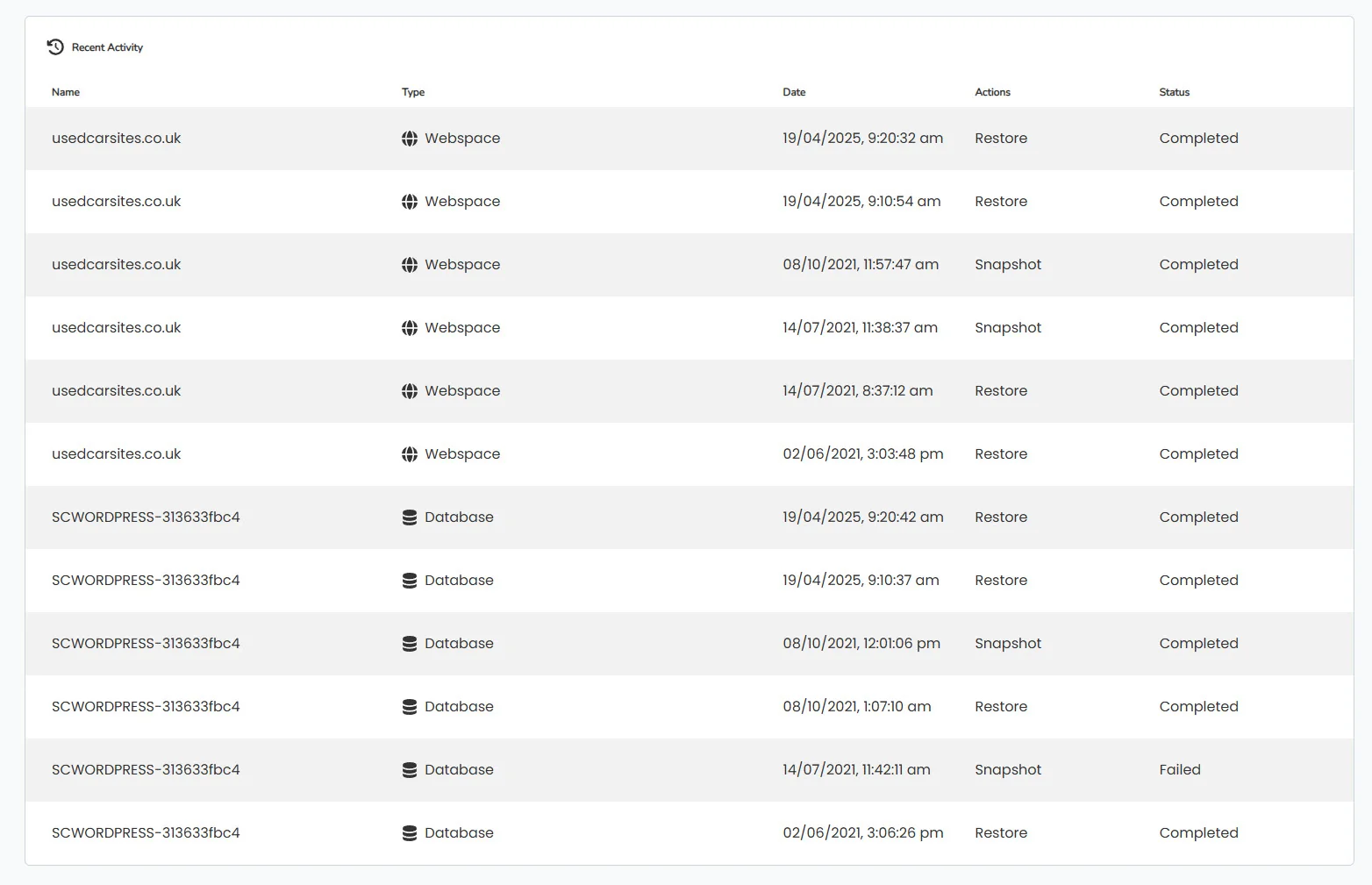
On our platform that's how it works in practice, step by step: there's a walkthrough of how a WordPress restore actually runs if you want to see it before you ever need it. Every restore is logged with a timestamp and a status, so there's a clear record of what was put back and when, and files and databases restore independently rather than all-or-nothing. If something broke yesterday afternoon, you're rolling back to yesterday morning, not starting your website again from scratch.
And if you're not technical, you don't do any of this alone. Plenty of the people we host wouldn't know a database from a directory, and that's completely fine. A restore they'd find daunting is a routine job for us, so we do it with them, 7 days a week, through our free 1-to-1 WordPress assistance. The customer from the start of this piece is the whole point: he didn't need to learn backups, he needed someone to fix his site and then quietly switch on a proper safety net so the next scare simply doesn't happen. That's the shape of most of the real support tickets in our helpdesk.
Hosting Backups vs Backup Plugins
So where does that leave the backup plugins, the UpdraftPlus and friends of the WordPress world? They're not the enemy. A plugin pushing a copy to your own Google Drive or Dropbox is a smart way to own that off-site leg of 3-2-1 we just talked about. If you want a copy that survives even losing your hosting account entirely, a plugin is one of the easier ways to get one.
But a plugin shouldn't be your only line of defence, and on decent managed hosting it doesn't need to be your first. A backup plugin runs inside WordPress, using your site's own PHP and database, which means it competes for the same resources as your visitors and, more importantly, it can be knocked out by the very thing that breaks your site. If a bad update stops WordPress loading, the plugin that was meant to back it up may not run either. Infrastructure-level backups sit underneath WordPress, so they keep working even when the site above them doesn't. Backups are one piece of a wider resilience picture, alongside updates, security and monitoring; Press Forge keeps a solid WordPress security checklist that puts them in context.
Here's the practical upshot. With WordPress hosting from 365i you don't need a backup plugin to have this covered. It's automated, it runs every single day, and it's handled at the platform level rather than bolted on inside your site. If you want to add a plugin as well, for that extra off-site copy, brilliant. But the daily safety net is already there, doing its job whether or not you ever install a thing.
Questions to Ask a Host, and How 365i Answers Them
If you take one practical thing from all this, make it a short list of questions to put to any host before you trust them with your site. Their answers tell you which rung of that ladder they're really standing on:
- Do you back up both my files and my database, and how often?
- How many days of restore points do you keep?
- Are my mailboxes backed up, or just the website?
- Can I restore a single file, or the database on its own, rather than only the whole site?
- Can I take my own snapshot on demand, right before a risky update?
- If I'm not technical, will someone do the restore with me?
- Where are the backups stored, and do I have my own off-site copy?
Those are the questions "daily backups included" never answers. They're also the questions a good host won't mind you asking, and a vague one will dodge.
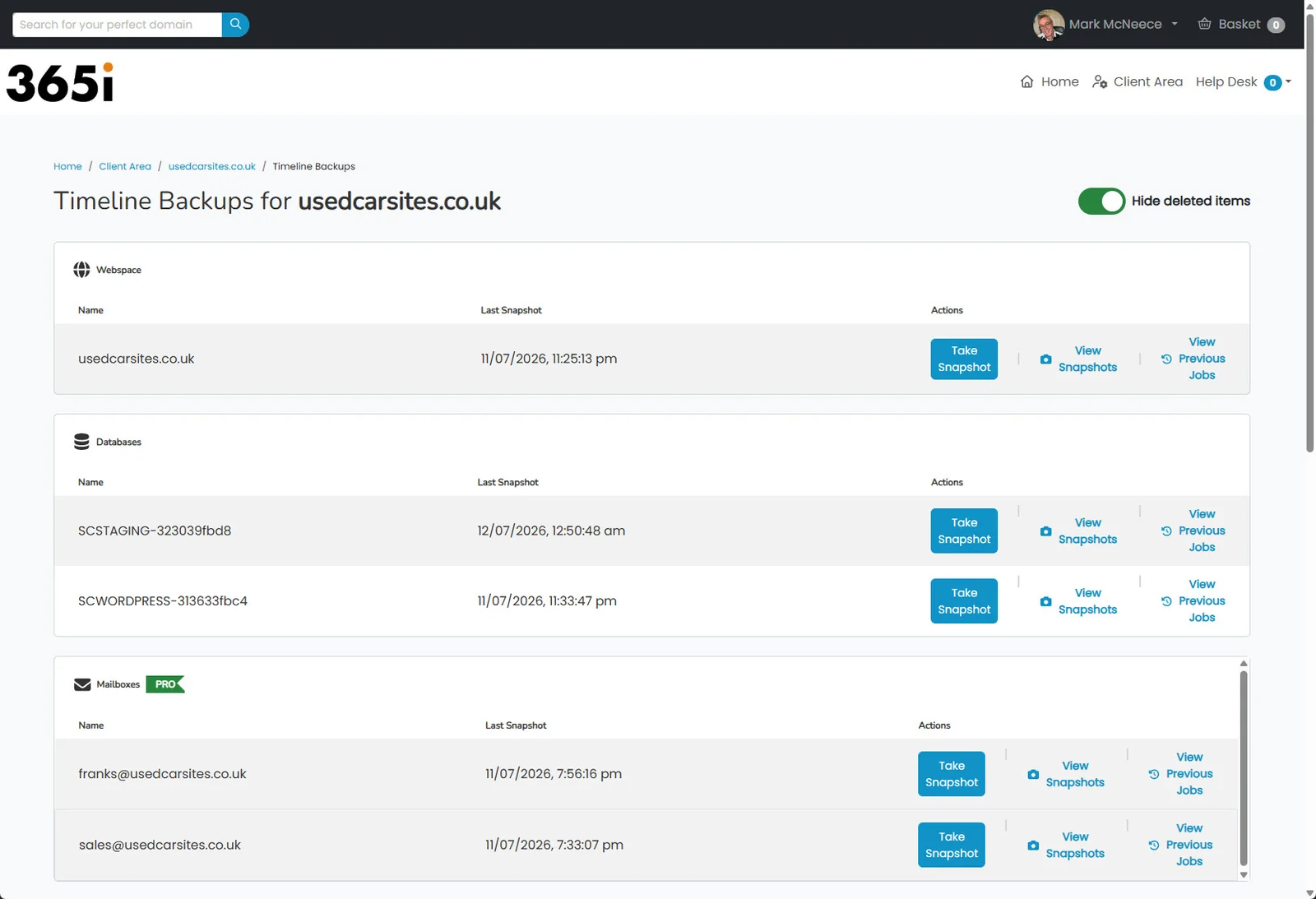
Here's how the answers look on our platform, so you've got a benchmark to hold others against. Every package we host is snapshotted daily, whatever plan it sits on, and from Premium up you also hold the controls. Open Timeline Backups and there are three sections: Webspace for your files, Databases, and Mailboxes. Each one is snapshotted daily and kept for 30 days, and each has its own history you can restore from in a click. Files and databases restore independently, so you're never forced to roll everything back to fix one thing. The retention is real, separate restore points, not one copy overwritten each night. Create a staging site with our 1-click Staging and that gets snapshotted too, so your test environment carries the same safety net as your live one. That combination earns its keep every time a major core release approaches; it's exactly where we'd put WordPress 7.1 when it lands on 19 August.
On Personal, the snapshots still run every day, exactly the same. What you don't get is the panel, so if you ever need a restore you ask us and we do it, 7 days a week. You can add Timeline Backups to a Personal plan if you'd rather hold the controls yourself, and a fair few people do once they've had one scare.
On the Business and Agency plans it steps up to Timeline Backup Pro, which brings your email mailboxes into the picture and extends database history to 60 days, with the ability to restore a single mailbox rather than the whole account. That's why, when someone asks which plan to start on, I usually point them at Business rather than the entry tier. WordPress Business is £14.99 a month and Timeline Backup Pro is standard on it, so the mailbox backups and the longer database history are simply there, not something to bolt on after a scare. Agencies get the same across every client site on agency hosting. It costs a little more than the rock-bottom plans, and when you weigh it against what hosting really costs after year one, a recovery you never have to think about is the cheap part. And it's about to matter more, not less: as AI agents start operating WordPress sites, the faster something can change your site, the more you'll want thirty separate ways back.
Frequently Asked Questions
Does WordPress hosting include backups?
Most managed WordPress hosting includes automatic daily backups, but the detail varies enormously. Check how many days of restore points are kept, whether the database is backed up as well as the files, and whether you can actually restore yourself. On 365i, every package gets daily Timeline Backups of its files and databases with 30 days of separate restore points, and no backup plugin is needed. From the Premium plan up you can restore in one click yourself; on Personal the backups still run and we do the restore for you.
How long should WordPress backups be kept?
Aim for at least 30 days of separate daily restore points. Many problems, like a plugin quietly corrupting something, aren't noticed for several days, so a single overwritten copy often already contains the fault by the time you look. Longer retention is your margin for error. 365i keeps 30 days of daily file and database snapshots as standard, and 60 days of database history on Business and Agency plans.
Do I need a backup plugin if my host backs up my site?
Not for day-to-day protection. On managed hosting like 365i, daily backups run at the infrastructure layer, below WordPress, so they keep working even if a bad update stops the site loading, which is exactly when a plugin might fail to run. A backup plugin is still useful for one thing: keeping an independent off-site copy in your own cloud storage, which satisfies the "one copy off-site" part of the 3-2-1 rule.
Does a WordPress backup include the database and the files?
It needs to include both to be any use. Your files are the theme, plugins and uploads; your database holds every post, page, product and setting. Restore one without the other and the site doesn't work: files alone give you an empty shell, the database alone gives you content with nothing to display it. 365i Timeline Backups snapshot your webspace files and your databases separately but daily, so you always have a matching pair to restore from.
Can I restore just one file or the database instead of the whole site?
On a good system, yes. Being able to roll back a single file you deleted, or just the database after a bad import, saves you from redoing hours of unrelated work. 365i restores files and databases independently, and every restore is logged with a timestamp and status so you have a clear record of what was put back. Because restores are granular and reversible, you can put back exactly what broke and check the result rather than gambling the whole site on one all-or-nothing rollback.
Are my email accounts backed up with my website?
Usually not by a standard website backup. Your mailboxes live on the hosting account but they're a separate system, and most "website backup" claims cover only files and the database. On 365i, mailbox backups are part of Timeline Backup Pro, included on the Business and Agency plans, which also lets you restore a single mailbox rather than the whole account. If email matters to your business, confirm it's covered before you need it.
What happens if I'm not technical and need to restore my site?
A one-click restore is designed to be simple, but you shouldn't have to face it alone. Plenty of business owners wouldn't know where to start, and that's fine. At 365i, if a restore feels daunting, we do it with you through our free 1-to-1 WordPress assistance, 7 days a week. A recovery that would worry you is a routine job for us.
My site broke and then I took a backup. Is that any use?
Probably not, and this catches people out constantly. A backup taken after the damage is a copy of the broken site, so restoring it just brings the problem back. This is why retention matters: you want earlier restore points from before the fault appeared. With 30 days of daily snapshots you can step back to the last good version from before the break rather than relying on a panicked, post-break copy.
Want a backup you never have to think about?
Every 365i package gets daily Timeline Backups of its files and databases, 30 days of restore points, and 1-to-1 help if you ever need it. No backup plugin required. From Premium up you restore in one click yourself, and Business and Agency plans add mailbox backups and 60-day database history.
Explore WordPress HostingPublished: · Last reviewed: · Written by: Mark McNeece, Founder & Managing Director, 365i
Editorially reviewed by: Mark McNeece on · Our editorial standards
Sources and further reading
- Backups, WordPress.org Advanced Administration Handbook: why a full restore needs both the database and the files.
- DR Testing: Common Mistakes and How to Avoid Them, W. Curtis Preston, Backup Central: why an untested restore is a hope, not a plan.
- What's the Diff: 3-2-1 vs 3-2-1-1-0 vs 4-3-2, Backblaze: the 3-2-1 rule and its origin with photographer Peter Krogh.