Update (April 2026): The bug described below was patched in WordPress 6.9.1, shipped shortly after this article first published. Sites running 6.9.1 or newer no longer see the cache-key issue. If you're running 6.9.0 unchanged, update now: any compatible 6.9.x point release fixes it. The article below is preserved for the workaround steps that helped sites that hit the bug before the patch.
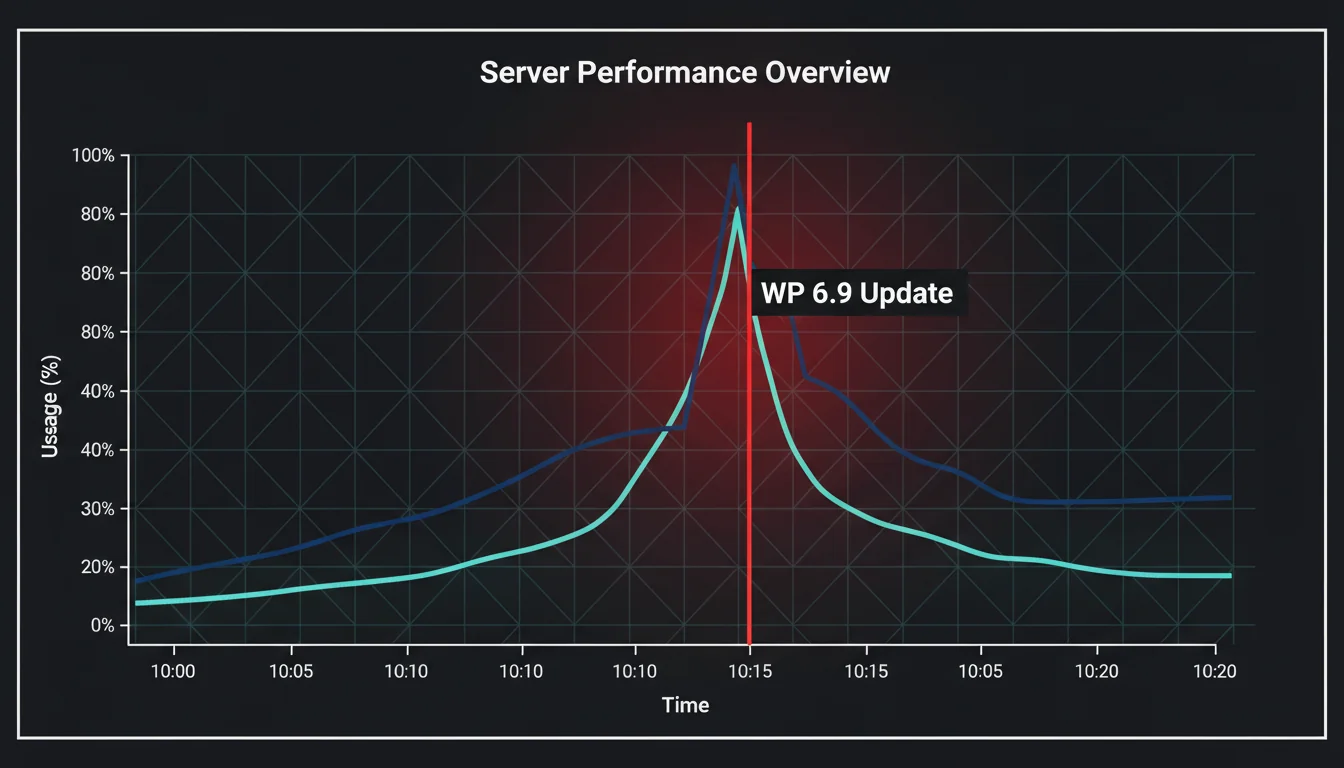
Within a week of WordPress 6.9 launching, hosting support queues across the UK lit up with the same symptoms: CPU usage pinned at 95-100%, pages serving stale content, and TTFB jumping from 80ms to 400ms. The cause was a caching bug introduced by well-intentioned changes to how WordPress generates cache keys.
If your site slowed down after updating to 6.9, here's what happened, why it happened, and how to fix it.
What Broke and Why
WordPress 6.9 changed how WP_Query creates cache entries. The old system generated a cache key for every unique combination of query parameters. On busy sites, this created thousands of near-identical cache entries eating memory. The fix was meant to be smarter cache key generation that reduced redundancy.
The problem: dozens of popular caching plugins and themes assumed the old key format. When the keys changed, existing cache entries became orphaned (never cleared, never matched) while new entries piled up alongside them. The result was the opposite of what the WordPress team intended: more cache entries, not fewer.
The Three Symptoms
Sites affected by this bug showed one or more of these problems:
1. CPU Spikes
Server CPU jumped from a normal 15-20% to sustained 95-100%. The database was generating and comparing cache keys constantly, burning CPU cycles on work that should have been instant. Shared hosting plans were the worst hit because the CPU ceiling is lower, but even VPS and dedicated servers showed strain.
2. Stale Content
Visitors saw outdated CSS, old layouts, and content that didn't match what the admin panel showed. The cache was serving expired entries because the new key format meant fresh content was stored under a different key than the one being requested.
This was particularly confusing because the admin side worked fine. Logged-in users bypass most caching, so editors and admins couldn't reproduce what their visitors were seeing.
3. TTFB Climbing
Time to first byte went from sub-100ms to 300-400ms on affected sites. For context, Google considers anything above 800ms to be slow, but doubling your response time still damages Core Web Vitals scores and can trigger drops in search rankings.
"The cache key generation change is causing cascading issues across plugins that rely on those keys. This needs a maintenance release, not just documentation."
Mark Jaquith, WordPress Lead Developer, WordPress Trac
What made this comment land for me was the word "cascading". That's exactly what we saw: one change creating a chain of failures across multiple systems. A caching plugin breaks, so the object cache fills up, so the database gets hammered, so the server slows down, so the CDN starts serving stale fallbacks. Each failure compounds the next. It reminded me why we always recommend staging first for major updates.
How to Fix It
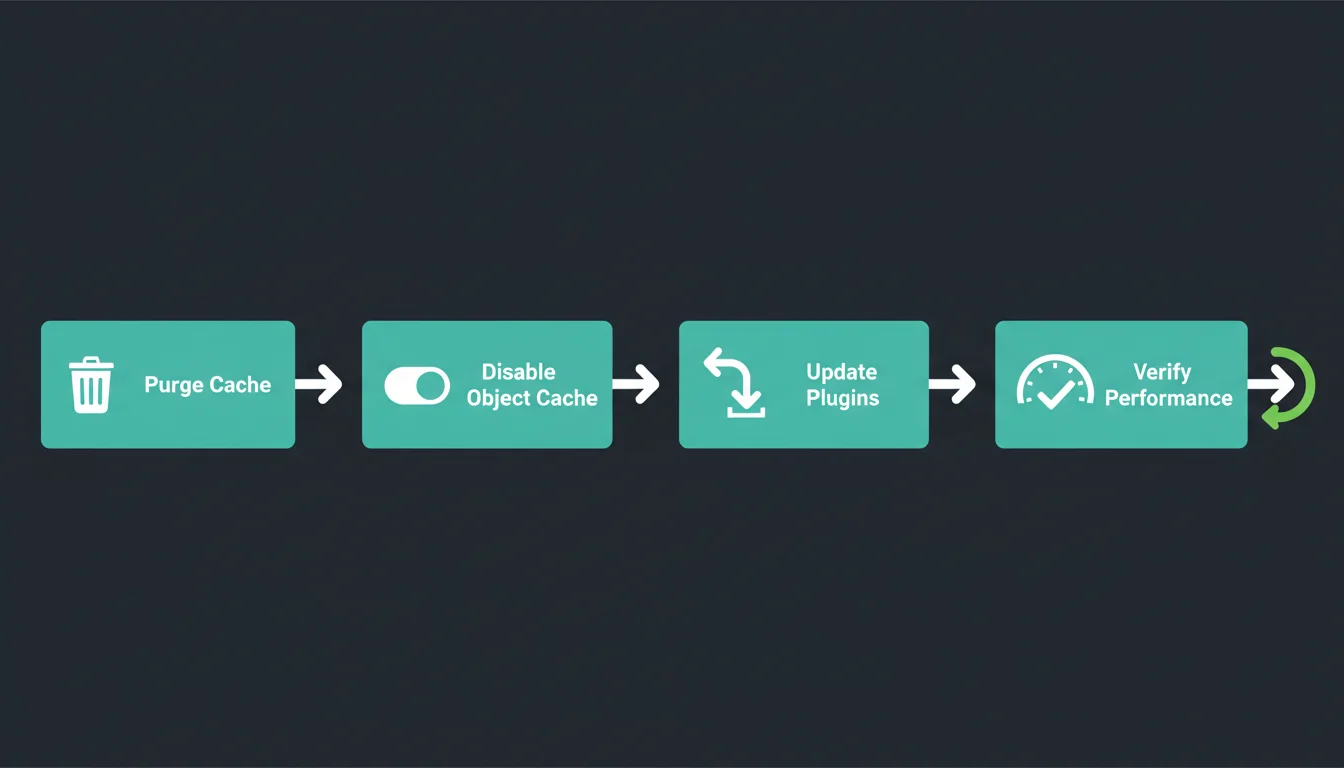
Work through these steps in order. Most sites recover after steps 1 and 2.
Step 1: Purge Every Cache Layer
WordPress sites typically have four layers of caching. You need to clear all of them:
| Cache Layer | How to Clear |
|---|---|
| Plugin cache (WP Rocket, W3 Total, LiteSpeed) | Plugin settings > Purge All |
| Object cache (Redis, Memcached) | wp cache flush via WP-CLI or plugin button |
| CDN cache (Cloudflare, StackPath, etc.) | CDN dashboard > Purge Everything |
| Browser cache | Hard refresh (Ctrl+Shift+R) or wait for TTL expiry |
If you're on a host with built-in server caching (like our managed WordPress plans), check for a server-level cache purge option too. Some hosts cache at the reverse proxy level, and plugin purges won't touch it.
Step 2: Temporarily Disable Object Caching
If purging didn't fix it, the object cache itself may be corrupted. Disable it temporarily by renaming your object cache drop-in:
# Rename the object cache drop-in (don't delete it)
mv wp-content/object-cache.php wp-content/object-cache.php.bak

# Or via WP-CLI
wp cache flush
wp transient delete --all
This forces WordPress back to its default file-based caching. Performance will be slightly slower than Redis/Memcached, but the stale content and CPU spikes should stop immediately. Re-enable once your caching plugin releases a compatible update.
Step 3: Update Your Caching Plugins
The major caching plugins all released patches within the first week:
- WP Rocket 3.17.1: Fixed cache key compatibility
- W3 Total Cache 2.8.2: Updated object cache handling
- LiteSpeed Cache 6.5.1: Resolved WP_Query key conflicts
- Autoptimize 3.1.13: Fixed CSS/JS aggregation cache
Update these before re-enabling object caching. If your caching plugin hasn't released a patch yet, check their support forum or consider switching to one that has.
Step 4: Verify Recovery
After fixing, check three things:
- CPU usage: Should return to your normal baseline within minutes
- TTFB: Test with PageSpeed Insights or GTmetrix. Should be back under 200ms for cached pages
- Content freshness: Open an incognito window and verify your visitors see current content

Preventing This Next Time
This bug was predictable in hindsight. Any change to cache key generation will break plugins that hard-code key formats. Here's how to protect yourself from the next one:
- Test on staging first: Always. Even "minor" WordPress updates can introduce cache changes. A staging environment catches these issues before your visitors do.
- Keep plugins minimal: Every plugin is a potential conflict. If you're running three caching plugins (it happens more than you'd think), consolidate to one.
- Choose WordPress-specific hosting: Generic shared hosting doesn't have the monitoring to spot a caching bug before it takes the site down. Hosts that specialise in WordPress have server-level visibility into cache behaviour and can intervene before CPU pegs at 100%.
- Monitor your own site: Free tools like UptimeRobot alert you when response times spike. A five-minute setup that pays for itself the first time something goes wrong, whether it's a caching bug or a cloud provider outage taking down upstream infrastructure.
"The best debugging tool is a staging environment. The second best is a monitoring alert that fires before your customers notice."
Joost de Valk, Yoast
I've been saying something similar to clients for years, but hearing it from the Yoast founder carries more weight. The sites that recovered fastest from this bug were the ones with monitoring alerts. They knew something was wrong within minutes, not days. The sites that suffered longest were the ones where nobody was watching the metrics.
The Bigger Picture
This wasn't WordPress 6.9's only issue at launch. The same update broke WooCommerce, Yoast SEO, and Elementor due to Abilities API changes. Combined with the caching bug, it made for a rough first week. If you hit an error like the 500 Internal Server Error described here but don't recognise the exact message, our complete reference of 25 common WordPress error messages covers each one with the specific fix.
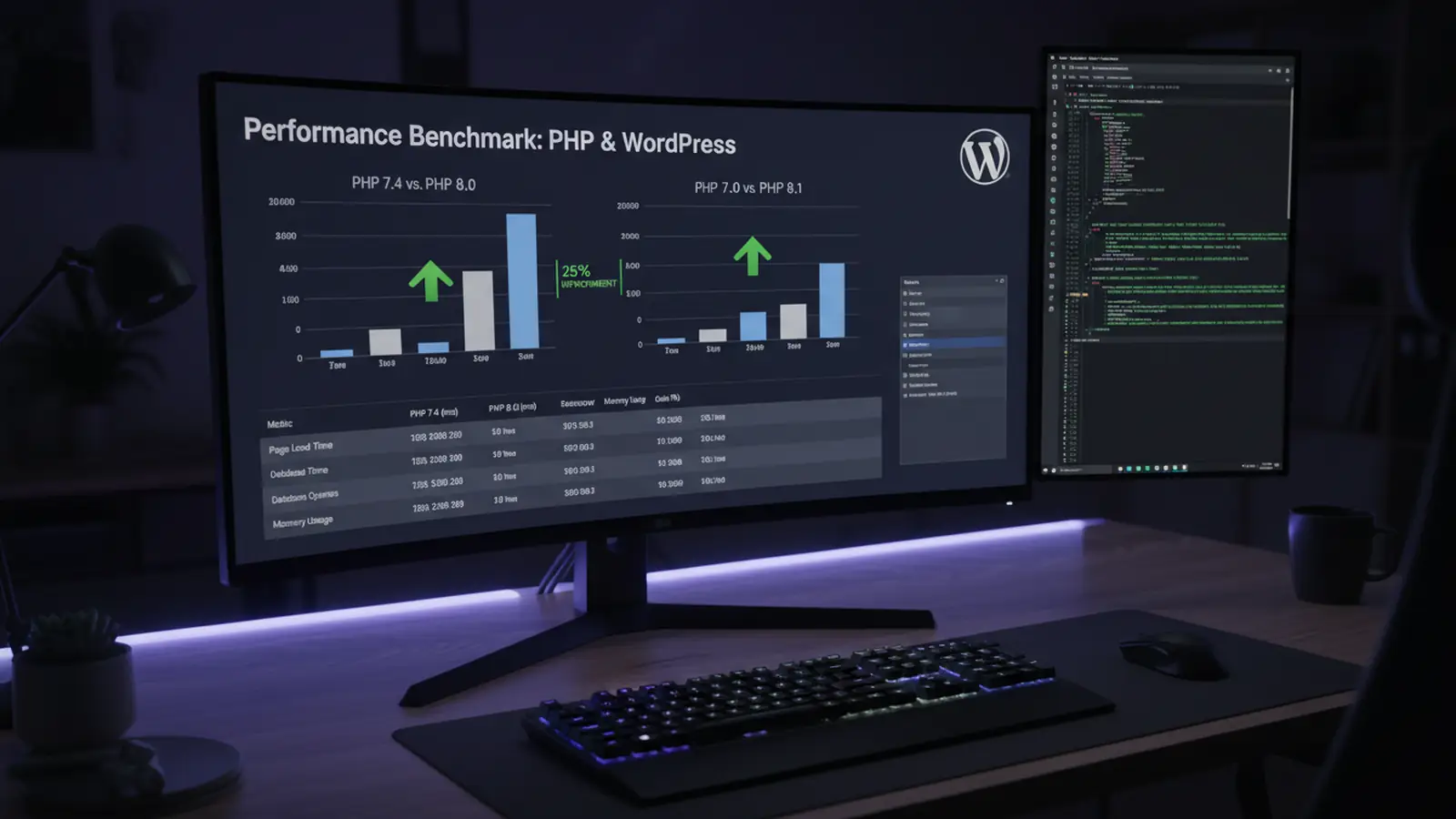
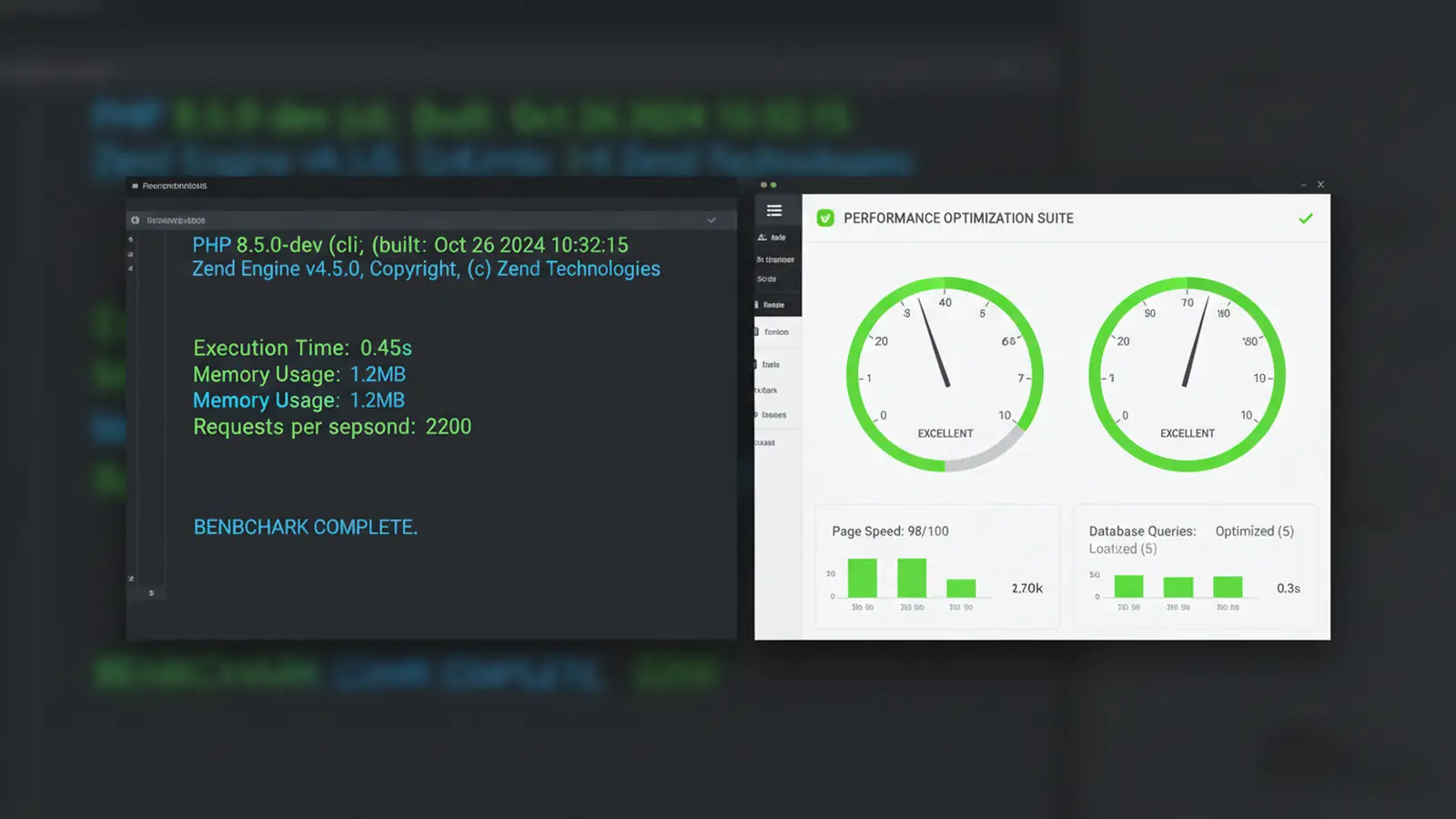
But the performance numbers once everything was patched told a different story: 23% faster page loads on PHP 8.5, faster back/forward navigation, and genuine improvements to Core Web Vitals. The destination was worth it. The journey to get there was bumpier than it needed to be.
WordPress 6.9.1 shipped on 16 December 2025 and resolved the cache key regression. If you held off updating, it's now safe to go ahead. Just update your caching plugins first, test on staging, and purge all caches after the update. The order matters.
Frequently Asked Questions
What caused the WordPress 6.9 caching bug?
WordPress 6.9 changed how WP_Query generates cache keys. Caching plugins that relied on the old key format couldn't match their existing entries, causing orphaned cache data and database strain.
Why did my server CPU spike after updating to WordPress 6.9?
The database was constantly generating and comparing mismatched cache keys. Orphaned cache entries piled up alongside new ones, consuming CPU cycles. Purging all cache layers and updating your caching plugin resolves it.
Why are visitors seeing old content after the WordPress 6.9 update?
The changed cache key format means fresh content is stored under a different key than what's being requested. The cache serves expired entries because it can't find the current ones. Purge all cache layers to fix this.
Is it safe to update to WordPress 6.9 now?
Yes. WordPress 6.9.1 (released 16 December 2025) resolved the cache key regression. Update your caching plugins first, test on staging, then update core and purge all caches.
Which caching plugins were affected?
WP Rocket, W3 Total Cache, LiteSpeed Cache, and Autoptimize all required updates. All have released compatible versions. Any plugin that interacts with WP_Query cache keys was potentially affected.
How do I check if my TTFB is back to normal?
Use Google's PageSpeed Insights or GTmetrix. Cached pages should show TTFB under 200ms. If it's still above 300ms after purging caches and updating plugins, check whether object caching needs to be temporarily disabled.
How can I prevent cache-related issues after future WordPress updates?
Test every major update on a staging environment first. Keep one caching plugin (not multiple), update it before updating WordPress core, and monitor TTFB and CPU after every update.
WordPress Hosting with Built-in Cache Management
365i's managed WordPress plans include server-level caching, automatic purging, and performance monitoring. Your cache works with WordPress, not against it.
Explore WordPress HostingSources
Published: · Last reviewed: · Written by: Mark McNeece, Founder & Managing Director, 365i
Editorially reviewed by: Mark McNeece on · Our editorial standards