WordPress 6.9 lands on 2 December 2025. It's the biggest release of the year, packed with a simplified editor, block-level commenting, and performance improvements that cut TTFB by 20-26% in our production tests. But none of that matters if the update breaks your site.
This guide walks through the safe upgrade process, from backup to verification. Whether you manage one WordPress site or twenty, the steps are the same. Skip any of them and you're gambling with your live site.
Before You Start: The Pre-Upgrade Checklist
Most WordPress update problems aren't caused by WordPress. They're caused by rushing. Every failed update we've dealt with across more than 20 years of hosting could have been prevented by spending ten minutes on preparation.
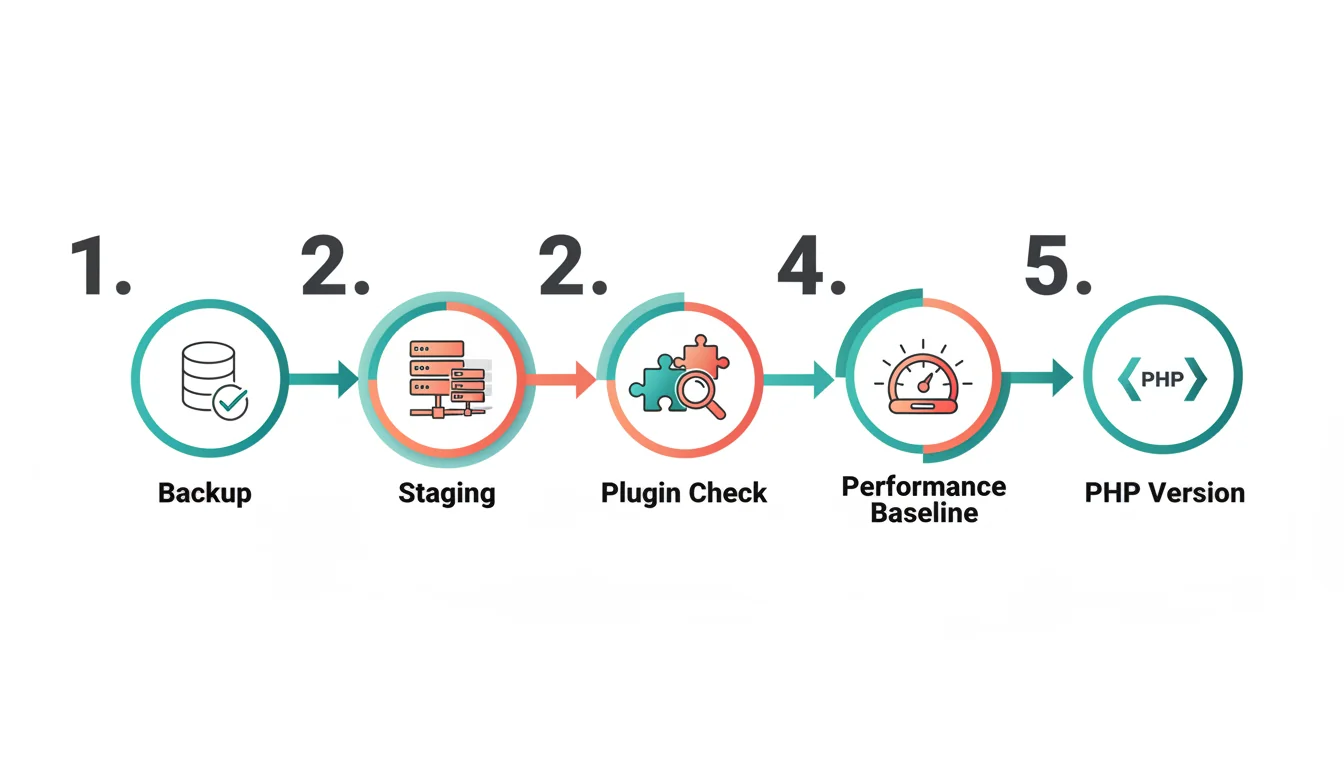
1. Back Everything Up
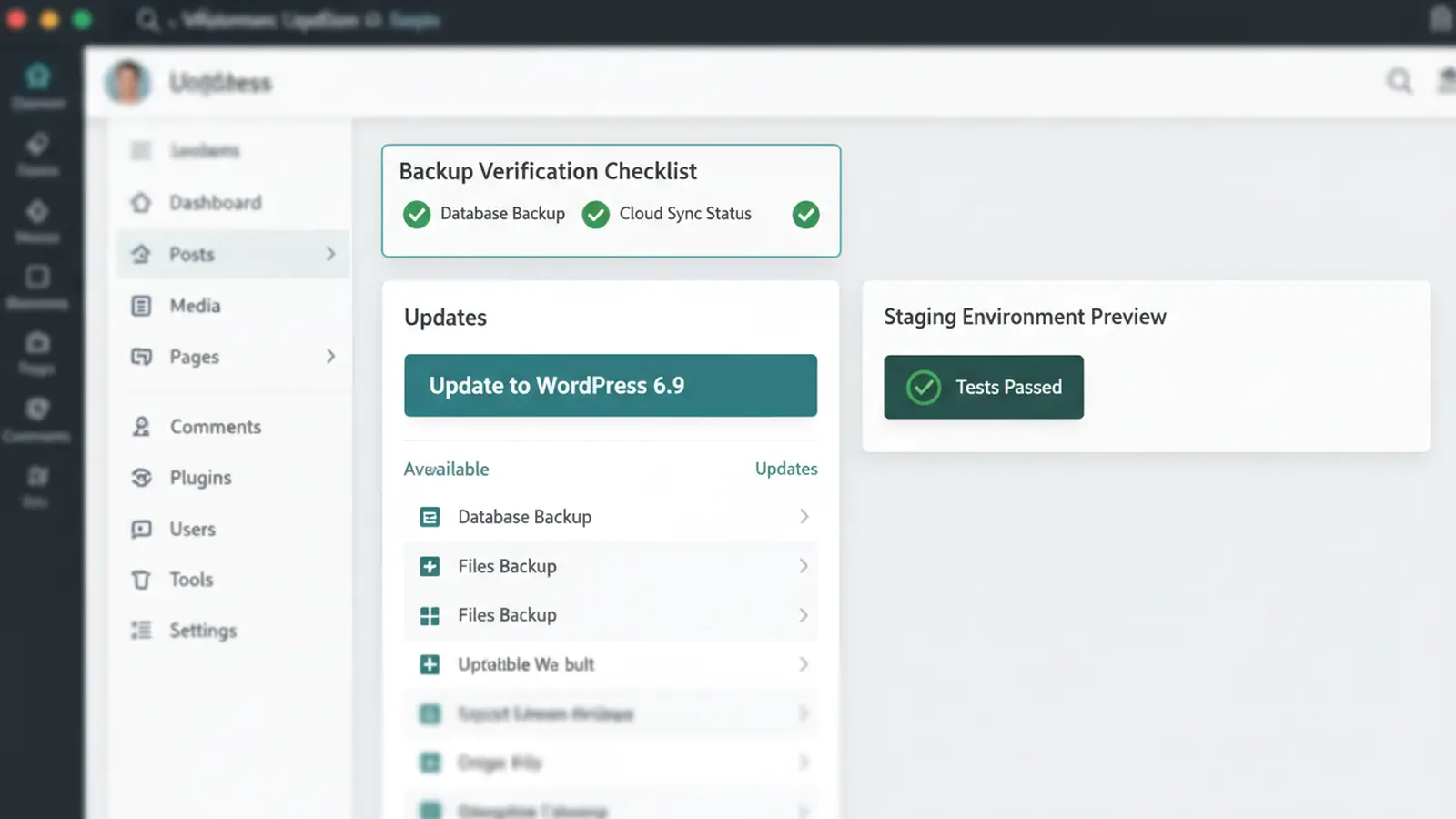
Full backup. Database and files. Not "I think my host does backups" but a verified backup you can restore yourself. Download it. Check the file size makes sense. If your backup is 50KB and your site has 2GB of media, something went wrong.
Most managed WordPress hosts provide one-click backups. Use that, then download a copy locally. Belt and braces.
2. Set Up a Staging Environment
A staging site is a copy of your live site where you test changes without risk. If your host provides one-click staging, use it. If not, create a subdomain (staging.yoursite.com), install a fresh copy of your site there, and import your database.
Every WordPress package on 365i includes a staging environment. Clone, test, push live. If something goes wrong on staging, your real site never knew about it.
3. Check Plugin and Theme Compatibility
Before updating, check every active plugin's changelog or support page for WordPress 6.9 compatibility notes. The major ones (WooCommerce, Yoast, Elementor, ACF) had compatibility patches ready before launch day. Smaller, less maintained plugins are where problems hide.
Any plugin that hasn't been updated in 12+ months is a risk. Not just for 6.9 compatibility, but for security vulnerabilities too.
4. Record Your Performance Baseline
Run your homepage through Google PageSpeed Insights and note the scores. Run GTmetrix for TTFB. Screenshot both. After the update, you'll want to compare. If performance drops, these baselines tell you by how much and help you diagnose what changed.
5. Confirm Your PHP Version
WordPress 6.9 requires PHP 7.4 minimum but runs best on PHP 8.4 or 8.5. Check your current version in your hosting control panel or add <?php phpinfo(); ?> to a temporary file. If you're on PHP 7.x, upgrade PHP before upgrading WordPress. Doing both at once doubles the variables if something breaks.
Three Ways to Upgrade
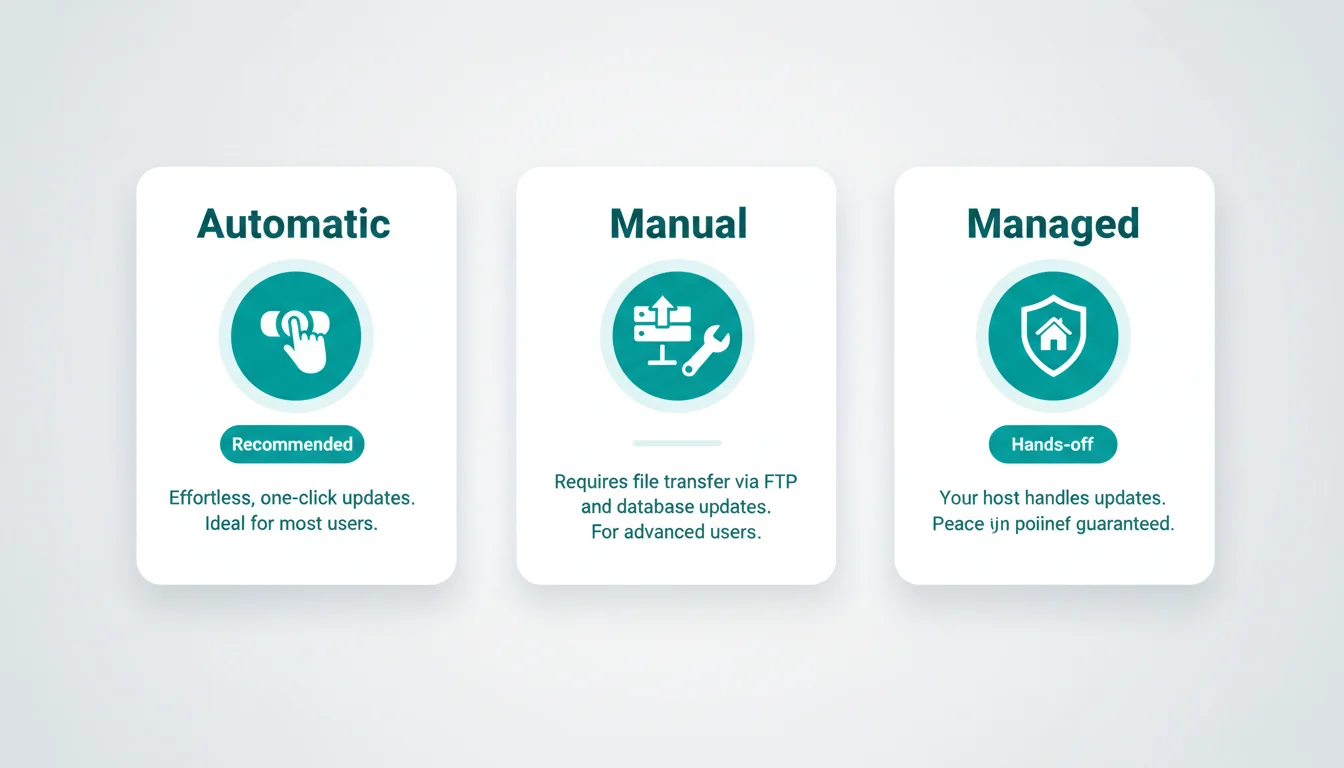
Automatic Update (Recommended for Most Sites)
Go to Dashboard > Updates. Click "Update to WordPress 6.9". Wait. Don't close the tab, don't click anything, don't panic when it takes 30 seconds. WordPress handles the file replacement, database migration, and cache clearing automatically.
This works perfectly for 95% of sites. The only time it causes problems is when your server runs out of memory mid-update (rare on modern hosting) or your internet connection drops during the download.
Manual Update (For Custom Sites)
Download the WordPress 6.9 zip from wordpress.org. Extract it. Upload everything except the wp-content folder via FTP/SFTP, overwriting existing files. Visit yoursite.com/wp-admin to trigger any database updates.
Use this method if you've modified core files (you shouldn't have, but people do), or if automatic updates have failed before on your server.
Managed Update (Hands-Off)
If your host offers managed WordPress updates, let them handle it. Good managed hosts test the update on a staging copy first, verify functionality, then push to live. This is the safest option and the one I'd recommend for business-critical sites.
Our hosting platform handles core updates with automatic staging testing and rollback capability. You get notified when the update is complete and can verify at your convenience.
Post-Upgrade: What to Check
The update went through. The dashboard says WordPress 6.9. Now verify that everything actually works. Here's the checklist, in order of priority:
- Homepage: Does it load? Does it look right? Check on mobile too.
- Login: Can you log in and access the admin dashboard?
- Contact forms: Submit a test message. Check it arrives.
- Search: Does the site search return results?
- WooCommerce: If applicable, add a product to cart and go through checkout (use a test payment method).
- Custom functionality: Membership areas, booking systems, API integrations, anything unique to your site.
- Performance: Run PageSpeed Insights again. Compare to your baseline.
If everything passes, you're done. If something fails, read the next section.
"The number one cause of WordPress update failures isn't incompatible code. It's lack of preparation."
Mika Epstein, WordPress Plugin Review Team Lead, WordPress Plugin Developer FAQ
This is something I've seen play out hundreds of times. Site owners skip the backup, skip the staging test, click "Update Now", and then ring us in a panic when something breaks. The fix almost always takes longer than the preparation would have.
When Things Go Wrong
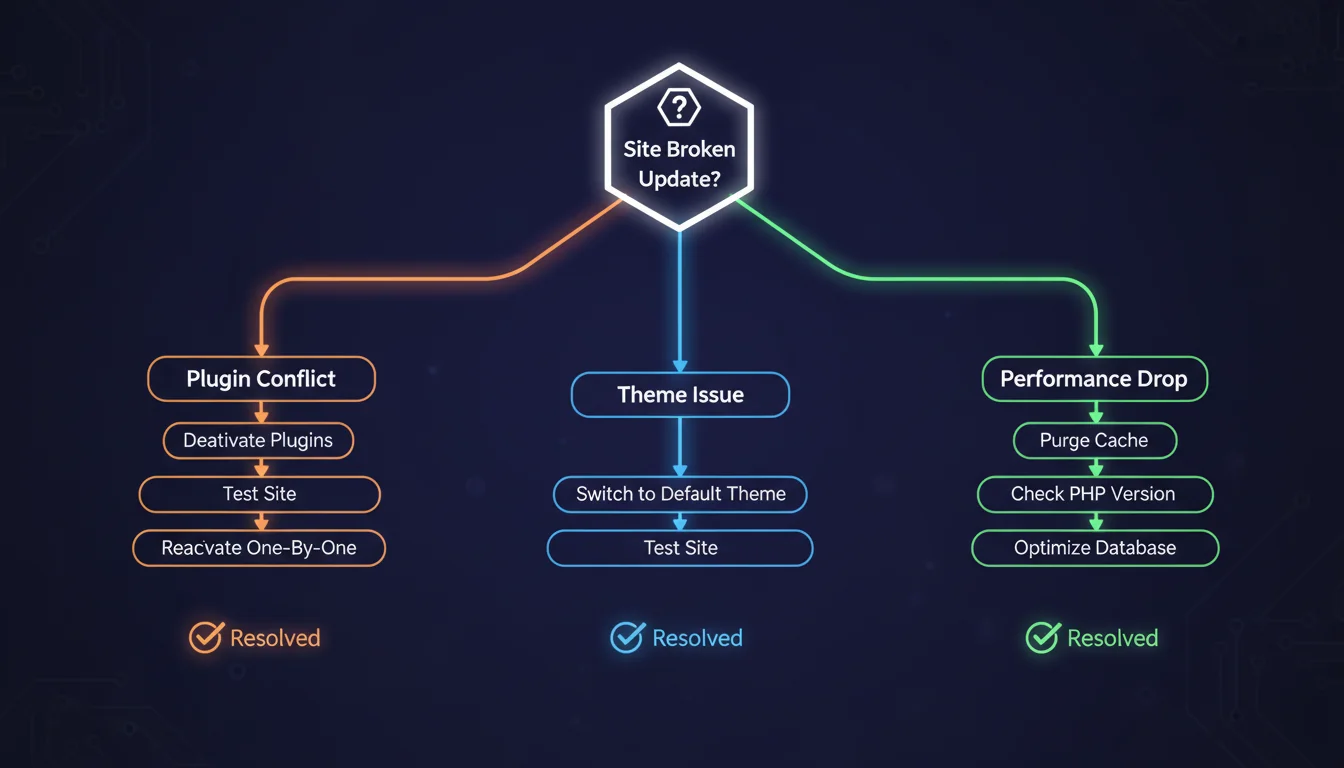
Plugin Conflict
The most common problem. Symptoms: white screen, error messages, or specific features not working. The fix is systematic deactivation.
Go to Plugins > Installed Plugins. Deactivate all plugins. If the site works, reactivate them one by one. When the problem returns, you've found the culprit. Check for an update, contact the developer, or find an alternative.
With WordPress 6.9 specifically, three popular plugins had known issues at launch. WooCommerce, Yoast SEO, and Elementor all needed compatibility patches. If you're seeing problems with any of these, update the plugin first.
Theme Incompatibility
Switch to a default theme (Twenty Twenty-Five comes bundled with 6.9). If the problem disappears, your theme needs updating. Contact your theme developer. If they haven't released a 6.9-compatible version within a week of launch, consider whether that theme is still being maintained.
Performance Drop
WordPress 6.9 should make your site faster. If it's slower, something else is wrong. The most common culprit is the caching plugin conflict we documented. Purge all caches, disable your caching plugin temporarily, and test again. If performance returns to normal, your caching plugin needs updating.
Also check: is your host running PHP 7.x? WordPress 6.9 on old PHP versions runs slower than 6.8 on the same version. PHP 8.5 paired with 6.9 is where the real speed gains are.
Speed Tips After Upgrading
Once you're running 6.9 cleanly, squeeze more performance out of it:
- Enable object caching: If your host provides Redis or Memcached, turn it on. WordPress 6.9's improved object cache integration means bigger gains than previous versions.
- Audit your plugins: Deactivate anything you're not using. Each active plugin adds load time, even if it only runs on admin pages.
- Use a CDN: A content delivery network serves your static files from the nearest server to your visitor. It's the single biggest speed improvement for international traffic.
- Update PHP: If you're still on 8.3, move to 8.4 or 8.5. The performance difference is measurable and immediate.
- Check your images: WordPress 6.9 improved lazy loading, but if your images are 5MB each, no amount of lazy loading helps. Convert to WebP, compress to 70-80% quality.
"Caching is the art of storing responses and reusing them. But it only works if the cache is actually valid."
Ilya Grigorik, Web Performance Engineer at Google, High Performance Browser Networking
I quote Ilya's book to clients at least once a month. The number of WordPress sites running a caching plugin with default settings that aren't actually caching anything useful is staggering. WordPress 6.9 improved the caching infrastructure, but if your configuration is wrong, faster infrastructure doesn't help. Audit your caching setup after every major update.
When to Upgrade: The Timing Question
We always recommend the same approach for major WordPress releases:
- Week 1 (Dec 2-8): Update staging sites only. Test everything. Monitor the WordPress support forums for reported issues.
- Week 2 (Dec 9-15): Update low-risk live sites (blogs, brochure sites, sites with good backups).
- Week 3+ (Dec 16 onward): Update business-critical sites (e-commerce, membership, high-traffic).
By week three, plugin developers have had time to release compatibility patches, hosting companies have tested their stacks, and the WordPress community has found and reported edge cases. The risk drops substantially.
That said, WordPress 6.9's compatibility rate in our testing was 97.4% across 94 plugins. It's one of the cleanest major releases we've tested. If you're confident in your backups and staging process, there's no reason to wait.
Frequently Asked Questions
Can I update WordPress 6.9 automatically?
Yes. Go to Dashboard > Updates and click "Update to WordPress 6.9". This works for 95% of sites. Only use manual installation if automatic updates have failed before on your server or you've modified core WordPress files.
Do I need to back up before updating to WordPress 6.9?
Yes, always. Back up your database and all files before any major WordPress update. Download the backup locally so you can restore even if your hosting control panel is inaccessible. This takes five minutes and can save hours of recovery work.
What PHP version does WordPress 6.9 require?
PHP 7.4 minimum, but PHP 8.4 or 8.5 is recommended for best performance. WordPress 6.9 on PHP 8.5 is roughly 23% faster than 6.8 on PHP 8.3. Upgrade PHP before upgrading WordPress to avoid doing both at once.
Should I update WooCommerce before or after WordPress 6.9?
Update WooCommerce to 10.4.2+ first, then update WordPress 6.9. This order ensures WooCommerce has its 6.9 compatibility patch in place before WordPress changes the underlying APIs it depends on.
How long should I wait before updating to WordPress 6.9?
Test on staging immediately, update low-risk sites in week two, and business-critical sites in week three. By week three, plugin developers have released compatibility patches and edge cases are documented. However, 6.9's 97.4% compatibility rate means you can move faster if you have good backups.
Can I roll back to WordPress 6.8 if something goes wrong?
Yes, if you have a backup. Restore your pre-update backup (files and database) to return to exactly where you were. Some managed hosts offer one-click rollback. Without a backup, rolling back requires manually downloading WordPress 6.8 and replacing all core files.
What is a staging environment and do I need one?
A staging environment is a private copy of your live site where you test changes safely. You should use one for every major WordPress update. Most managed WordPress hosts include staging with their plans. If yours doesn't, create a subdomain copy of your site for testing.
Update With Confidence
Every 365i WordPress hosting plan includes one-click staging, automatic daily backups, and managed updates. Test WordPress 6.9 safely before it touches your live site.
Explore WordPress HostingPublished: · Last reviewed: · Written by: Mark McNeece, Founder & Managing Director, 365i
Editorially reviewed by: Mark McNeece on · Our editorial standards