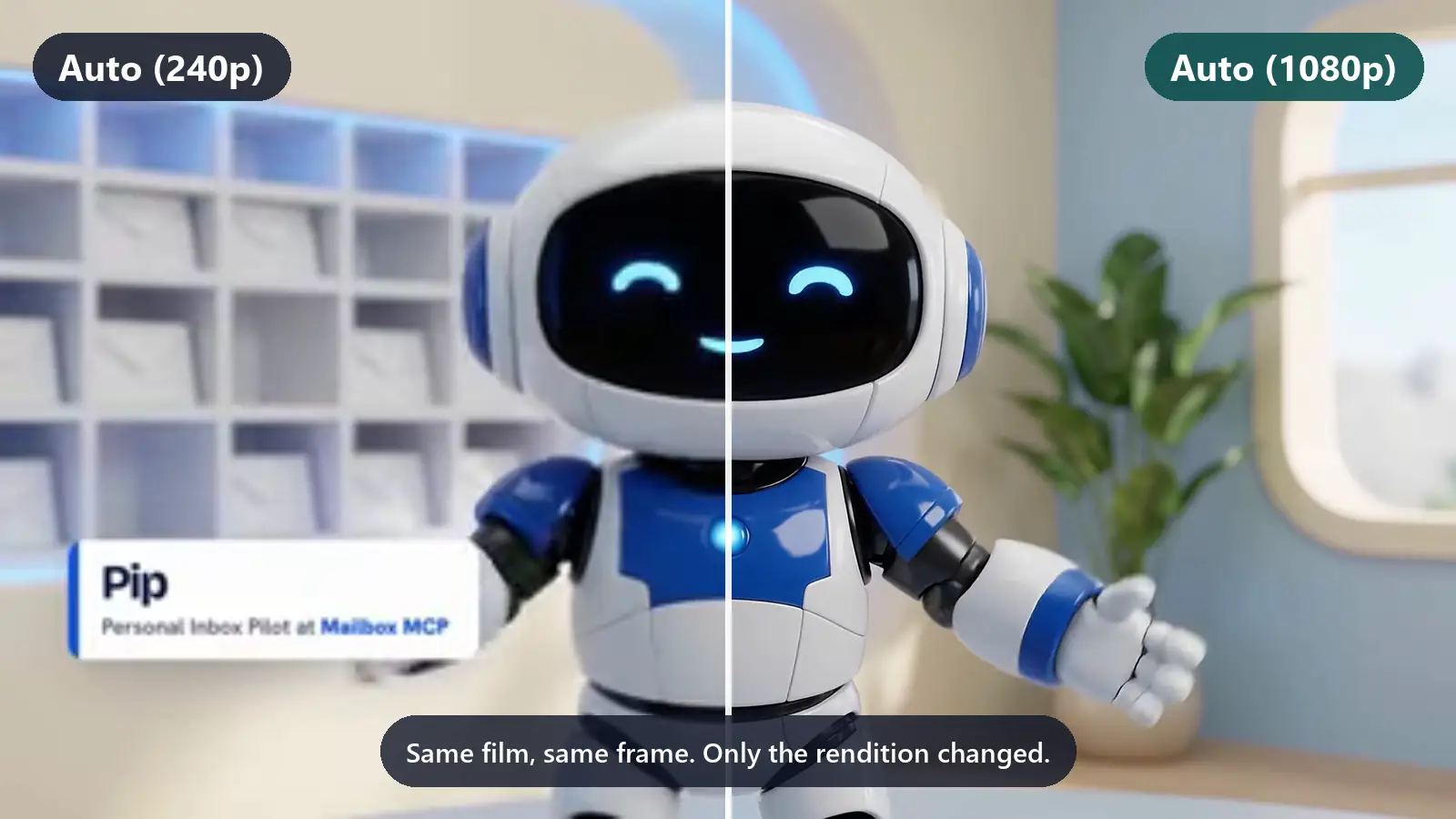
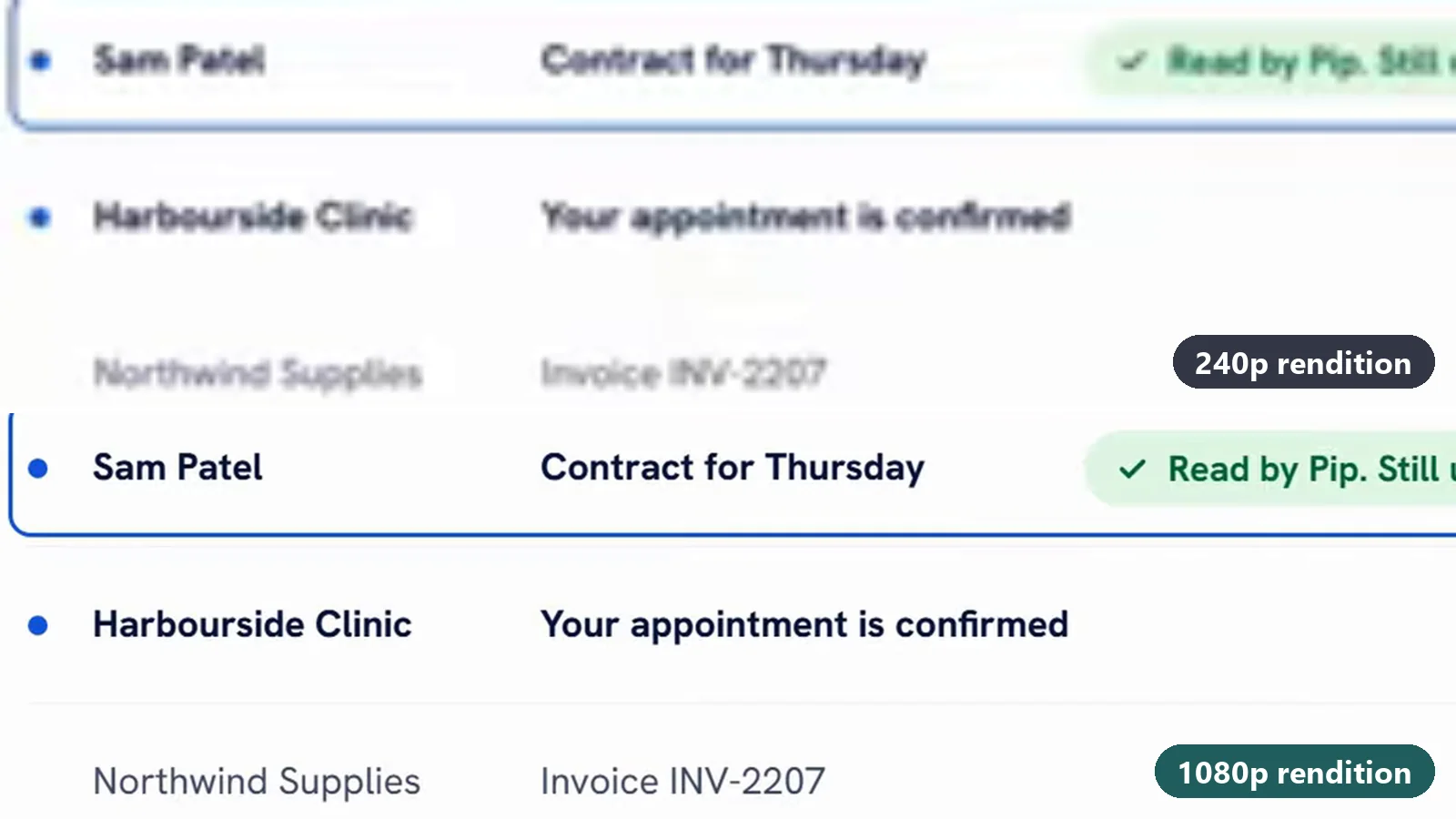
If you've got a YouTube video playing in 240p when you uploaded it in full HD, you're in good company. Ours did it this week. We published a short brand film in 1080p and it kept starting viewers on Auto (240p), with 1080p sitting right there in the quality menu.
The fix wasn't a setting, because there isn't one. It was a change to what we uploaded. This post walks through what we checked, what the renditions YouTube had built actually showed, the 1440p re-upload that sorted it, and how to run the same checks on your own video in a couple of minutes. I'll also be plain about what this doesn't fix, because some of the 240p reports you'll read online are the player working exactly as designed.
Why Our YouTube Video Kept Playing in 240p After a 1080p Upload
The film is Meet Pip, a short introduction, just under three minutes long, to the robot mascot of Mailbox MCP, our sister product that connects an existing mailbox to Claude, ChatGPT and other AI assistants. It went up on the 365i YouTube channel with a custom thumbnail, nine chapters and English (UK) subtitles. How it was made, and the six things that broke along the way, is written up on our web design site. Here it is, playing from the re-upload, which now starts in HD:

The first upload was a 1080p file, which is what most of us export by habit and what every "best upload settings" guide treats as the safe default. It processed, the HD options appeared in the quality menu, and viewers still kept landing on Auto (240p).
That pattern is worth spotting, because it rules out the usual explanations. A video that's still processing doesn't offer 1080p at all. A viewer on a slow line drops to a low rendition and climbs back up as the buffer fills. Ours had HD available and kept choosing not to start there.
YouTube Has No Default Quality Setting for Creators
The first thing anyone tries is to find the setting that makes a video play in HD by default. It doesn't exist. There's nothing in YouTube Studio that sets a starting quality for your viewers, and Auto belongs to the viewer's player. YouTube's own help page puts it simply: "YouTube changes the quality of your video stream based on your viewing conditions", and the conditions it lists are the viewer's connection speed, the player or screen size, the quality of the original upload, and the browser.
The old embed tricks are gone too. Adding vq=hd1080 to an embed URL, or calling setPlaybackQuality through the player API, used to nudge things. Google retired both in October 2019, when the IFrame Player API revision history recorded that "calls to setPlaybackQuality will be no-op functions, meaning they will not actually have any impact". So any guide still telling you to add a parameter is out of date by seven years.
Read that list of conditions again, though. Three of the four belong to the viewer. One belongs to you: the quality of what you uploaded. That turned out to be the only lever we had, and it's a bigger one than it looks, because Auto can only pick from the renditions YouTube has prepared.
What the Renditions Showed: VP9 Only at 360p
YouTube doesn't stream your file. It builds a ladder of separate copies, from 144p up to the resolution you uploaded, and encodes them in more than one codec. The two that matter here are AVC1, which is H.264, the older and most widely supported codec, and VP9, Google's newer one. Google's own description of VP9 says it "can reduce video bit rates by as much as 50% compared with other known codecs". More picture for the same data, in other words, which is exactly what an adaptive player weighs up when it decides where to start.
So we checked which codec each rung of our upload actually had, from the public watch page. The 1080p upload had VP9 at 360p and nowhere else. The 480p, 720p and 1080p rungs were the older codec only. That lines up uncomfortably well with the symptom: the one efficient rung sat near the bottom of the ladder, and the player kept starting there or below it.
I can't tell you YouTube's internal rule for choosing a starting rung, and nobody outside YouTube can either. What I can tell you is what changed when the ladder changed.
The Fix: Uploading in 1440p to Get VP9 at Every Rung
The film's master had been finished at 1440p (2560 by 1440) all along; the first upload was a 1080p export of an earlier cut. So we uploaded the 1440p master as a new video, at the same 24fps. Once processing finished, the ladder looked completely different: VP9 at every rung from 144p to 1080p, alongside AVC1, plus a VP9-only 1440p rung on top. And it started in HD by default.
To be fair to the evidence, resolution wasn't the only difference. By the time we re-uploaded, the film had a new voice-over, with the timings adjusted to fit it; the pictures, music and chapters were otherwise the same. I'm confident the voice isn't what fixed it, though. YouTube encodes the picture and the sound as separate streams (you can see the video-only and audio-only rows in the listing further down), so a new voice track had no say in which codecs the picture got. The ladder changed with the resolution of the file.
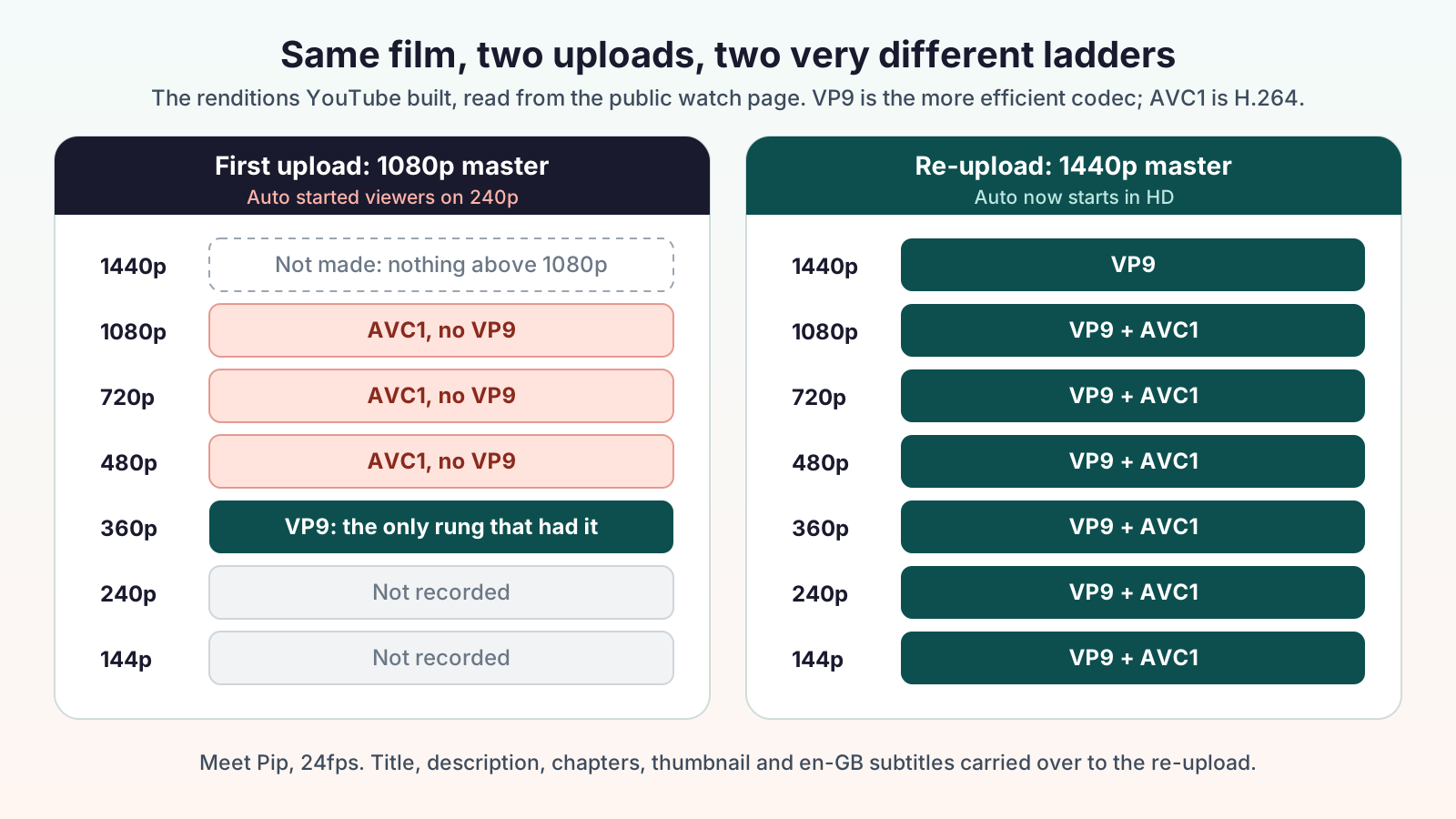
| What we looked at | 1080p upload | 1440p re-upload |
|---|---|---|
| Highest rung | 1080p | 1440p |
| Rungs with VP9 | 360p only | 144p, 240p, 360p, 480p, 720p, 1080p, 1440p |
| Where Auto started viewers | 240p | HD |
| Title, description, chapters, thumbnail, subtitles | Original | Carried over |
| Voice-over | First recording | Re-recorded, timings adjusted |
This is a known pattern among people who test YouTube encoding, not something we stumbled on alone. Jan Ozer, who runs the Streaming Learning Center and writes about video codecs, answered a reader's question about it in 2021:
"YouTube appears to encode all videos larger than 1080p with VP9. However, YouTube only creates H.264 versions of those videos at 1080p and lower."
Jan Ozer, Streaming Learning Center, Which Codecs Does YouTube Use? (reader reply, 10 September 2021)
Our re-upload matches both halves of that exactly. The 1440p rung is VP9 alone, and every rung below it has H.264 as well. What struck me, reading it after the fact, is the word "appears". Even a specialist describes it as an observation, five years on, because YouTube has never published the rule. Ozer also noted that YouTube seemed to favour H.264 for videos with few views, and you might wonder if that's all our first upload was suffering from. I don't think so. The re-upload was brand new with no view history either, and it got VP9 top to bottom the day it processed. In our case the resolution of the master is what moved.
We aren't the only ones to see this exact failure this month, either. A Japanese creator, Awatake, wrote up the same symptom on 27 October: a 1080p upload stuck on Auto (240p), VP9 present only at 360p, fixed by a 1440p re-upload. Two unrelated channels, the same ladder, the same fix, four days apart.
How to Check Your YouTube Video's Renditions and Codec
You don't need YouTube Studio for any of this. Everything is on the public watch page, which also means you can check a video before you've decided whether it's your problem at all.
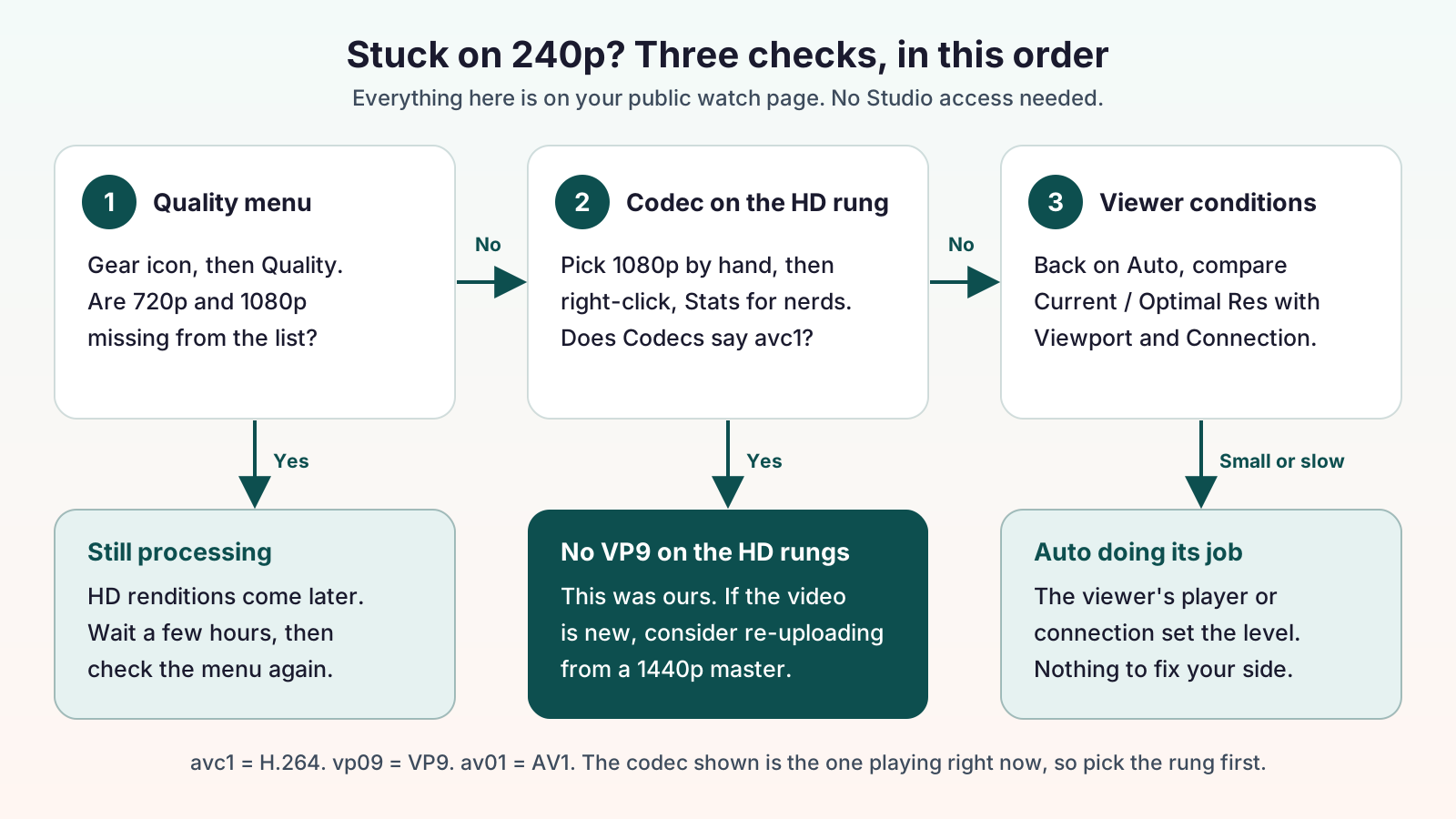
- Open the quality menu. On the watch page, click the gear icon, then Quality. If 720p and 1080p aren't listed yet, stop here: the video is still processing (more on that below).
- Pick a rung by hand. Choose 1080p rather than Auto, so you know which rendition you're looking at.
- Open Stats for nerds. Right-click the player and choose Stats for nerds. The Codecs line starts with
avc1for H.264,vp09for VP9 orav01for AV1. The number in brackets is YouTube's format ID for that rendition. - Repeat down the ladder. Try 720p and 480p the same way. If VP9 only turns up at the bottom, you've got the ladder we had.
- Go back to Auto and read the Res line. Current / Optimal Res shows what's playing and what the player thinks it should play, beside Viewport and Connection Speed.
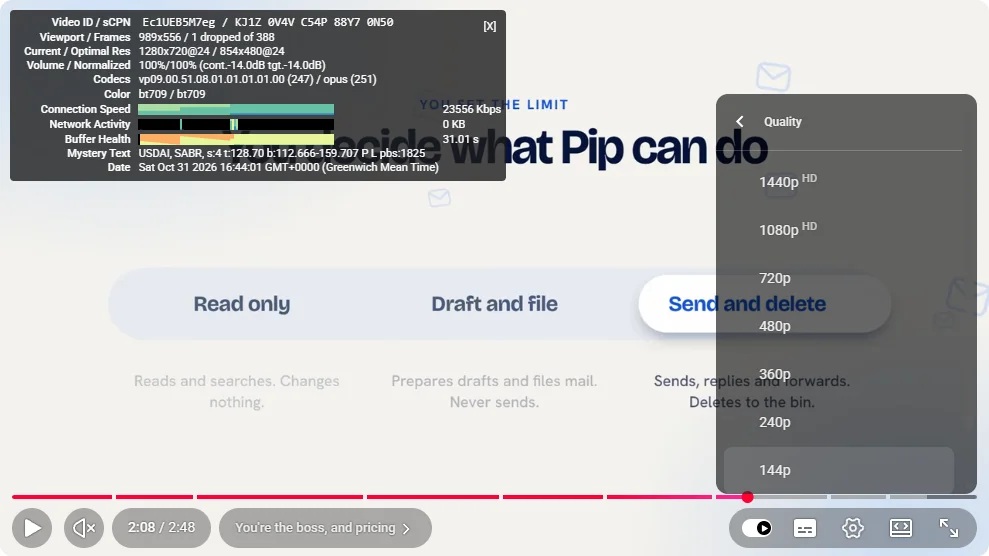
vp09 on the rung that's playing, and a quality menu that now runs from 144p to 1440p.If you're happy with a command line, yt-dlp will list every rendition in one go, which is quicker than clicking down the ladder. This is the real output for our re-upload, trimmed to the main columns and the two audio formats that matter:
yt-dlp -F "https://www.youtube.com/watch?v=Ec1UEB5M7eg"

ID  EXT   RESOLUTION FPS | VCODEC         MORE INFO
140 m4a   audio only     | audio only     mp4a.40.2
251 webm  audio only     | audio only     opus
160 mp4   256x144     24 | avc1.4D400C    144p
278 webm  256x144     24 | vp9            144p
133 mp4   426x240     24 | avc1.4D4015    240p
242 webm  426x240     24 | vp9            240p
134 mp4   640x360     24 | avc1.4D401E    360p
243 webm  640x360     24 | vp9            360p
135 mp4   854x480     24 | avc1.4D401E    480p
244 webm  854x480     24 | vp9            480p
136 mp4   1280x720    24 | avc1.64001F    720p
247 webm  1280x720    24 | vp9            720p
137 mp4   1920x1080   24 | avc1.640028    1080p
248 webm  1920x1080   24 | vp9            1080p
271 webm  2560x1440   24 | vp9            1440p
Sound and picture are separate rows, every picture rung has a vp9 row, and 1440p has nothing else. On our first upload, the same listing would have shown vp9 beside 360p and missing from 480p, 720p and 1080p.
When a YouTube Re-Upload Is Worth It, and What Carries Over
Before you re-upload anything, give the original time. New uploads go live in low quality first and the HD renditions follow, and VP9 tends to be among the last to arrive. YouTube's help page on low video quality after upload is clear that this can take a while:
"While this processing happens, your video may seem to be missing higher qualities for several hours."
YouTube Help, Low video quality after upload
"Several hours" is the line I'd hold people to before they touch anything. A lot of the 240p worry you'll find in forums is a video checked soon after upload, and the honest fix there is a cup of tea. Where our case was different was that the HD rungs had finished, they were in the menu, and the problem stayed. That's the point at which a re-upload becomes a reasonable call rather than a superstition.
Weigh it carefully, because a re-upload is a new video with a new URL. Views, likes, comments and watch history all stay with the old one, and so does every link and embed that points at it. That's why timing matters more than anything else here: do it early, while the video has a handful of views and you know where the link has been shared. Six months in, with the URL in emails, social posts and other people's pages, the trade is rarely worth it.
Here's what we did, in order:
- Uploaded the film's 1440p master, which by then had its new voice-over, as a new video.
- Carried the title and description across. The chapters came with the description, because YouTube builds chapters from the timestamps in it, adjusted to the new timings.
- Uploaded the same custom thumbnail and the English (UK) subtitles. Hand-made subtitles earn their keep twice: they're also most of what an AI answer engine can read, as our sister site found when it tested how AI search reads a YouTube video.
- Waited for processing to finish, then checked the ladder on the public watch page.
- Set the old upload to Private rather than deleting it. Deleting is permanent; Private takes it out of public view and keeps it, with its stats, if it's ever needed.
One thing nothing does for you: links and embeds that point at the old video ID don't follow it. Update them yourself, wherever you put them.
What Uploading in 1440p Doesn't Fix
This is the section I'd want to read before trying any of it, so here it is straight.
It doesn't override the viewer. Auto is the viewer's choice in the end. Someone on a weak mobile signal, or with Data saver switched on, will still start low and may stay there, and that's the player doing its job. A better ladder gives Auto better options. It doesn't make anyone's connection faster.
Player size still caps it. When I opened our re-upload on its watch page today, in a player 989 pixels wide on a connection reading over 23 Mbps, Auto chose 720p, not 1080p or 1440p. Stats for nerds even put the "optimal" figure at 480p for that player. Small players get small renditions, and an embed in a narrow blog column will rarely need 1080p. If a colleague tells you your video "only plays at 720p" in a small window, that's not a fault.
It isn't guaranteed. YouTube publishes no rule that a 1440p upload gets VP9. Jan Sørup at FilmDaft tested this in 2019 and found that "a 1440p video at 25fps with the recommended bitrate settings also played with AVC1", while his 1440p upload at 50fps got VP9. Ours was 24fps and got VP9 everywhere, seven years later. Treat 1440p as an observed workaround that worked for us and for others this month, not a setting you're entitled to.
It may not be your upload at all. This week a YouTube Community thread appeared titled "YouTube automatically plays my videos in 240p/360p despite 1080p being available". When several channels report the same thing in the same week, part of the cause may sit with YouTube, and it may change without anyone touching their uploads. Check your ladder before assuming either way.
And it can't add detail. A 1440p master changes how YouTube encodes your film. If the source footage was soft, the 1440p version is a larger copy of something soft.
Why the Film Lives on YouTube, Not on Our Web Hosting
A fair question from a hosting company: if YouTube is this unpredictable, why not put the MP4 on our own servers and play it from there? We could. Every one of our web hosting plans will serve a video file perfectly well. It just serves one file, at one resolution and one bitrate, to everyone. A phone on a train gets the same 1080p download as a desktop on fibre, and the phone waits.
What YouTube gives you for nothing is the part this whole post has been about: a ladder of renditions in more than one codec, and a player that moves between them as conditions change. Building that yourself means encoding every rung and serving adaptive streams, which is a video platform's job, not a website's. For a short brand film, I'd let YouTube do the video and let your hosting do the page.
The catch is that a standard YouTube embed loads a lot of script before anyone presses play, and that can cost you real points on PageSpeed. That's why the film above is a click-to-load poster: a lightweight image and a play button, with the actual player only loading when you click. The page stays fast, the film keeps its ladder, and the CDN only has the page and poster to cache. It's the same thinking behind the Lockerfella launch that scored 100 on PageSpeed: anything heavy that most visitors never use shouldn't load until they ask for it. If you're working through a slow site more broadly, our WordPress speed guide for UK small businesses covers the bigger wins first.
As for Pip himself: he exists because Mailbox MCP needed a friendly way to explain something technical. If you want to know what he actually does, our guide to AI for business email walks through it on a real mailbox, the product's first two months are written up on our web design site, and the bill of materials for the VPS it runs on is here too. The film was the easy part. Getting viewers to see it in HD turned out to be the bit worth writing down.
Frequently Asked Questions
Why does my YouTube video play in 240p when I uploaded 1080p?
Usually one of three things. The HD renditions are still processing, the viewer's connection or player size is limiting Auto, or the HD rungs lack VP9 and the player starts low. Check the quality menu first, then the codec in Stats for nerds, to see which one applies.
Can I make my YouTube video play in HD by default for viewers?
No. YouTube has no creator setting for default playback quality, and Google made the embed quality controls do nothing in 2019. Auto belongs to the viewer. What you can control is the upload, so the renditions Auto chooses from are as good as possible.
How long does YouTube take to process HD?
Anything from minutes to several hours, depending on length, resolution, frame rate and how busy YouTube is. The video goes live in low quality first and the HD versions follow. YouTube says higher qualities may seem to be missing for several hours while that happens.
Does uploading in 1440p force YouTube to use VP9?
Often, but not always. Our 1440p re-upload got VP9 at every rung from 144p up, and other creators report the same. YouTube publishes no such rule, and at least one tester has seen a 1440p upload at 25fps served as AVC1, so check the result rather than assume it.
How do I see which codec my YouTube video is using?
Right-click the player and choose Stats for nerds. The Codecs line shows avc1 for H.264, vp09 for VP9 or av01 for AV1, for whichever rung is playing. Pick each quality by hand to check them one at a time, or use yt-dlp -F to list them all.
Will re-uploading a YouTube video lose my views?
Yes. A re-upload is a new video with a new URL, so views, likes, comments and every existing link stay with the old one. That's why it's only worth doing early. Set the old version to Private rather than deleting it if you want to keep it.
Why does Auto choose 720p on a fast connection?
Because Auto also looks at the size of the player. In a player under 1,000 pixels wide, a 1080p stream adds data without adding visible detail, so Auto often picks 720p or lower. Go full screen and it will usually step up.
Should I upscale a 1080p video to 1440p before uploading?
It's the usual workaround, and it can change which codec YouTube gives your HD rungs. It won't add detail that wasn't in the source. If your project can export at 1440p, as ours could, that's better than upscaling a finished 1080p file.
Keep the video on YouTube and the page fast
Your film belongs on YouTube's ladder. The page around it belongs on hosting that serves it quickly, with a CDN in front and room to grow.
Explore Web HostingPublished: · Last reviewed: · Written by: Mark McNeece, Founder & Managing Director, 365i
Editorially reviewed by: Mark McNeece on · Our editorial standards
Sources and further reading
- Low video quality after upload - YouTube Help
- Change the quality of your video - YouTube Help
- Send YouTube debug info (Stats for nerds) - YouTube Help
- YouTube IFrame Player API revision history, 24 October 2019 - Google for Developers
- VP9 - Google for Developers
- Which Codecs Does YouTube Use? - Jan Ozer, Streaming Learning Center
- YouTube Image Quality: Bitrates, Codecs and 4K Uploads - Jan Sørup, FilmDaft
- YouTube upload becomes Auto (240p), and the 1440p re-upload fix - Awatake, 27 October 2026 (Japanese)
- YouTube automatically plays my videos in 240p/360p despite 1080p being available - YouTube Community
- yt-dlp - GitHub