Commercial AI APIs are convenient. They're also expensive, rate-limited, and you're trusting someone else with every prompt you send. There's another option: run your own large language models on rented GPU hardware, control the entire pipeline, and pay only for what you use.
This guide covers the full setup from scratch. RunPod for GPU compute, vLLM for inference, Open WebUI for a clean chat interface, all running from a Windows machine. I've been using this setup since early 2025 for client research, content drafting, and code generation. The monthly cost averages around £15-25 for moderate use, compared to £60+ for equivalent commercial API access.
Why Self-Host an LLM?
Three reasons, in order of importance.
Privacy. Every prompt you send to ChatGPT, Claude, or Gemini passes through their servers. With a self-hosted model on RunPod, your data stays in the GPU instance and gets wiped when the session ends. For businesses handling sensitive client data, financial information, or proprietary strategies, this matters.
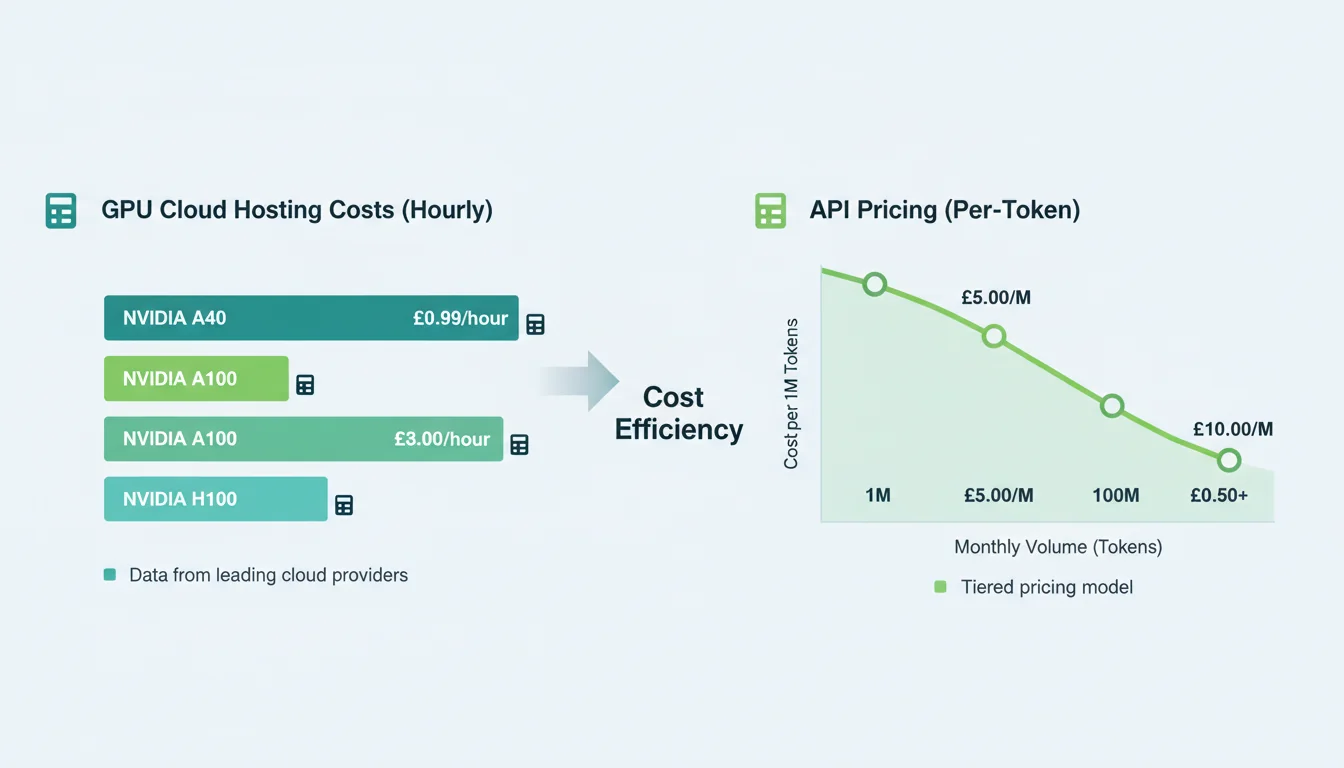
Cost control. RunPod's serverless model charges per-second of actual inference time. No monthly subscription, no per-token pricing tiers, no surprise bills if you stay within your limits. Set a spending cap and you physically can't exceed it.
No rate limits. Commercial APIs throttle heavy users. When you're running batch operations (processing 200 product descriptions, analysing a year of customer feedback, generating variations of ad copy), rate limits turn a 20-minute job into a 3-hour one. Your own endpoint has no artificial throttling.

What You Need
Software Requirements
- Windows 10/11 (build 19044 or later, for WSL 2 support)
- Docker Desktop with WSL 2 backend enabled (v4.x+)
- Python 3.11+ (for optional scripting and API testing)
Accounts
- RunPod account with £20-30 initial credit (enough for several days of testing)
- Hugging Face account with an API token (free tier is fine)
Your local machine doesn't need a powerful GPU. All the heavy compute happens on RunPod's servers. An 8GB RAM laptop works, though 16GB is more comfortable when running Docker alongside your browser and editor.
Step 1: Configure RunPod
Create your RunPod account, add credit, and head to the Serverless section. This is where you'll deploy your vLLM endpoint.
Choose a GPU tier. For most open-source models (Llama 3, Mistral, Qwen), 48GB VRAM handles everything comfortably. If you want to run larger 70B+ parameter models, go for 80GB. Don't pick 24GB thinking you'll save money: you'll spend more time waiting for responses than you save in compute costs.
# Key settings for your RunPod serverless endpoint:
# - GPU Type: NVIDIA A100 80GB (or A40 48GB for smaller models)
# - Max Workers: 1 (increase only if you need concurrent requests)
# - Idle Timeout: 5 seconds (auto-scales to zero when not in use)
# - Template: RunPod vLLM (official template)
# - Model: meta-llama/Meta-Llama-3.1-70B-Instruct (or your preferred model)
The idle timeout is critical. Set it to 5 seconds so the GPU instance shuts down when you're not using it. You only pay for active inference time, not idle waiting. I learned this lesson the hard way: left an endpoint running over a bank holiday weekend and came back to a £50 charge for zero actual usage.
"The real cost of running AI isn't the hardware. It's the discipline of managing it."
Andrej Karpathy, Former Director of AI at Tesla, karpathy.ai
Karpathy was talking about training, but it applies to inference too. RunPod makes GPU access trivially cheap per second. The expensive part is forgetting to set up spending alerts. Do that before you deploy anything.
Step 2: Install Docker and Open WebUI
If you don't have Docker Desktop installed, download it from docker.com and enable the WSL 2 backend during setup. Restart your machine. Open a terminal and verify:
docker --version
# Should return Docker version 27.x or later
Now deploy Open WebUI. This single command pulls the image and starts the container:
docker run -d -p 3000:8080 \
  -v open-webui:/app/backend/data \
  --name open-webui \
  --restart always \
  ghcr.io/open-webui/open-webui:main
The -v open-webui:/app/backend/data flag is the one that matters. It creates a persistent Docker volume for your settings, conversation history, and model configurations. Without it, every container restart wipes your data. I've seen people lose weeks of conversation history because they skipped this flag.
Once the container is running, open http://localhost:3000 in your browser. Create an admin account (this is local-only, not exposed to the internet).
Step 3: Connect Open WebUI to RunPod
In Open WebUI, go to Admin Panel > Settings > Connections. Add a new OpenAI-compatible connection with your RunPod endpoint URL and API key:
# Your RunPod endpoint URL format:
https://api.runpod.ai/v2/YOUR_ENDPOINT_ID/openai/v1

# API Key: your RunPod API key from the Settings page
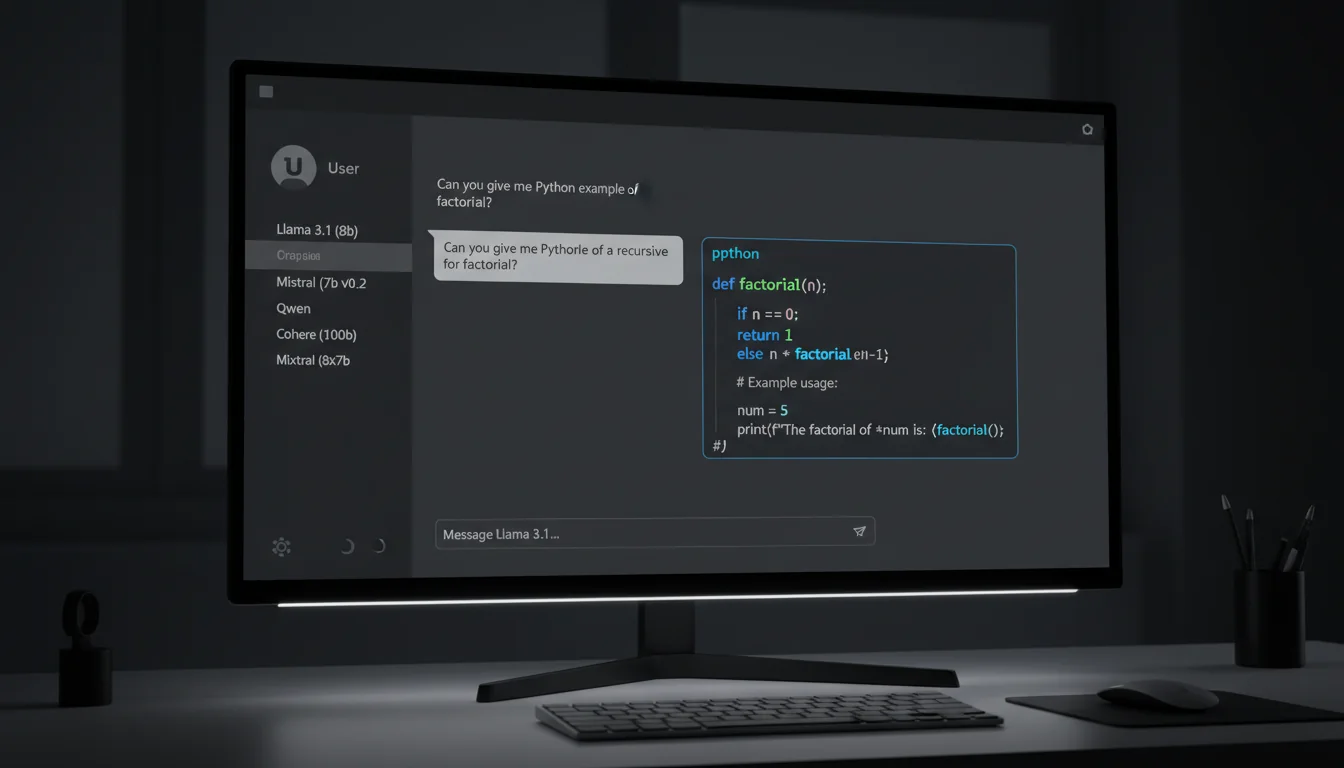
Open WebUI speaks the OpenAI API format natively, and RunPod's vLLM template exposes an OpenAI-compatible endpoint. No adapters or middleware required. Once connected, your deployed model appears in the model dropdown and you can start chatting.
Test with a simple prompt to confirm the connection works. The first request takes 10-30 seconds because RunPod needs to cold-start the GPU instance and load the model into VRAM. Subsequent requests within the idle window respond in 1-3 seconds.
Choosing the Right Model
Don't just deploy the biggest model you can find. Match the model to the task:
| Task | Recommended Model | VRAM Required | Cost per Hour |
|---|---|---|---|
| General chat, quick questions | Mistral 7B / Llama 3 8B | 24GB | ~£0.15 |
| Content writing, analysis | Llama 3.1 70B | 48-80GB | ~£0.45 |
| Code generation, reasoning | DeepSeek Coder V2 / Qwen 2.5 72B | 80GB | ~£0.55 |
| Batch processing | Mistral 7B (fastest throughput) | 24GB | ~£0.15 |
You can deploy multiple endpoints on RunPod and switch between them in Open WebUI's model dropdown. I keep a fast 7B model for quick questions and a 70B model for anything that needs deeper reasoning. The 7B model is cheap enough to leave idle; the 70B model I spin up when I need it and shut down after.
Keeping Costs Under Control
RunPod's serverless pricing is fair, but it's easy to overspend if you don't set guardrails:
- Set a spending limit. RunPod lets you cap monthly spend. Set it to £30-50 for personal use. You'll get a warning before hitting the limit.
- Use idle timeout. 5-second idle timeout means the GPU scales to zero almost immediately after your last request. No idle charges.
- Monitor your dashboard. Check RunPod's billing page weekly. Look for unexpected usage patterns.
- Don't leave endpoints active overnight. Serverless endpoints scale to zero automatically, but dedicated pods don't. If you've deployed a dedicated pod for testing, shut it down before bed.
"The best infrastructure is the kind you don't think about. It just works, and it doesn't cost you when you're not using it."
Kelsey Hightower, Distinguished Engineer (formerly Google Cloud), Kelsey Hightower on X
That philosophy applies perfectly to this setup. RunPod's serverless model means you pay per second of actual use. Open WebUI runs locally at zero marginal cost. The infrastructure exists when you need it and disappears when you don't. I've run this setup for six months now and the bills consistently land between £15-25 per month for daily use.
Security Considerations
Open WebUI runs on localhost by default. That's the right call. Don't expose it to the internet without protection.
- Local access only: Keep Open WebUI on localhost:3000. Access it from your machine only.
- Remote access via VPN: If you need to use it from another location, tunnel through a VPN rather than exposing the port publicly.
- API key rotation: Rotate your RunPod API key monthly. It takes 30 seconds and limits the damage if a key is compromised.
- Docker updates: Keep Docker Desktop and the Open WebUI container updated. Run
docker pull ghcr.io/open-webui/open-webui:mainperiodically.
For businesses on our managed cloud hosting, we can set up a similar self-hosted AI infrastructure with proper firewalling and monitoring. But for individual use or small teams, the Docker-on-localhost approach is perfectly secure.
Common Issues and Fixes
Docker Won't Start
Usually a WSL 2 issue. Open PowerShell as admin and run:
wsl --update
wsl --shutdown
# Then restart Docker Desktop
Endpoint Returns Errors
Check the RunPod logs. Most errors are either VRAM exhaustion (model too large for the GPU) or Hugging Face token issues (the model requires acceptance of terms). Make sure your HF token has read access and you've accepted the model's licence on the Hugging Face website.
Slow First Response
Normal. The cold start loads the model into GPU VRAM, which takes 10-30 seconds depending on model size. Keep the idle timeout at 5+ seconds so subsequent requests within a session don't trigger another cold start.
Open WebUI Lost My Conversations
You forgot the -v flag when starting the container. Stop the container, remove it, and re-create it with the persistent volume flag. Your conversations from this point forward will be saved.
Is Self-Hosting Worth It?
For everyone? No. If you send ten prompts a day and don't handle sensitive data, a ChatGPT subscription is simpler and good enough.
For power users, developers, agencies, and businesses with privacy requirements? Absolutely. The setup takes an hour. The monthly cost is lower than commercial alternatives. You get full control over model selection, no rate limits, and complete data privacy. And once it's running, it genuinely feels like having your own private AI lab.
The open-source model ecosystem is moving fast. Six months ago, self-hosted models couldn't touch GPT-4. Today, Llama 3.1 70B and Qwen 2.5 72B are competitive on most tasks. In another six months, the gap will shrink further. Getting comfortable with self-hosted infrastructure now puts you ahead of the curve. If you're thinking about running this on dedicated cloud rather than pay-per-second GPU rental, our cloud provider comparison covers how AWS, Google Cloud, and 365i managed cloud stack up.
Frequently Asked Questions
How much does it cost to run your own LLM on RunPod?
For moderate daily use with a mix of small and large models, expect £15-25 per month. RunPod charges per second of active inference, with no idle charges on serverless endpoints. A 7B model costs roughly £0.15/hour, while a 70B model runs about £0.45/hour of active use.
Do I need a powerful PC to run this setup?
No. Your PC only runs Docker and the Open WebUI interface. All GPU computation happens on RunPod's servers. An 8GB RAM machine works, though 16GB is more comfortable with Docker running alongside your browser.
How does self-hosted compare to ChatGPT or Claude?
Open-source models like Llama 3.1 70B are competitive with GPT-4 on most tasks. You get full data privacy, no rate limits, and lower costs for heavy use. The trade-off is a one-hour setup and no customer support if something breaks.
Is my data private when using RunPod?
Yes. Serverless GPU instances on RunPod process your requests and then the VRAM is cleared. RunPod doesn't log your prompts or responses. Open WebUI stores conversation history locally on your machine in a Docker volume.
Can I run multiple models at the same time?
Yes. Deploy multiple serverless endpoints on RunPod (one per model) and add each to Open WebUI's connections. Switch between them using the model dropdown. Each endpoint scales independently and you only pay for whichever one is actively processing.
Does this work on Mac or Linux?
Yes. The Docker commands are identical on Mac and Linux. Skip the WSL 2 requirement (that's Windows-specific). Docker Desktop on Mac or native Docker on Linux handles Open WebUI the same way. The RunPod connection works from any operating system.
Need Managed AI Infrastructure?
For businesses that want self-hosted AI without the setup hassle, our managed cloud servers come with Docker support, firewalling, and monitoring built in.
Explore Cloud ServersPublished: · Last reviewed: · Written by: Mark McNeece, Founder & Managing Director, 365i
Editorially reviewed by: Mark McNeece on · Our editorial standards