You've installed your SSL certificate. The green padlock should be showing. But it isn't. The browser says "Not Secure" or shows a warning triangle, and you can't work out why.
The culprit is almost always mixed content: one or more resources on your page loading over plain HTTP instead of HTTPS. A single image, font file, or script loaded insecurely is enough to break the padlock and trigger a browser warning. We built a free mixed content scanner that finds these problems in seconds, so you don't have to dig through source code line by line.
What Is Mixed Content and Why Does It Matter?
Mixed content happens when an HTTPS page loads subresources (images, scripts, stylesheets, fonts, iframes) over unencrypted HTTP. The page itself is secure, but those HTTP resources create holes in the encryption.
Browsers treat this as a security problem because it is one. If an attacker can intercept any of those HTTP requests, they can modify what gets delivered to your visitor. A replaced JavaScript file could steal form data. A swapped image could show misleading content. The HTTPS connection on the main page means nothing if the things inside it aren't protected too.
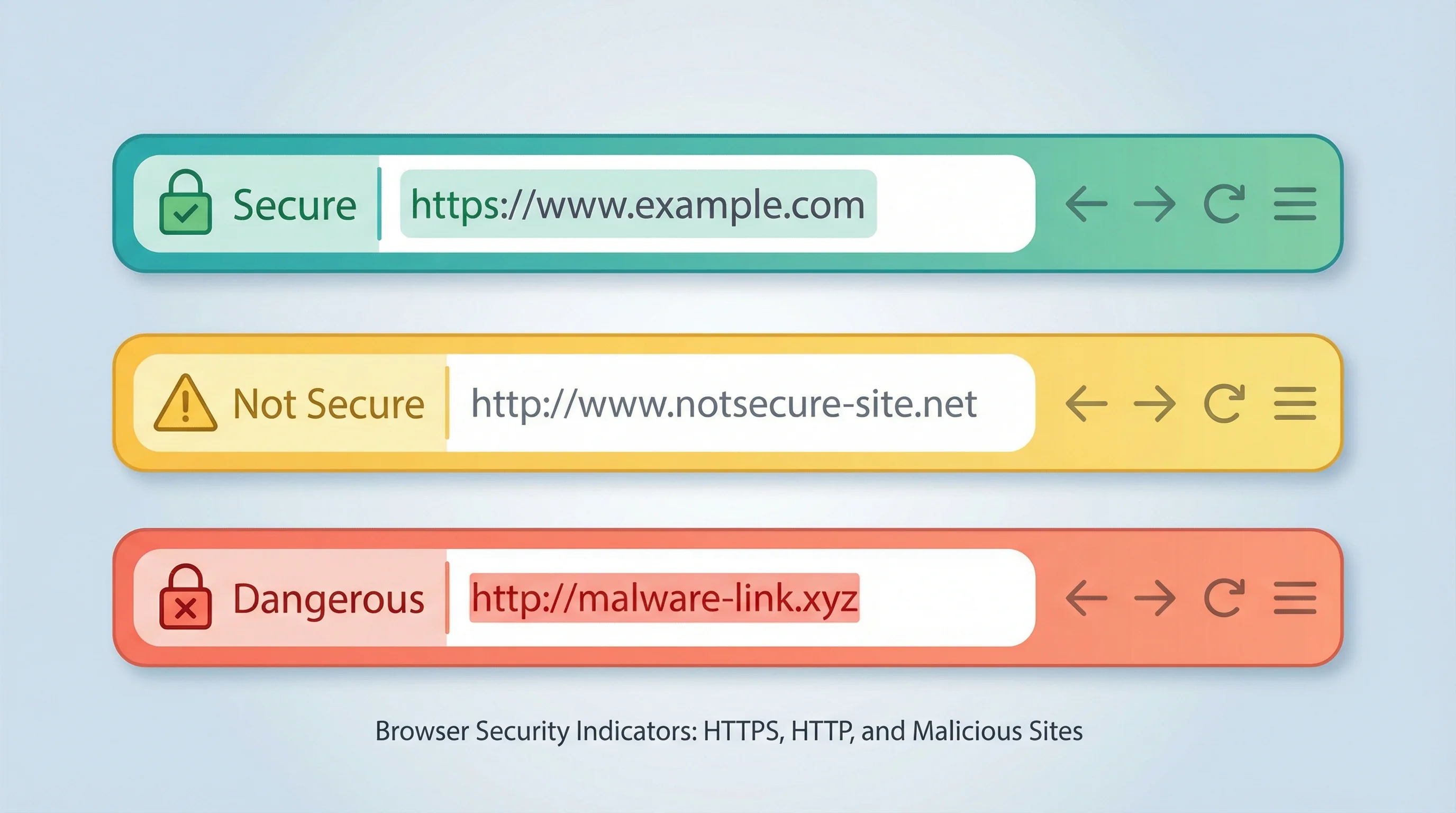
There are two types. Active mixed content (scripts, iframes, XMLHttpRequests) is blocked outright by Chrome, Firefox, and Edge because it can directly modify the page. Passive mixed content (images, audio, video) used to get a pass, but browsers are tightening the rules. Chrome now auto-upgrades HTTP images to HTTPS where possible, and starting October 2026, Chrome will warn users before loading any non-HTTPS public page.
Why Your Padlock Disappears
The padlock icon in your browser's address bar confirms the connection between a visitor and your server is encrypted. Mixed content breaks that promise. Even one insecure resource is enough.
Common causes include:
- Hardcoded HTTP image URLs in your content, theme, or page builder
- Third-party scripts (analytics, chat widgets, ad networks) loaded over HTTP
- Embedded content like maps or videos using HTTP iframe sources
- CSS files referencing HTTP fonts or background images
- Legacy plugins or themes that haven't been updated for HTTPS
For WordPress sites, this is especially common after migrating from HTTP to HTTPS. The database still holds old HTTP URLs in post content, widget text, and theme options. Outdated plugins make it worse: 661 WordPress vulnerabilities were disclosed in a single week recently, and many of those unmaintained plugins still ship with hardcoded HTTP resources. A quick scan with our mixed content checker shows exactly which resources are the problem.
What Our Scanner Does
Our Why No Padlock? tool takes any HTTPS URL and runs a deep scan of the page. It fetches the page, analyses every resource loaded by the HTML, and reports back with:
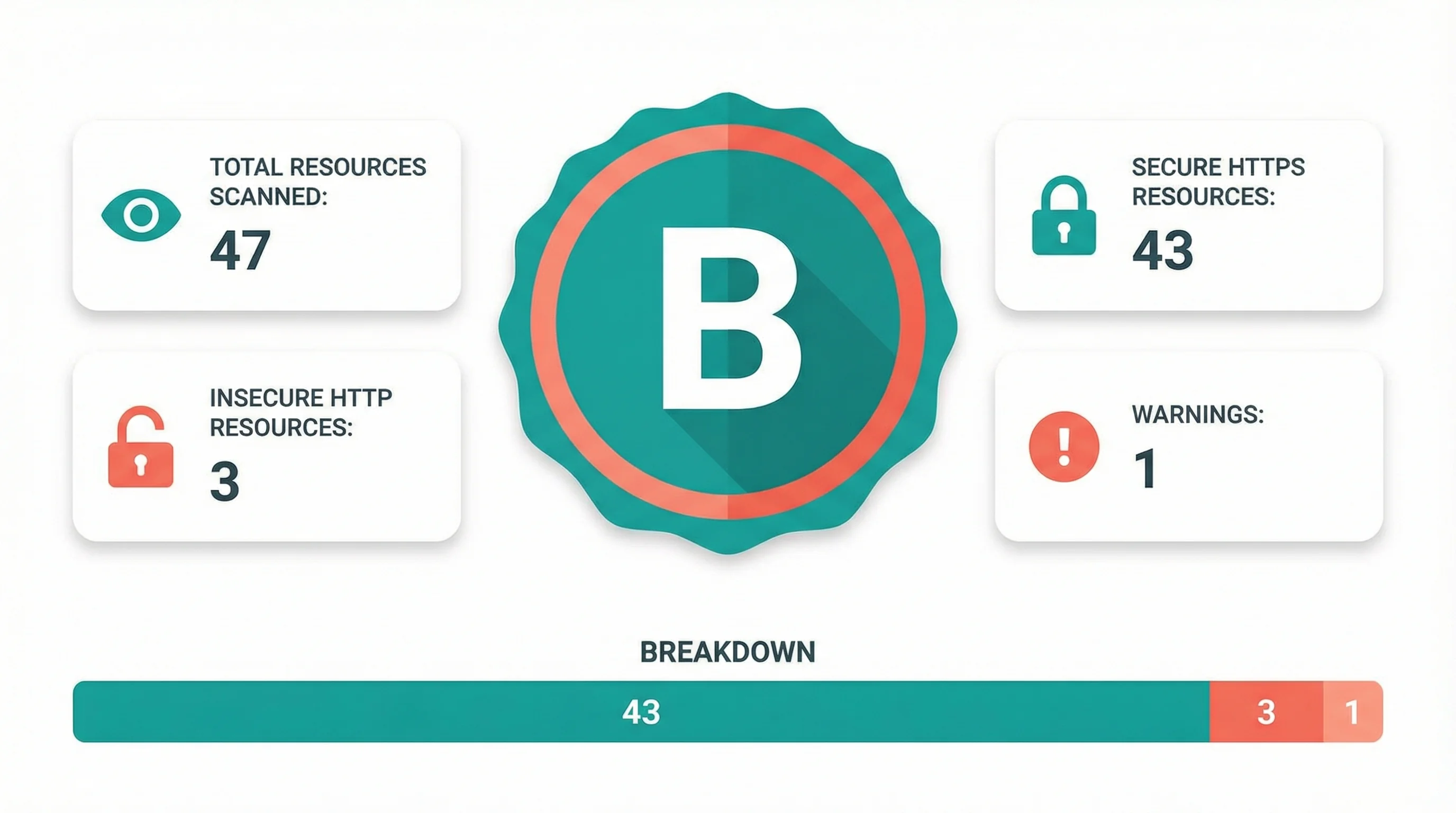
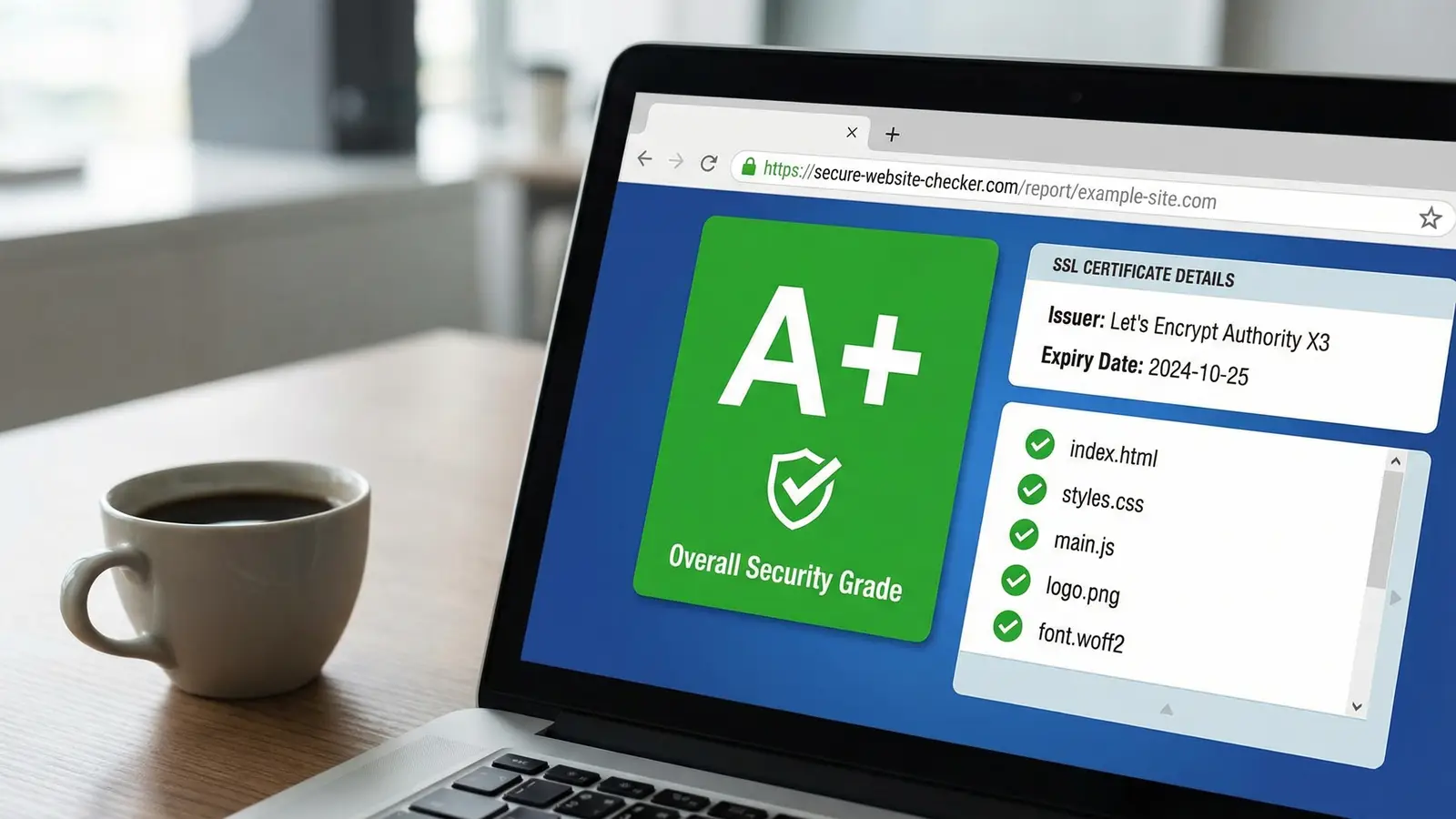
A mixed content grade from A to F. Grade A means all resources load over HTTPS. Grade F means most resources are insecure. The grade gives you an instant picture of where you stand.
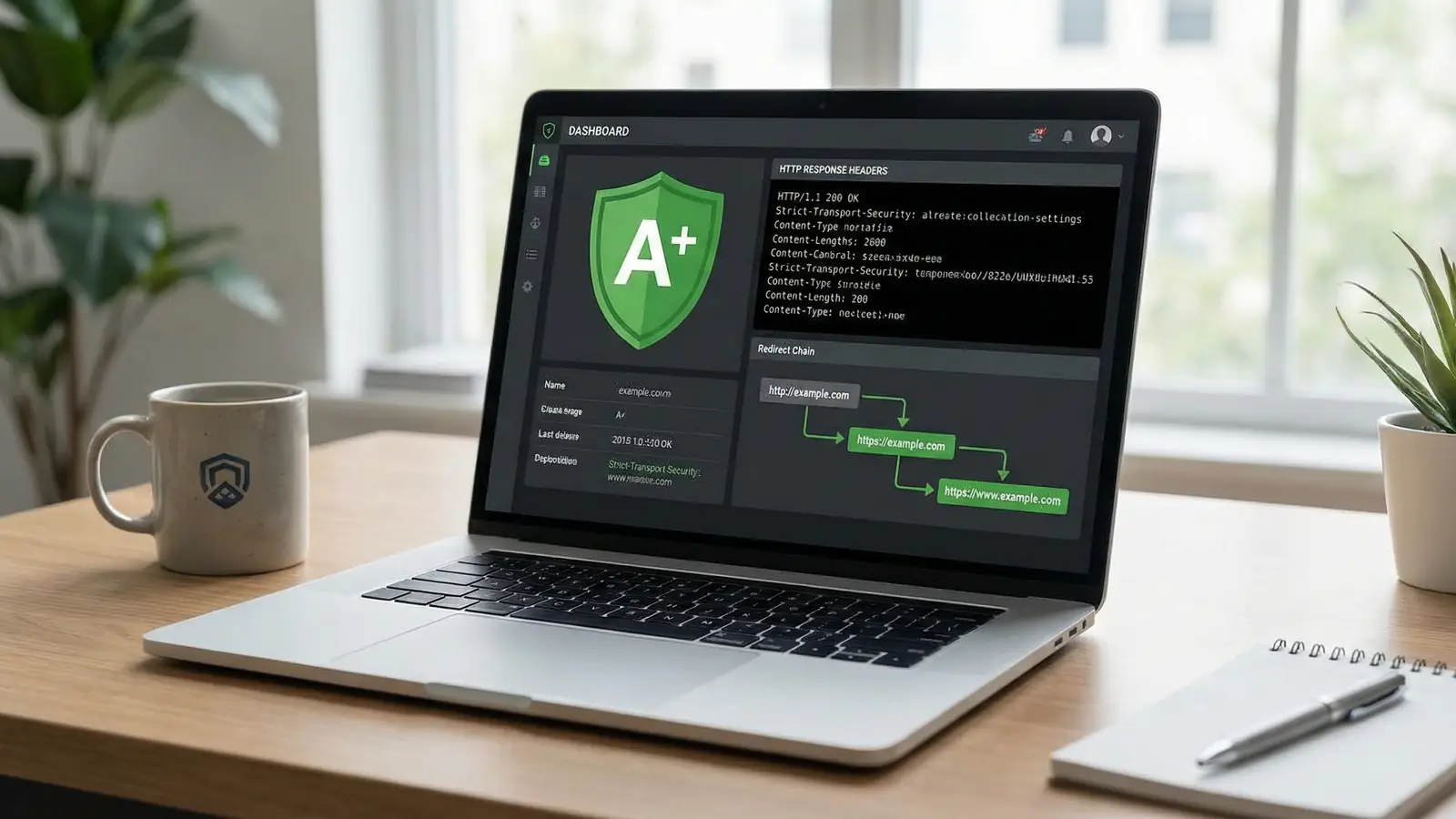
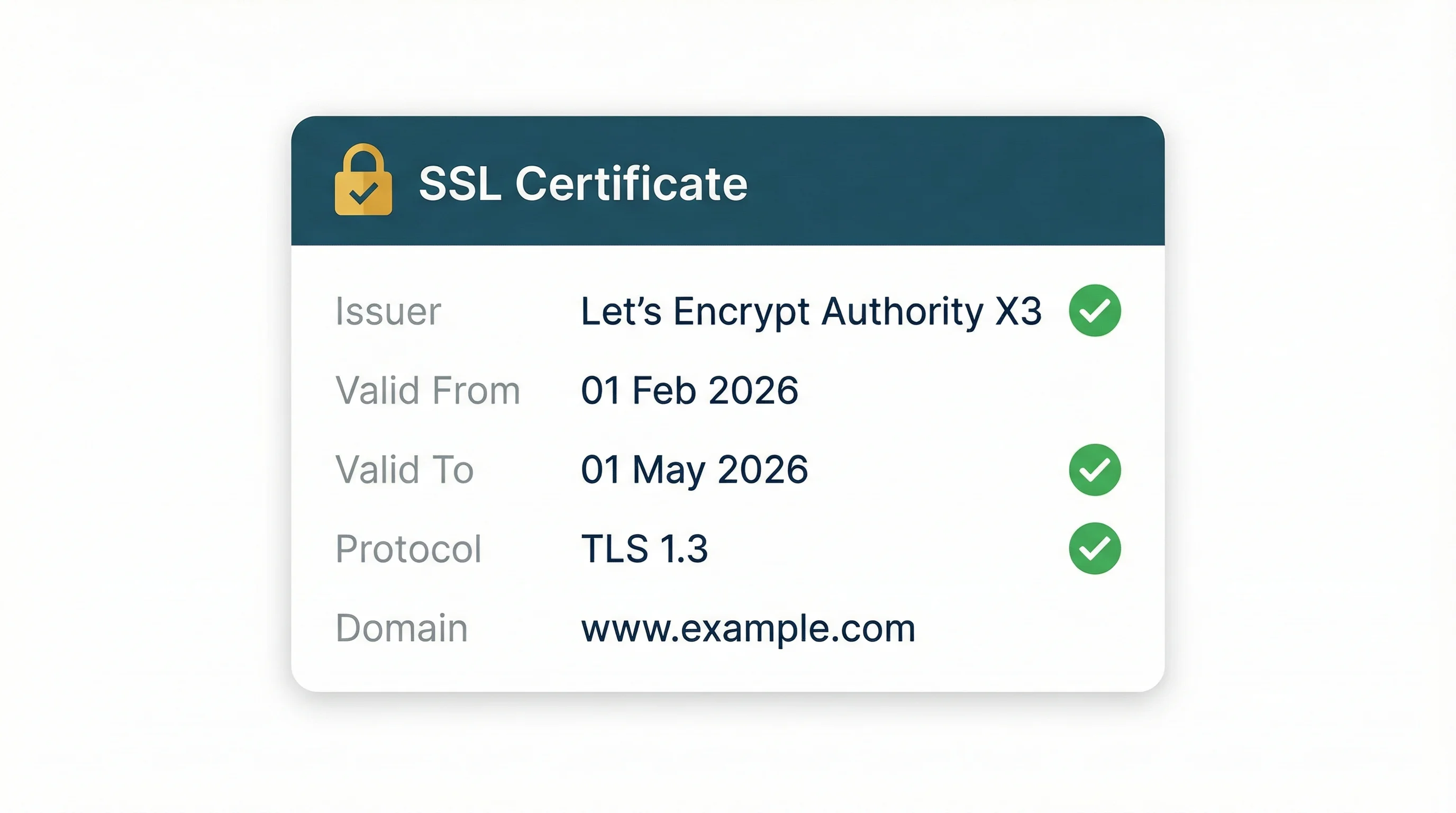
SSL/TLS certificate details. Who issued your certificate, when it expires, and whether it's valid. An expired or misconfigured certificate is another common reason the padlock vanishes.
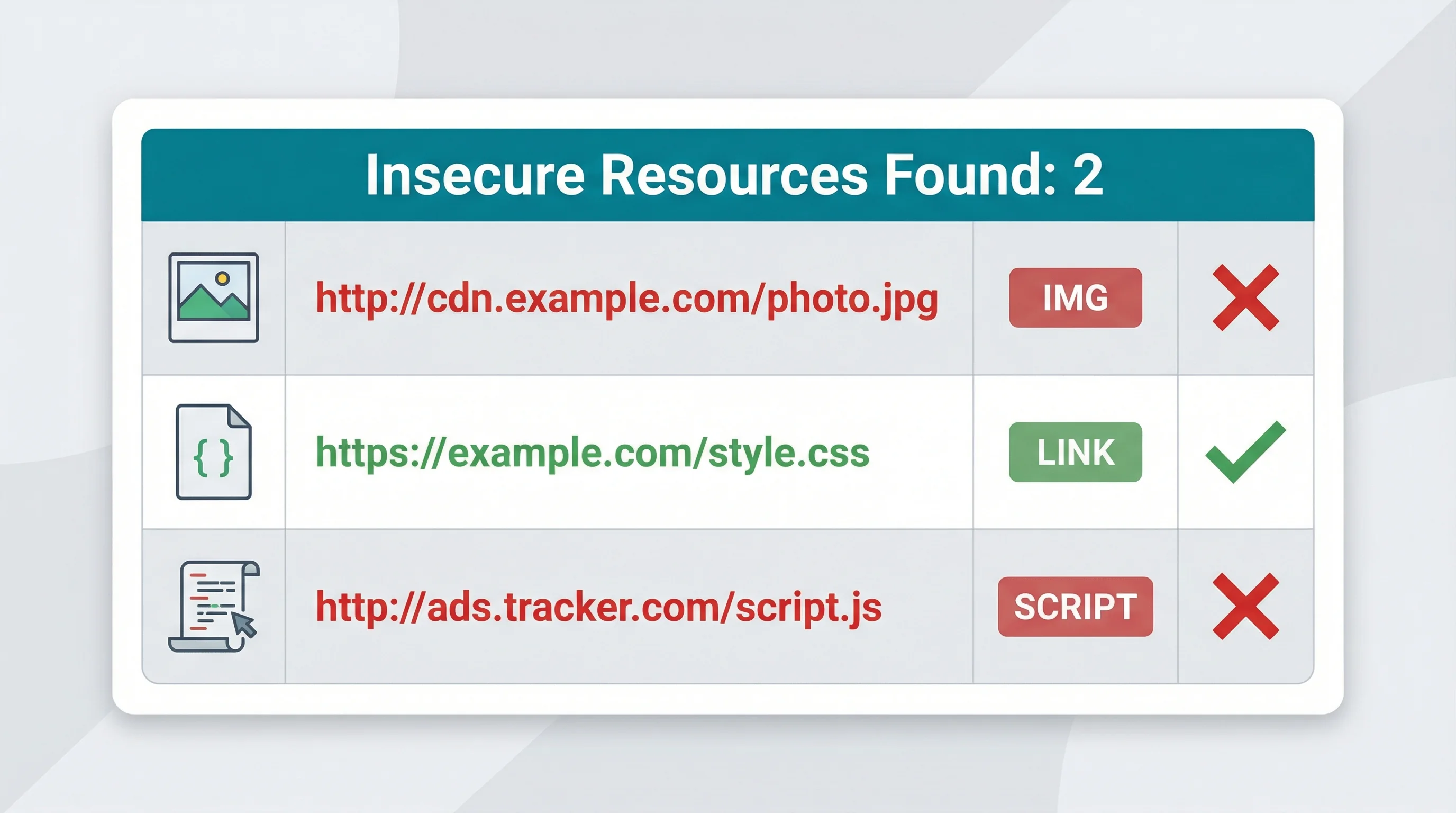
A resource-by-resource breakdown. Every insecure resource is listed with its URL, the type of resource (image, script, stylesheet, font), and the HTML element that loaded it. You see exactly what to fix and where to find it in your code.
Warnings for borderline issues. Some resources might not break the padlock today but could cause problems as browsers tighten their rules. The scanner flags these separately so you can fix them before they become errors.
Scan statistics. Total resources found, how many are secure, how many are insecure, and how many have warnings. One glance tells you the scope of the problem.
Chrome's HTTPS Deadline Is Coming
Google has announced a phased rollout that will make HTTPS the default expectation in Chrome. Starting April 2026 with Chrome 147, the billion users who have Enhanced Safe Browsing enabled will see warnings before loading any HTTP page. By October 2026 with Chrome 154, every Chrome user gets those warnings.
"Loading mixed content leads to a confusing browser security UX, where the page is presented as neither secure nor insecure but somewhere in between."
Emily Stark & Carlos Joan Rafael Ibarra Lopez, Chrome Security Team, Chromium Blog
That "somewhere in between" state is exactly what mixed content creates, and it's exactly what Chrome is eliminating. Google's internal testing found fewer than 3% of navigations triggered a warning, which means the vast majority of sites have already sorted this. But if yours hasn't, October 2026 is your deadline.
I've been hosting websites since 2002, and the shift to HTTPS over the last decade has been the single biggest improvement in web security I've seen. When Let's Encrypt launched free certificates, it removed the cost barrier. Now Google is removing the remaining excuse: "it works fine on HTTP." It won't, not for much longer.
How to Fix Mixed Content
Once the scanner has identified the insecure resources, fixing them is usually quick:
1. Update hardcoded URLs. Change http:// to https:// in your HTML, CSS, and JavaScript. For WordPress, a search-and-replace plugin like Better Search Replace can update database entries in bulk.
2. Use protocol-relative or relative URLs. Instead of specifying http://example.com/image.jpg, use //example.com/image.jpg or just /image.jpg for resources on your own domain. The browser will match the page's protocol automatically.
3. Check third-party resources. Verify that every external script, font, or embed supports HTTPS. Most do now, but some older services still default to HTTP. If a service doesn't support HTTPS, find an alternative.
4. Add a Content Security Policy header. The upgrade-insecure-requests CSP directive tells the browser to automatically upgrade HTTP subresource requests to HTTPS. You can check your existing headers with our HTTP Header Inspector.
"As more and more sites are migrating to HTTPS, one of the biggest problems that will need solving is tracking down all of your HTTP resources to avoid mixed content warnings."
Scott Helme, Security Researcher & founder of Security Headers, scotthelme.co.uk
Scott's dead right. The tracking-down part is the hardest bit. On a site with hundreds of pages, manually checking each one for HTTP resources is brutal. That's the whole reason we built this tool. Enter the URL, hit scan, and you've got your list. No digging through source code. No guessing.
5. Force HTTPS with HSTS. Once everything loads over HTTPS, add the Strict-Transport-Security header to tell browsers to always use HTTPS. This prevents future mixed content from slipping through. All 365i hosting plans support HSTS configuration.
Why Free SSL Isn't Enough
Installing a certificate is step one. It's not the finish line. Over 110 million SSL certificates are now active on the internet, with Let's Encrypt alone holding 63.9% market share. Getting a certificate is easier than ever. But research shows 28.7% of the top 150,000 websites still fail to implement SSL/TLS best practices properly.
The certificate encrypts the connection. Mixed content breaks the encryption's promise. An expired certificate kills it entirely. And with SSL certificate validity dropping to 200 days in March 2026, expiry-related outages will become more common for sites without automated renewal. Your SSL setup is only as strong as its weakest link, and our scanner checks all three: mixed content, certificate validity, and certificate configuration.
Every domain hosted at 365i gets a free Wildcard SSL certificate with automatic renewal. That handles the certificate side. But if your WordPress theme loads a Google Font over HTTP, or your contact form plugin embeds an HTTP iframe, the padlock still won't show. The scanner finds those problems regardless of where they come from.
Mixed Content and SEO
Google has used HTTPS as a ranking signal since 2014. Mixed content warnings don't just scare visitors, they can affect your search visibility too. A page showing "Not Secure" gets fewer clicks. Visitors bounce faster. Those engagement signals feed back into rankings.
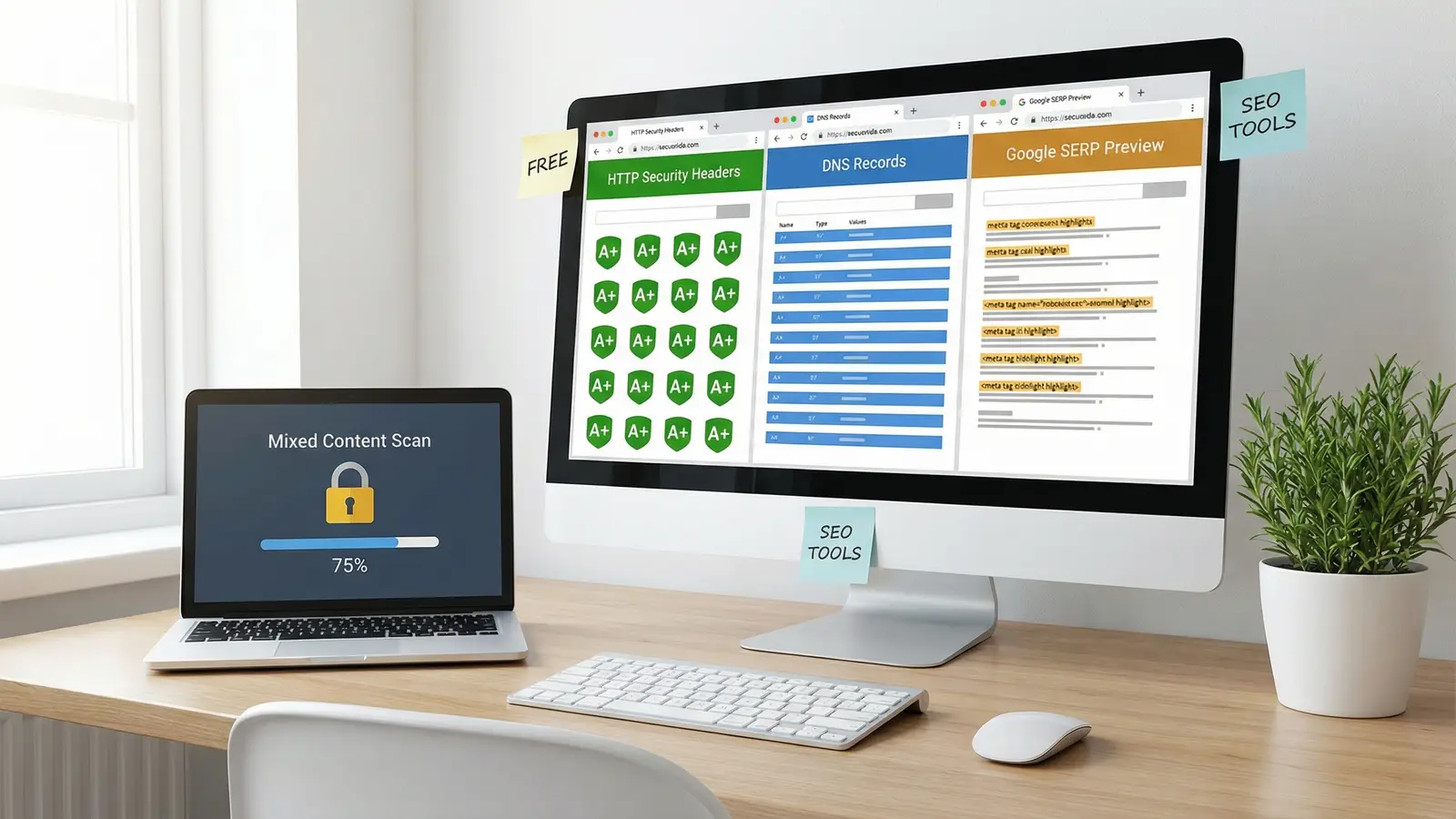
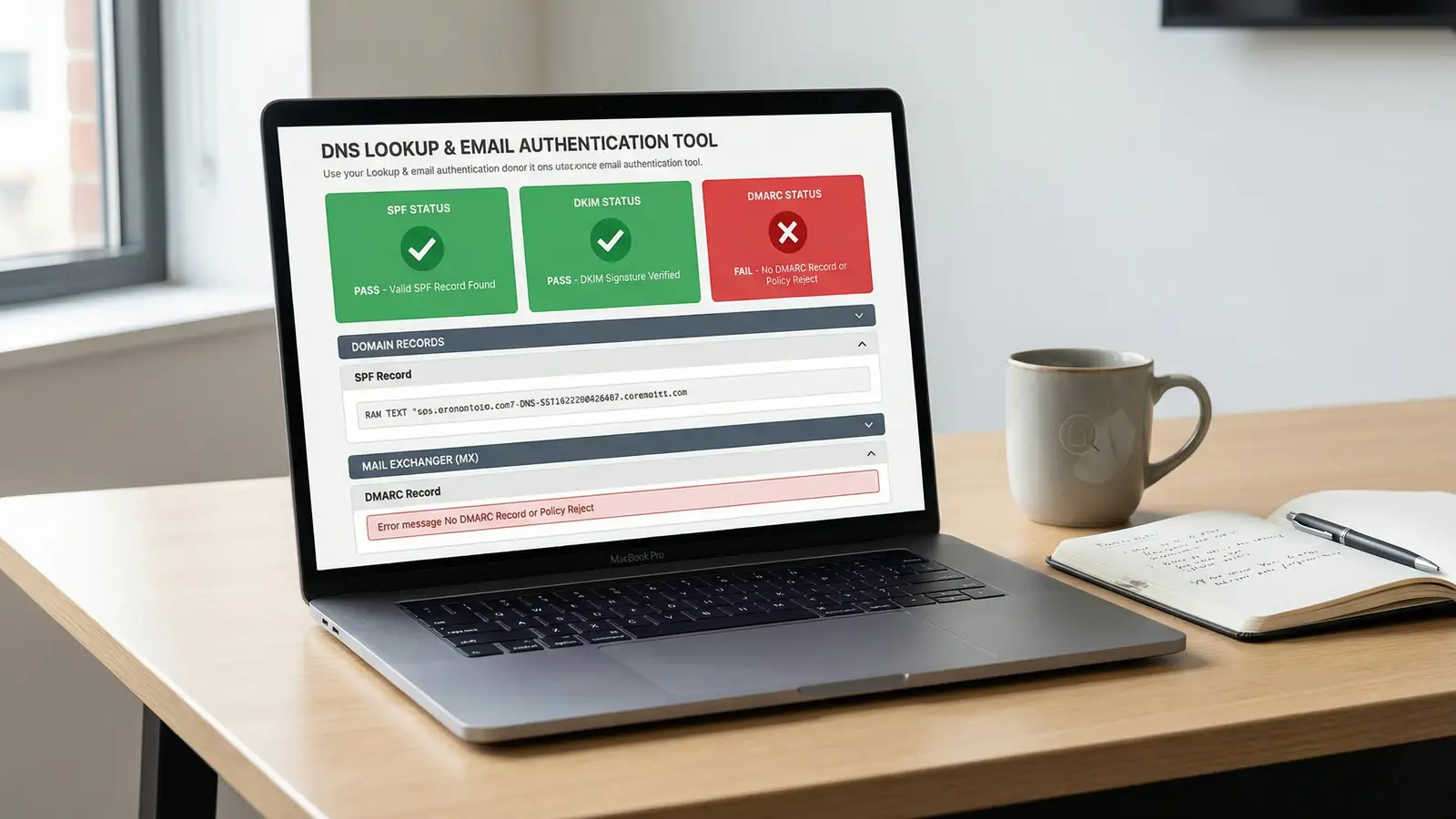
Beyond rankings, Google's crawlers pay attention to HTTPS implementation quality. Clean HTTPS (no mixed content, valid certificate, proper redirects) sends the right signals. Our suite of free SEO tools can help you check the full picture, from DNS configuration to security headers and meta tag accuracy.
When to Run a Mixed Content Scan
Don't wait for a visitor to notice the missing padlock. Run a scan after any of these changes:
- Migrating from HTTP to HTTPS (the most common time mixed content appears)
- Installing or updating a WordPress plugin or theme
- Adding third-party embed codes (maps, forms, chat widgets, video players)
- Changing your CDN or image hosting provider
- Updating content in bulk (importing posts, changing domains)
- After a website redesign or platform migration
It takes 10 seconds. Enter the URL, hit Scan Page, and the results appear. No account needed, no email required. The scanner is free to use as many times as you need.
Frequently Asked Questions
What is mixed content on a website?
Mixed content occurs when an HTTPS page loads images, scripts, stylesheets, or other resources over unencrypted HTTP. This breaks the security chain because those HTTP resources can be intercepted and modified by attackers, even though the page itself uses HTTPS.
Why is the padlock missing from my website?
The padlock disappears when the browser detects mixed content on the page. Even one resource loaded over HTTP instead of HTTPS is enough. Common culprits include hardcoded image URLs, third-party scripts, embedded maps or videos using HTTP, and old WordPress plugins that haven't been updated.
How do I find mixed content on my site?
Use a mixed content scanner like our free Why No Padlock? tool. Enter your HTTPS URL, and it scans every resource on the page. Each insecure resource is listed with its URL, type, and the HTML element that loaded it. You can also check your browser's developer console for mixed content warnings.
Does mixed content affect SEO rankings?
Yes. Google has used HTTPS as a ranking signal since 2014. Pages with mixed content warnings show "Not Secure" in the browser, which increases bounce rates and reduces click-through rates. These engagement signals affect rankings over time.
How do I fix mixed content on WordPress?
Use a search-and-replace plugin (like Better Search Replace) to change all http:// URLs to https:// in your database. Check your theme settings, widget areas, and plugin configurations for hardcoded HTTP URLs. Adding the upgrade-insecure-requests Content Security Policy header catches anything you miss.
What is the difference between active and passive mixed content?
Active mixed content includes scripts, iframes, and XMLHttpRequests that can modify the page. Browsers block these entirely. Passive mixed content includes images, audio, and video, which browsers may auto-upgrade to HTTPS or display with a warning. Active mixed content is more dangerous because it can change what visitors see and steal their data.
When will Chrome start blocking HTTP sites?
Chrome will start warning users before loading HTTP pages in April 2026 (Chrome 147) for Enhanced Safe Browsing users, expanding to all users in October 2026 (Chrome 154). Sites without HTTPS will display a bypassable warning, but it will deter visitors from continuing.
Is an SSL certificate enough to show the padlock?
No. The SSL certificate encrypts the connection, but the padlock only shows when every resource on the page also loads over HTTPS. If even one image or script loads over HTTP, the padlock disappears. You need both a valid certificate and zero mixed content.
Scan your site for mixed content
Our free mixed content scanner checks any HTTPS page for insecure resources. Find out why your padlock is missing in seconds. No sign-up, no limits.
Scan Your SiteSources
Published: · Last reviewed: · Written by: Mark McNeece, Founder & Managing Director, 365i
Editorially reviewed by: Mark McNeece on · Our editorial standards