Moving a domain to a new registrar sounds technical. It isn't. Whether you're transferring a .co.uk or a .com, the whole process takes less time than making a cup of tea (for UK domains, at least).
This guide walks you through every step of transferring your domain to 365i. UK domains and international domains use completely different systems, so we've split the instructions into two clear paths. Pick yours and follow along.
Here's what you'll do:
- Check your domain is eligible for transfer
- Back up your DNS records
- Decide if you need a full transfer or just a nameserver change
- Unlock and transfer the domain (steps differ by type)
- Set up DNS records and verify everything works
Tools you'll need
- Your current registrar's control panel
- 365i checkout / control panel
- A text editor or notepad (for saving DNS records and codes)
- Our free DNS Lookup tool (to check records before and after)
No consumable supplies required. International domain transfers require a transfer fee that adds 12 months to your existing renewal date.
Before You Start
Three quick checks before you touch anything. Skip these and you'll waste time fixing problems that shouldn't have happened.
Step 1: Check Your Domain Is Eligible

Open your current registrar's dashboard and confirm these three things:
- Age: For international domains (.com, .net, .org), the domain must have been registered or last transferred at least 60 days ago. This is an ICANN rule and no registrar can override it. UK domains don't have this restriction.
- Status: The domain must be active, not expired, not in "Pending Delete" or "Redemption" status. If it's close to expiring, renew it at the old registrar first.
- Admin email: You need access to the email address listed as the administrative contact. For international transfers, an approval email gets sent here. If you can't access it, update it at your current registrar before going any further.
Tip: Use our WHOIS Lookup tool to check your domain's registration date, expiry, and admin contact without logging into your old registrar.
Step 2: Back Up Your DNS Records
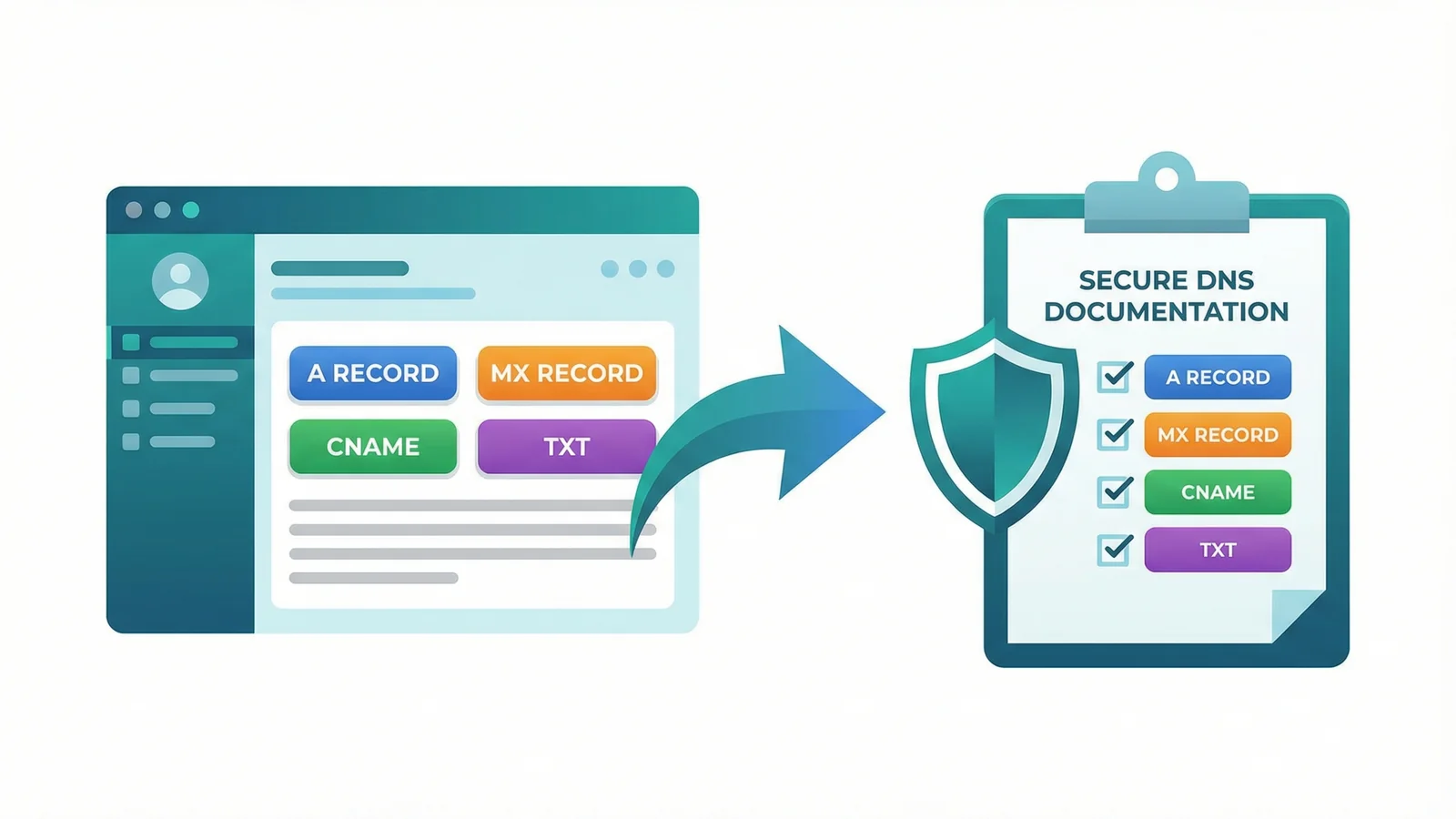
This is the step that every competitor guide skips, and it's the one that causes the most problems.
A domain transfer moves the registration (who manages the name). It does not automatically copy your DNS records. If you're switching to 365i's nameservers, you'll need to recreate those records manually after the transfer.
Log into your current registrar's DNS management panel and write down every record:
- A records (where your website points)
- MX records (where your email goes; critical if you use Google Workspace or Microsoft 365)
- CNAME records (subdomains, www, mail, etc.)
- TXT records (SPF, DKIM, DMARC for email authentication; also site verification codes)
Copy them into a text file or spreadsheet. You can also run a quick check with our DNS Lookup tool to see all records from outside your registrar's panel.
"I think the most important part is really to track the individual URLs, so that you have a clear map of what previously was and what it should be in the future."
-- John Mueller, Search Advocate at Google, Search Engine Journal
Mueller was talking about site migrations, but the principle applies here too. If you don't have a clear record of what your DNS looked like before the transfer, you'll be guessing afterwards. And guessing with MX records means broken email.
I've seen businesses lose incoming email for days because nobody wrote down the MX records before switching nameservers. It takes two minutes to document them. Do it.
Step 3: Decide: Transfer or Nameserver Change?
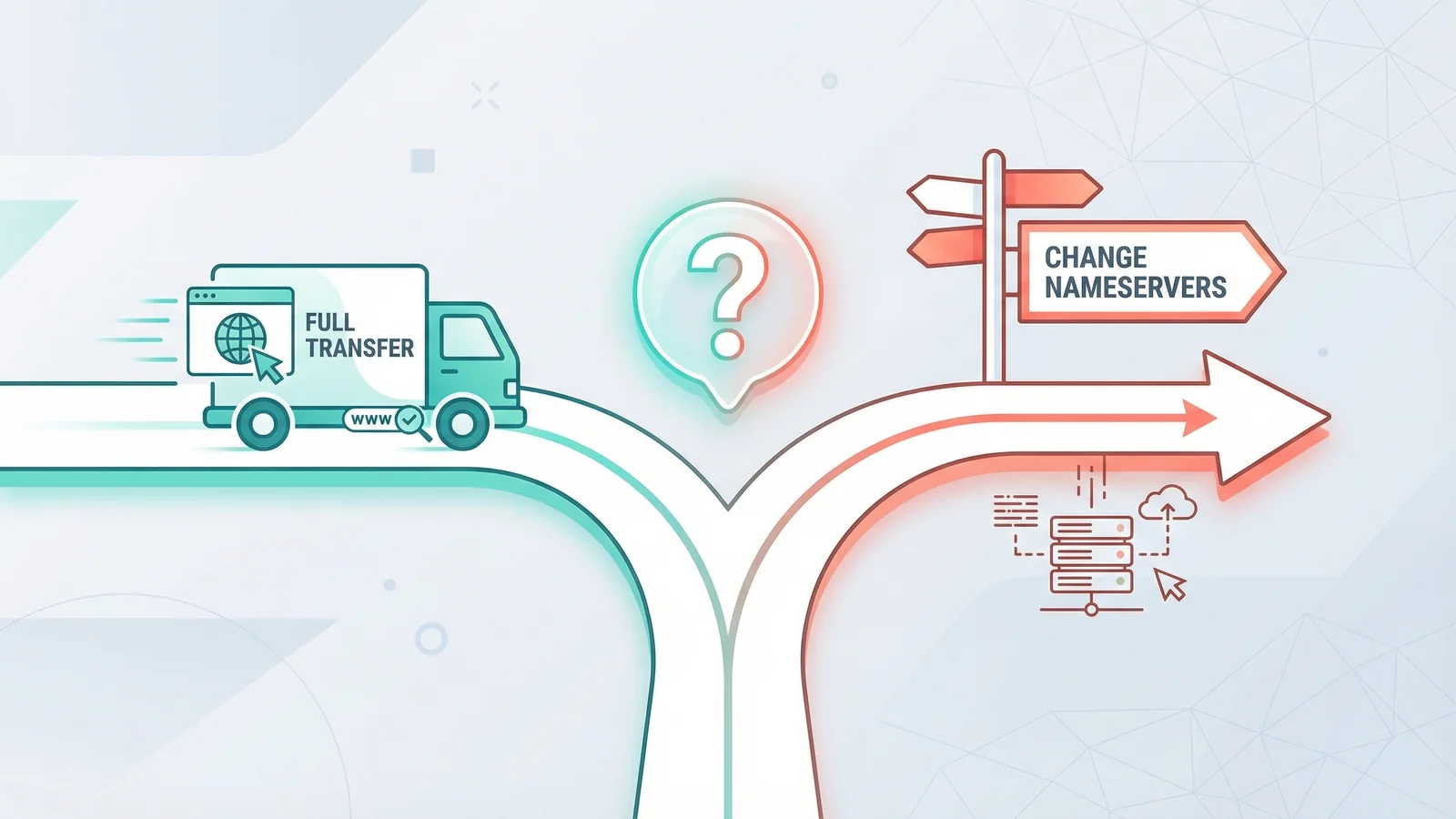
Before you go any further, ask yourself: do you actually need to transfer the domain, or do you just need to point it to 365i?
A domain transfer moves the registration itself. After the transfer, 365i manages the domain: renewals, DNS, the lot. This is what most people want when they're moving everything to one provider.
A nameserver change keeps the domain registered where it is. You just update the nameservers to point at 365i's hosting (ns1.365i.co.uk through ns4.365i.co.uk). Your old registrar still handles renewals.
If you want everything under one roof, carry on with the transfer. If you just want your website hosted with us while keeping the domain elsewhere, change the nameservers at your current registrar and you're done.
Tip: Not sure? Transfer it. Managing your domain and hosting in one place is simpler. You won't miss a renewal because it's sitting in a dashboard you forgot existed.
Now pick your path based on your domain type:
- UK domains (.co.uk, .uk, .org.uk, .me.uk) -- go to Step 4
- International domains (.com, .net, .org, .io, etc.) -- skip to Step 7
UK Domain Transfers (.co.uk, .uk, .org.uk)
UK domains use a system called IPS tags. There's no EPP code, no approval email, and no waiting period. The whole thing is faster than most registrars would have you believe.
Step 4: Unlock Your Domain
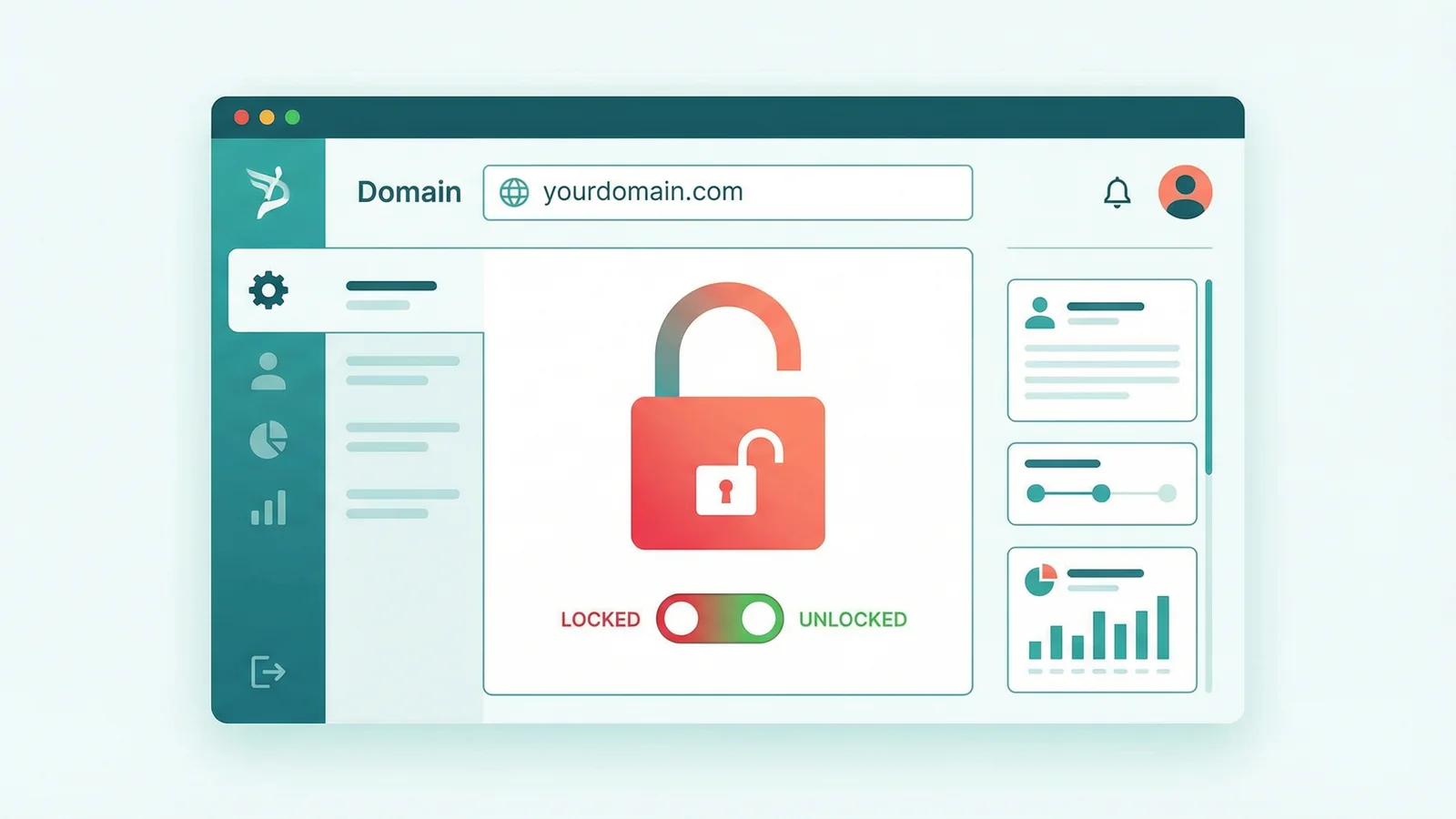
Log into your current registrar's control panel and find the domain lock setting. It might be called "Registrar Lock", "Transfer Lock", or just "Lock". Switch it off.
Some registrars don't have an explicit lock toggle for UK domains. If you can't find one, you're probably fine. The lock is more common on international domains. But check anyway.
Step 5: Change the IPS Tag to STACK
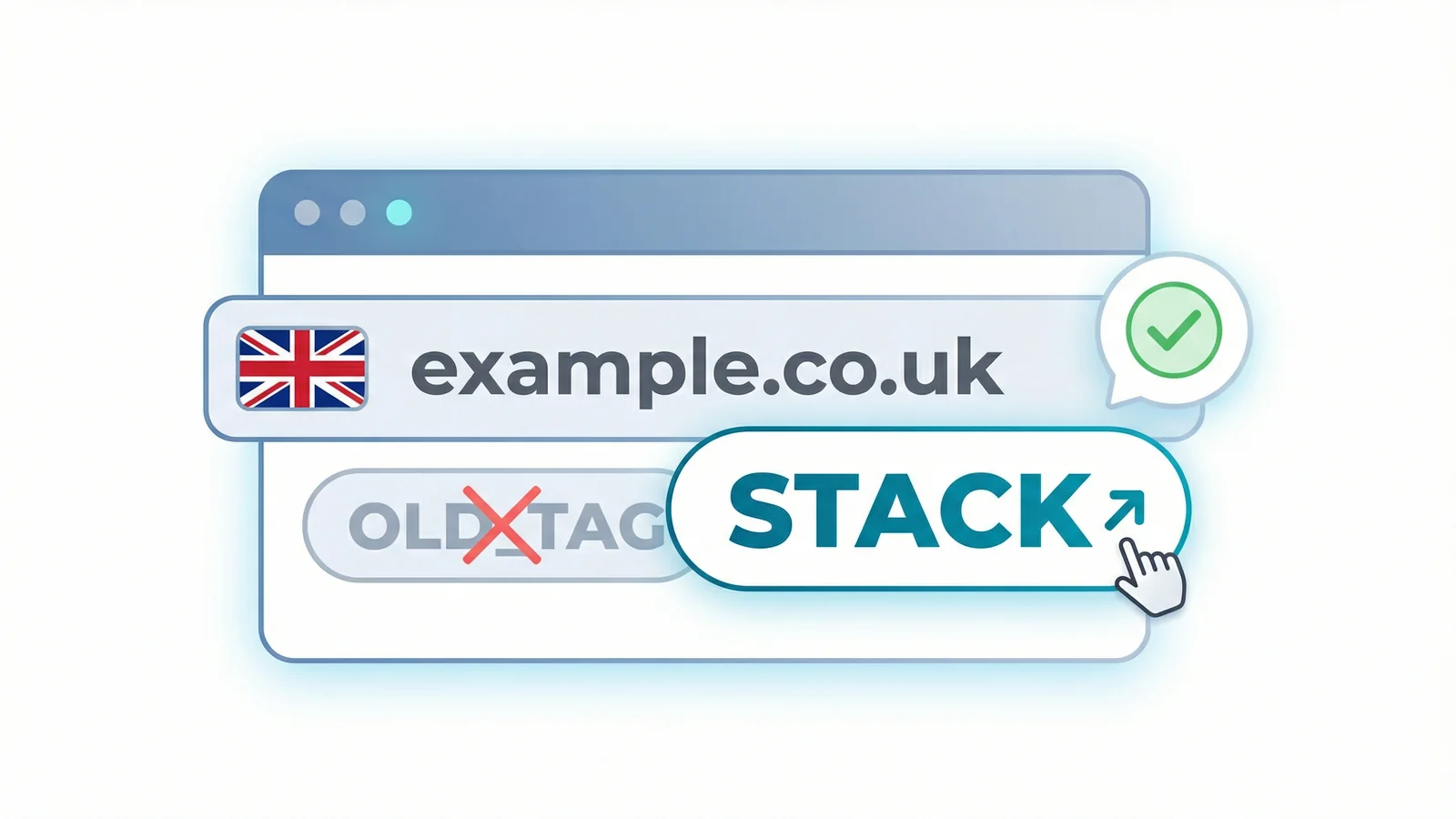
This is the key step for UK domains. The IPS tag is a label that tells the registry which registrar manages the domain. To move it to 365i, you need the tag changed to STACK. We are open about why the tag is STACK rather than something with 365i in the name; the platform partnership behind 365i.co.uk walks through the full chain and the live WHOIS.
How you do this depends on your current registrar:
- Self-service: Some registrars (like 123-reg or Namecheap) let you change the IPS tag yourself from the domain dashboard. Look for "IPS Tag", "Registrar Tag", or "Transfer Out".
- Support request: Others (especially smaller hosts) require you to contact their support team and ask them to change the IPS tag to STACK.
The tag is STACK. All capitals. IPS tags are case-sensitive, so double-check before confirming.
Tip: Once the IPS tag is changed, the domain starts moving immediately. There's no approval email or waiting period for UK domains. It's nearly instant.
Step 6: Complete the Transfer at 365i
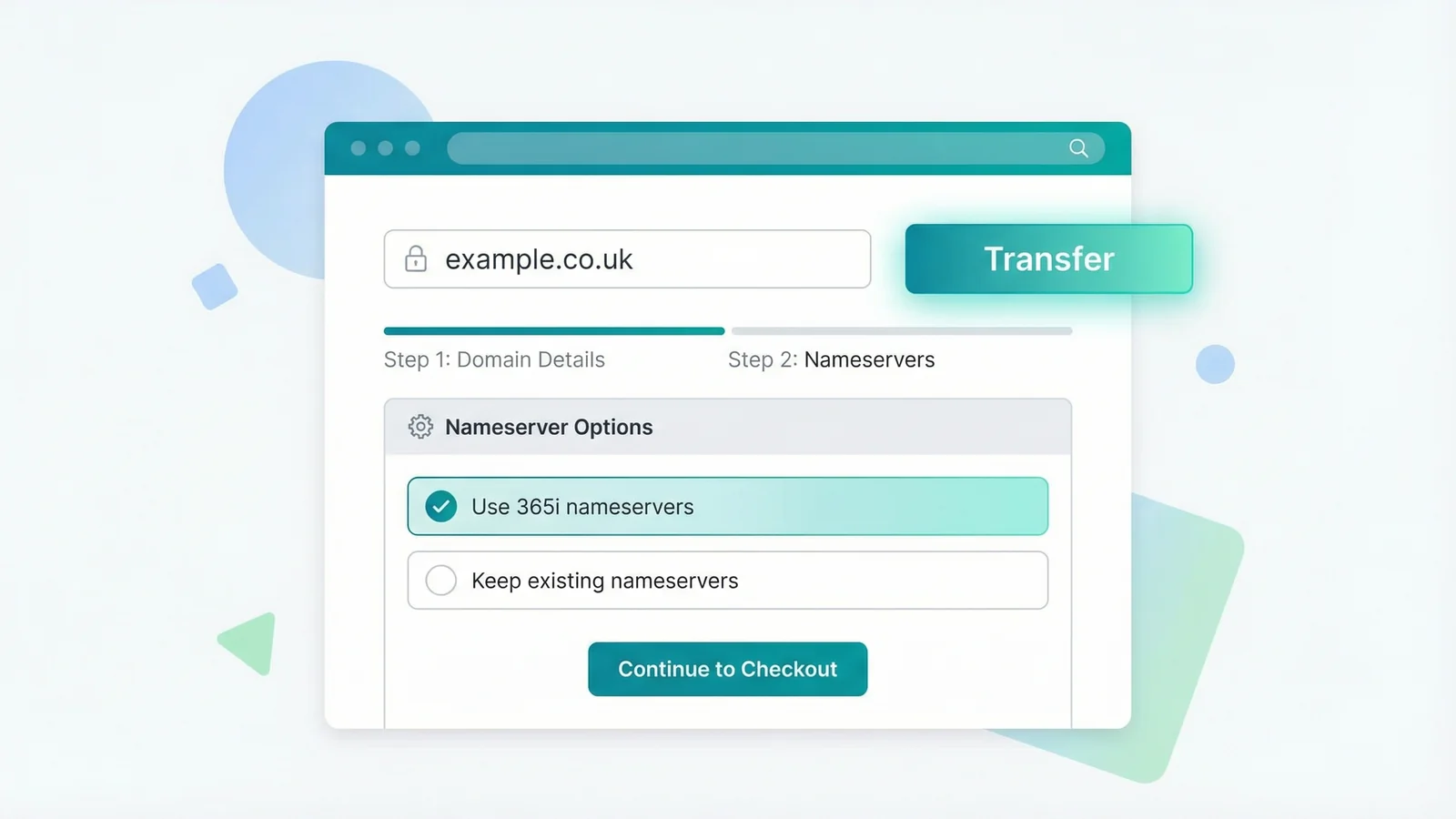
Head to the 365i domain page and search for your domain. Because it's already registered (and the IPS tag has been changed to STACK), the system will offer a transfer option instead of a new registration.
Select it, and you'll be asked to choose your nameservers:
- Use 365i nameservers (ns1.365i.co.uk, ns2.365i.co.uk, ns3.365i.co.uk, ns4.365i.co.uk) if you want us to manage your DNS going forward. You'll recreate your DNS records in Step 10.
- Keep your existing nameservers if you're managing DNS elsewhere (e.g., Cloudflare) and just want the registration with us.
Complete the checkout. For UK domains, this costs nothing. Your renewal date stays exactly the same.
That's it for UK domains. Skip ahead to Step 10 to set up your DNS records.
International Domain Transfers (.com, .net, .org)
International domains follow a different process. You'll need an EPP code (sometimes called an auth code or transfer code), and the transfer takes 5 to 7 days because of built-in waiting periods. It's still simple, just slower.
"The thing is, registering a domain is a commodity. There's no meaningful difference between any of the existing mass market registrars... domain registrars are charging you for being a middle-man and delivering essentially no value to justify their markup."
-- Matthew Prince, CEO at Cloudflare, Cloudflare Blog
Prince was announcing Cloudflare's at-cost domain service, but his point stands for any transfer. If your current registrar charges inflated renewal fees and gives you nothing extra for it, moving makes financial sense. The hidden costs of cheap domain providers add up faster than most people realise.
Step 7: Prepare the Domain
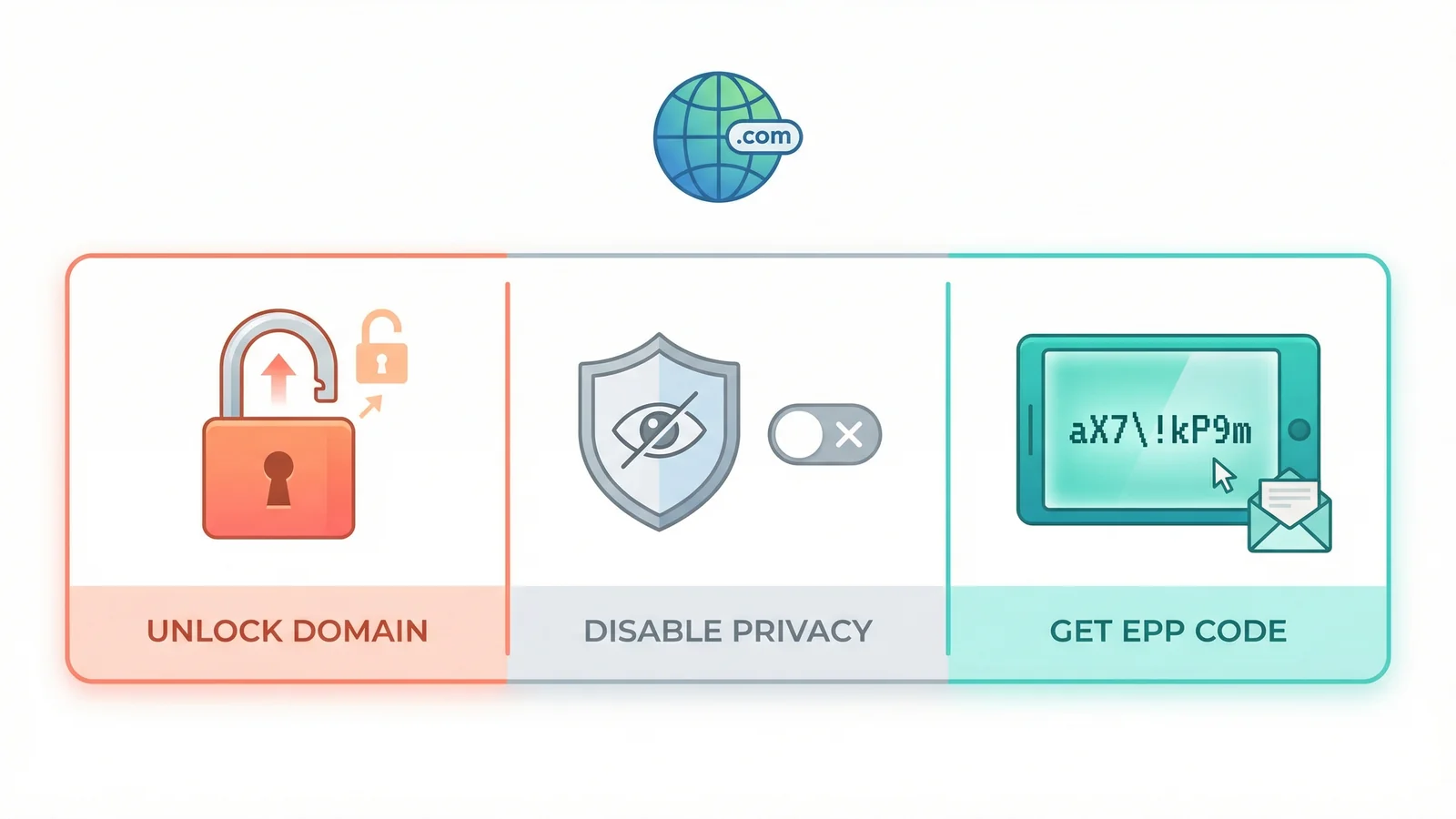
Log into your current registrar and do these three things:
- Unlock the domain. Find the "Registrar Lock" or "Transfer Lock" toggle and turn it off. If the domain is locked, the transfer will fail instantly.
- Turn off WHOIS privacy. If you have privacy protection enabled, disable it temporarily. The new registrar needs to verify your ownership through the WHOIS admin email. Active privacy often blocks this.
- Get the EPP/Auth code. Look for "Authorization Code", "EPP Code", "Auth Code", or "Transfer Code" in your domain's security settings. Copy it carefully. These codes are case-sensitive and often contain characters like
land1orOand0that are easy to mix up.
Tip: Some registrars email the EPP code to you instead of displaying it on screen. If you don't see it in the dashboard, check the email address on the account.
Step 8: Start the Transfer at 365i
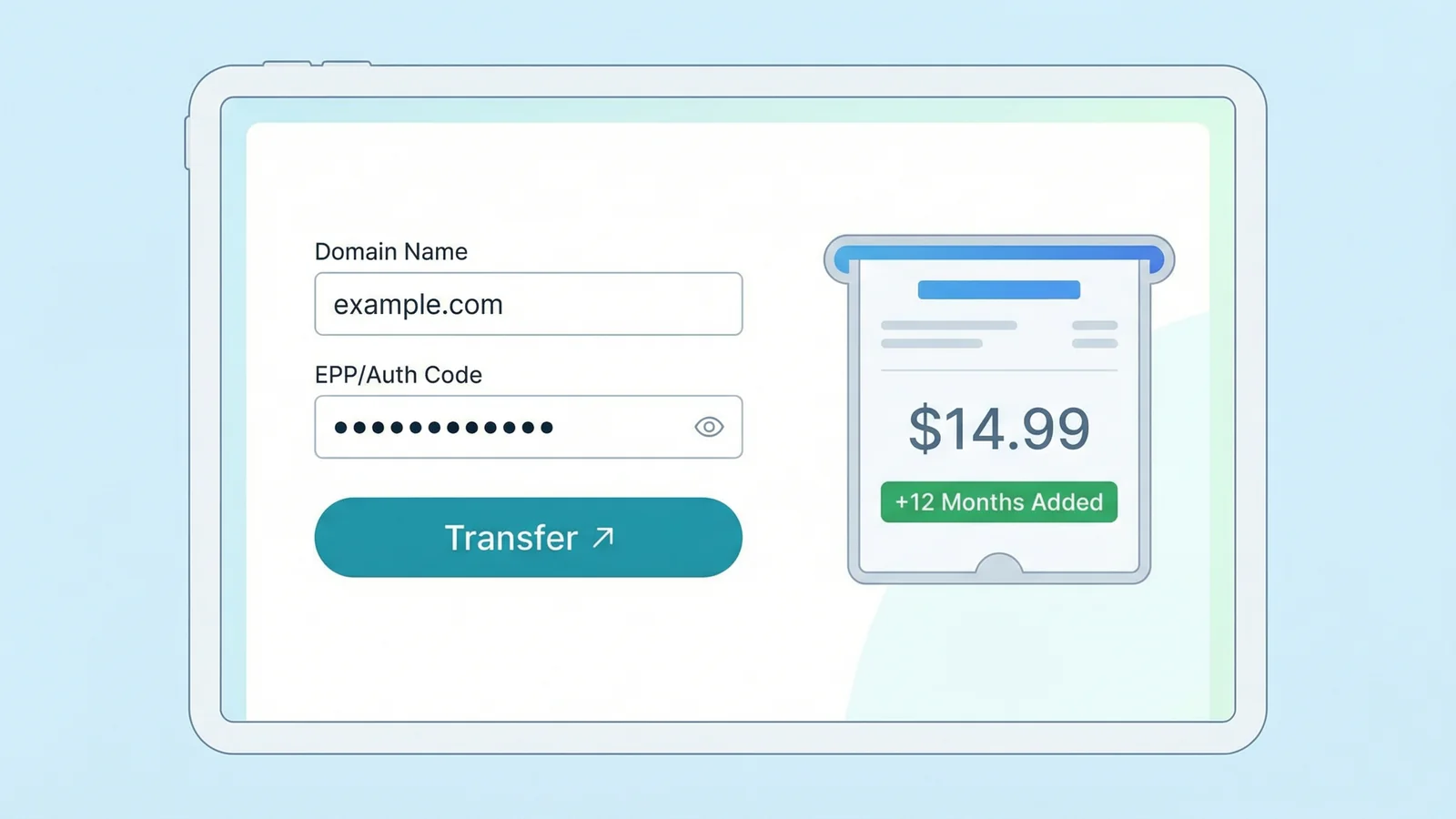
Go to the 365i domains page and search for your domain. Because it's already registered, you'll see a transfer option.
Enter your EPP/Auth code when prompted. Choose your nameserver preference (365i's nameservers or keep your existing ones).
You'll need to pay a transfer fee. But here's what most people don't realise: this fee isn't wasted money. It buys you a full 12-month renewal that gets added on top of whatever time you already have left. If your domain expires in 8 months, after the transfer it'll expire in 20 months.
Step 9: Approve the Transfer
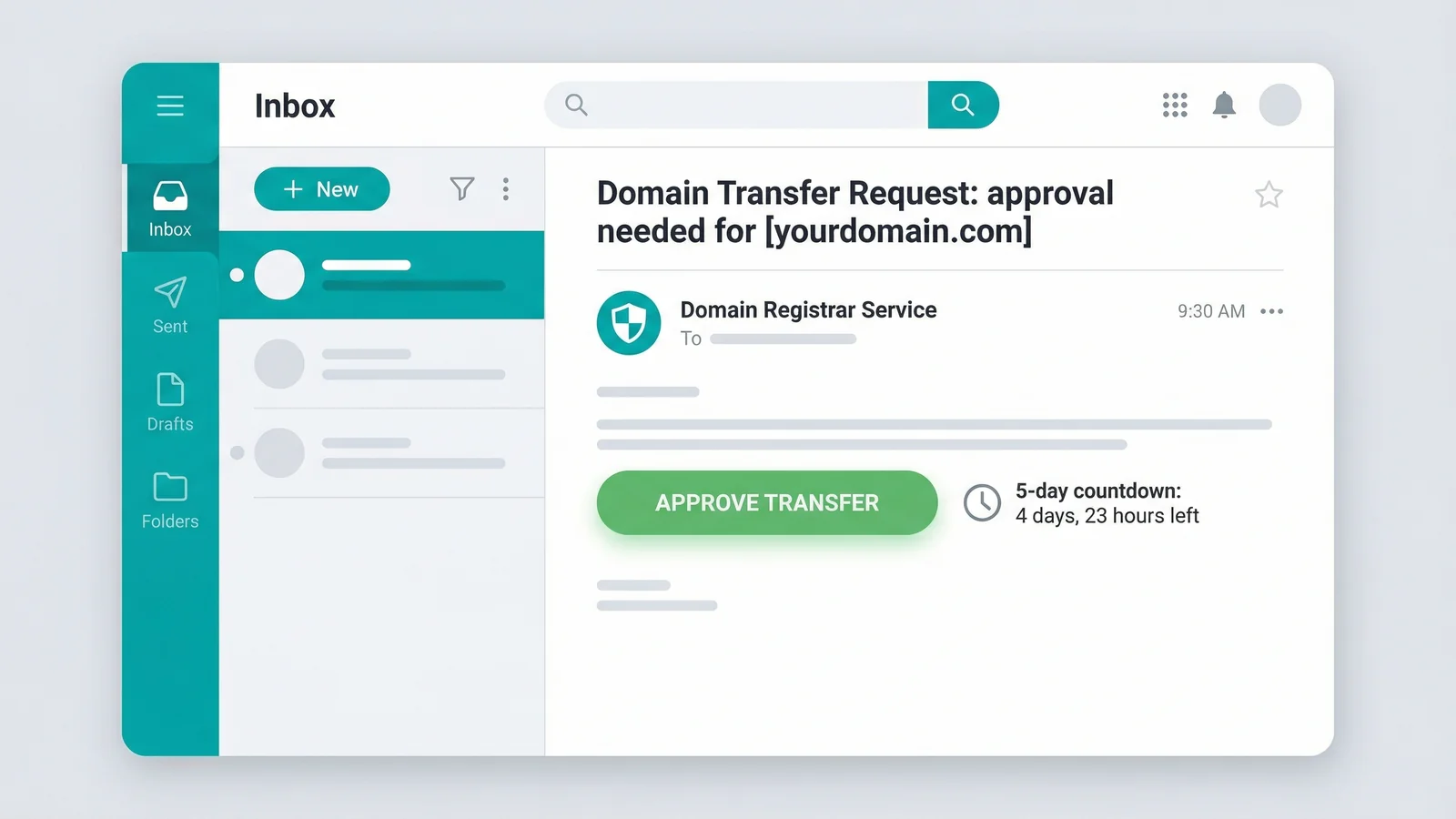
After you submit the transfer, an approval email gets sent to the admin email address on your domain's WHOIS record. This is why you checked it in Step 1.
Open the email and click the approval/confirmation link. This tells your old registrar that you've authorised the move.
Now you wait. International domain transfers typically take 5 to 7 days. Some registrars process them faster (sometimes within hours), but the standard ICANN window is up to 7 days. Your website stays online throughout.
Tip: If you don't receive the approval email, check your spam folder. Also verify that WHOIS privacy was actually disabled (Step 7). Active privacy is the most common reason the email doesn't arrive.
After the Transfer
Your domain is now at 365i. Two things left to do, and they're both quick.
Step 10: Set Up Your DNS Records
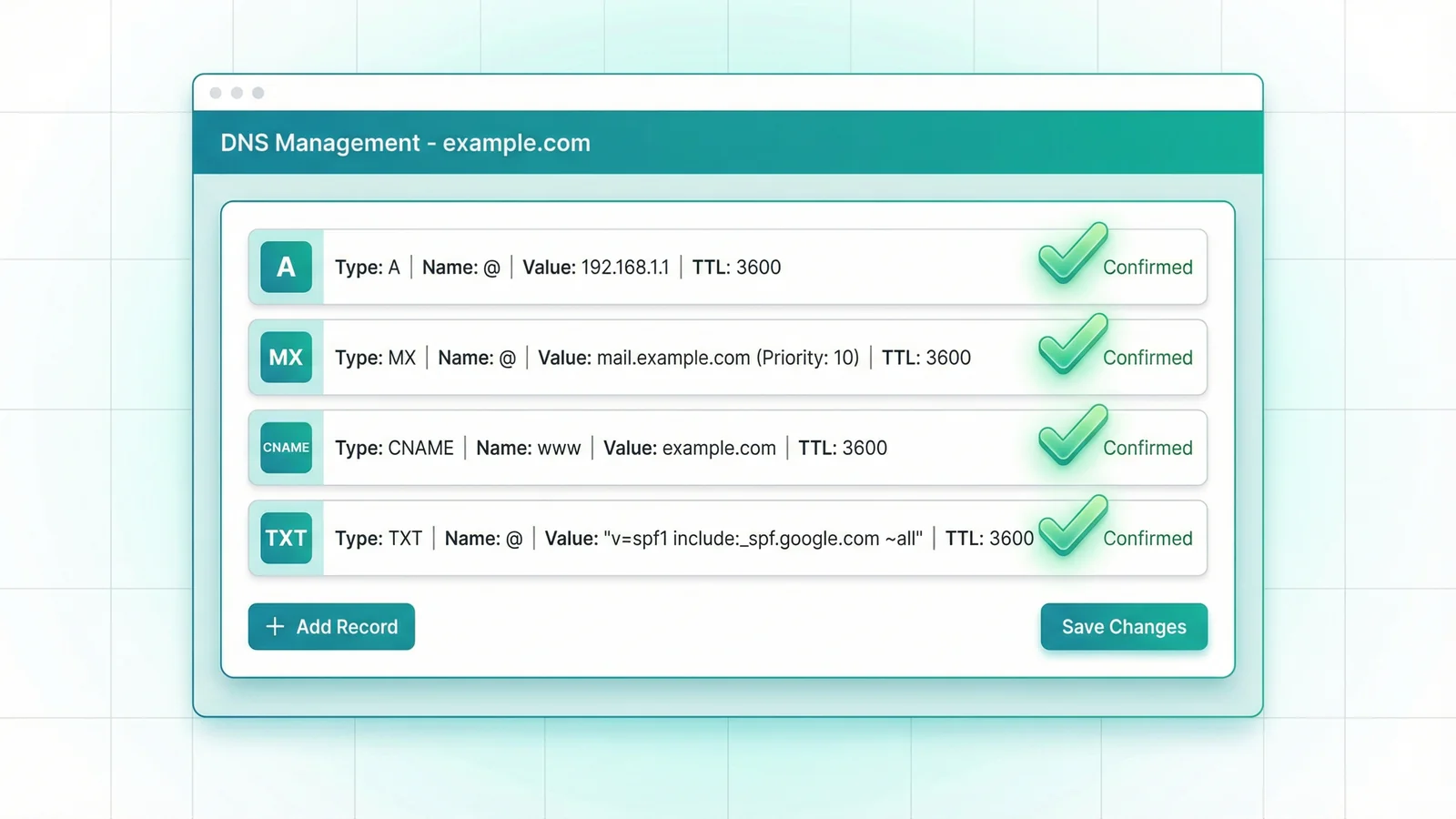
If you chose to keep your existing nameservers during the transfer, skip this step. Your DNS is already handled elsewhere and nothing changes.
If you selected 365i's nameservers (ns1 through ns4.365i.co.uk), you now need to recreate the DNS records you backed up in Step 2. Open the DNS management panel in your 365i control panel and add each record:
- A record pointing to your web server's IP address
- MX records pointing to your email provider (Google Workspace, Microsoft 365, or your hosting server)
- CNAME records for subdomains (www, mail, etc.)
- TXT records for SPF, DKIM, DMARC, and any verification codes
Compare what you've entered against your backup. Every record matters. A missing MX record means no email. A wrong A record means your website goes somewhere else.
Tip: DNS changes can take up to 48 hours to propagate globally, but most update within an hour or two. Use our DNS Lookup tool to check whether your new records are live.
Step 11: Verify Everything Works
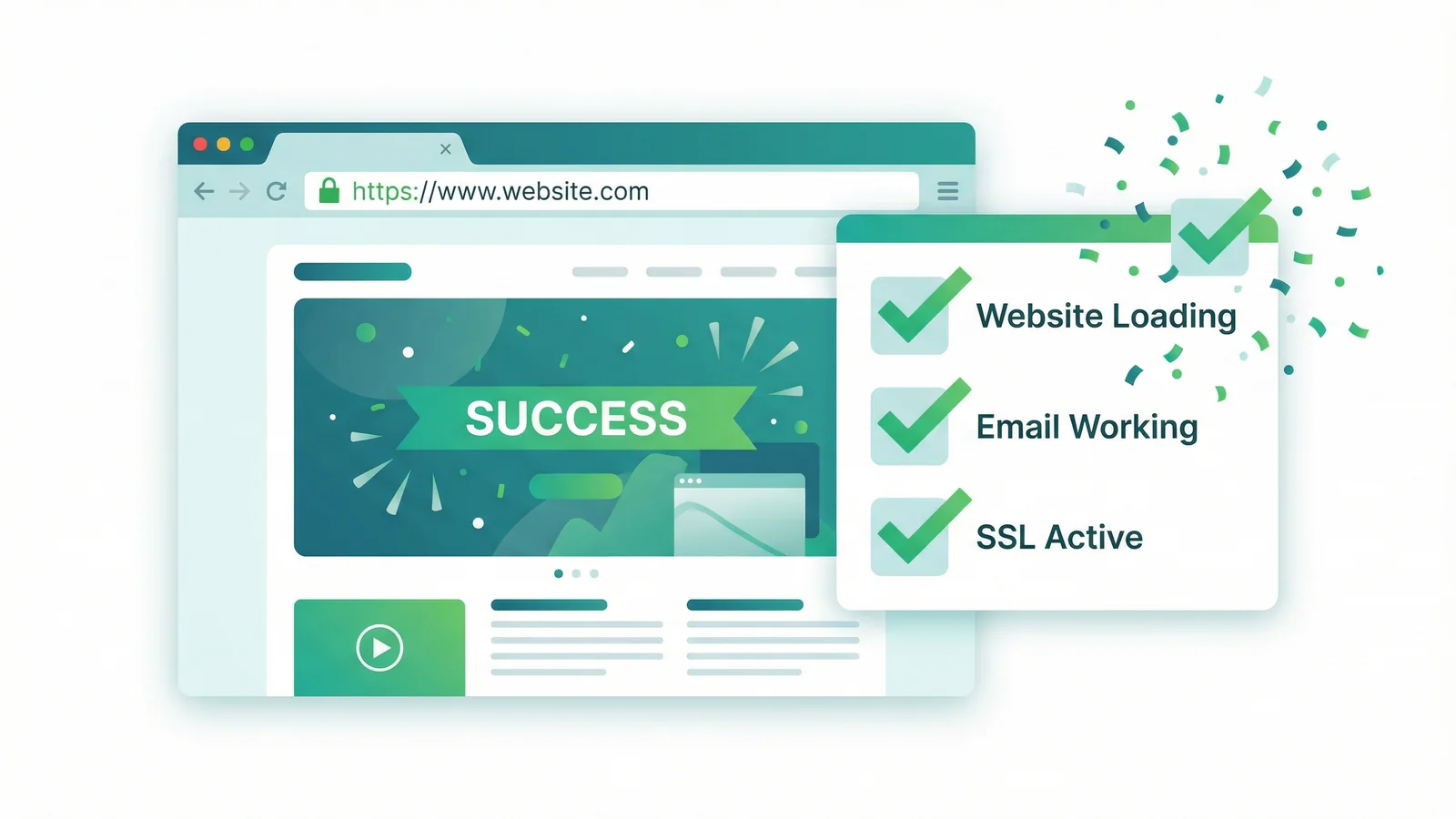
Once your DNS records have propagated, run through this checklist:
- Website: Visit your domain in a browser. Does the site load? Is it the right site? Check on both desktop and mobile.
- Email: Send a test email to your domain email address from an external account (Gmail, Outlook). Does it arrive? Send one back. Does it go out?
- SSL certificate: Check for the padlock icon in the browser bar. If your SSL was tied to your old host, you may need to set up a new certificate. 365i WordPress hosting includes free SSL certificates.
- WHOIS: Run another WHOIS lookup on your domain. It should now show 365i (or STACK) as the registrar.
If anything isn't working, the issue is almost always a DNS record that didn't get copied over correctly. Go back to your backup from Step 2 and compare.
UK vs International Transfers: Quick Comparison
| UK Domains (.co.uk, .uk) | International (.com, .net) | |
|---|---|---|
| Transfer method | IPS tag change to STACK | EPP/Auth code |
| Cost | Free | Renewal fee (adds 12 months) |
| Time to complete | Near-instant (minutes to hours) | 5 to 7 days |
| Approval needed | No | Yes (email confirmation) |
| 60-day lock | No | Yes (ICANN rule) |
| WHOIS privacy | Can stay on | Must be turned off first |
| Renewal date | Stays the same | Extended by 12 months |
Frequently Asked Questions
How long does a domain transfer take?
UK domains (.co.uk, .uk, .org.uk) transfer almost instantly once the IPS tag is changed to STACK. International domains (.com, .net, .org) take 5 to 7 days because of standard ICANN waiting periods. Your website stays online during the entire process.
Is it free to transfer a domain to 365i?
UK domain transfers are completely free and your renewal date stays the same. International domains (.com, .net) require a transfer fee, but that fee adds a full 12 months to your existing expiry date. You're paying for an extra year of registration, not a processing charge.
Will my website go offline during the domain transfer?
No, not if you follow the steps in this guide. Your website and email stay online throughout the transfer. Problems only happen if you change nameservers before the transfer completes or forget to recreate DNS records afterwards.
What is an IPS tag and how do I use it?
An IPS tag is a unique code used exclusively for UK domains to identify which registrar controls the name. To transfer a UK domain to 365i, ask your current registrar to change the IPS tag to STACK. That's it. No EPP codes, no approval emails.
What is an EPP code or authorization code?
An EPP code (also called an auth code or transfer code) is a security password required to transfer international domains between registrars. You get it from your current registrar's control panel or support team. It's case-sensitive and typically expires after a few days, so request it just before starting your transfer.
Why is my domain transfer failing?
The most common reasons are: the domain is still locked at the old registrar, the EPP code was entered incorrectly (they're case-sensitive), WHOIS privacy is blocking the approval email, or the domain was registered or transferred within the last 60 days. Fix the specific issue and try again.
Do I need to transfer my domain to host my website with 365i?
No. You can keep the domain at your current registrar and just point the nameservers to 365i (ns1.365i.co.uk through ns4.365i.co.uk). But transferring puts everything in one place, which is simpler to manage and means you won't miss a renewal hiding in a dashboard you never check.
What happens to my remaining domain registration time?
You keep all of it. UK domain transfers preserve your exact renewal date. International domains add 12 months on top of whatever time you had left. If your .com had 8 months remaining, after the transfer it'll have 20 months.
Ready to Transfer Your Domain?
Search for your domain to get started. UK transfers are free and take minutes.
Transfer Your DomainSources
Published: · Last reviewed: · Written by: Mark McNeece, Founder & Managing Director, 365i
Editorially reviewed by: Mark McNeece on · Our editorial standards